
SUMIF extends the capabilities of the basic SUM function by allowing you to tell Excel to only SUM items that meet a certain criteria. Whilst the SUMIFS function allows you to stipulate multiple criteria, hence the plural.
Enter your email address below to download the sample workbook.
Excel SUMIF Function
The function wizard in Excel describes the SUMIF Function as:
=SUMIF(range,criteria,sum_range)
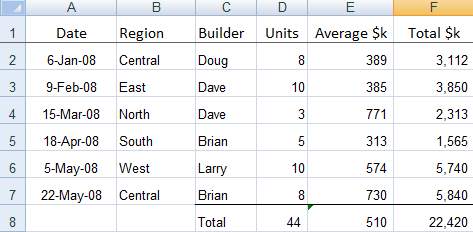
Not very helpful is it? Let’s translate it into English with an example. In the table below we want to sum the total number of Units (in column D) for Dave:
 |
Translated, our formula would read like this:
=SUMIF(the name in column C, = Dave, add the figures in column D)
We could even put a summary table at the bottom of the list for each builder like this:
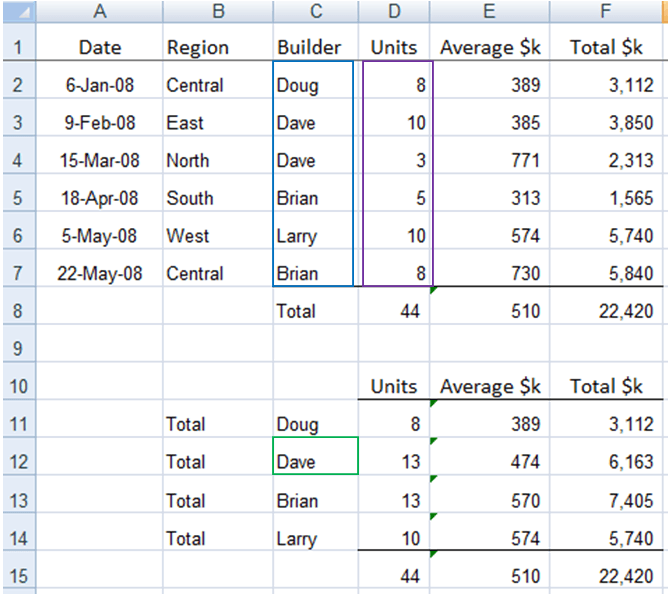 |
Our formula in cell D12 would be:
=SUMIF(C2:C7,"Dave",D2:D7)
While the above formula is good, if we were to copy it to the rest of the summary table (cells D11 to D14 and F11 to F14), we would have to manually change the cell references and builder’s name to get the correct answers.
The solution is to use absolute references to help speed up the process of copying the formula to the remainder of column D and column F. With absolute references our formula would look like this:
=SUMIF($C$2:$C$7,$C12,D$2:D$7)
We could then copy and paste the formula to the remaining cells in our summary table without having to modify it at all. As we copied it down column D, Excel would dynamically update it to automatically pick up the next builder in the list. Then when we copied it across to column F, Excel would dynamically alter the reference to column D to F.
The best way to fully understand this conundrum is to try it for yourself.
Note: I used a basic example to illustrate how to use SUMIF, but you can also achieve this using the subtotal tool in the Data tab. But that’s a lesson for another day!
Excel SUMIFS Function
The function wizard in Excel describes the SUMIFs Function as:
=SUMIFS(sum_range,critera_range_1,criteria_1,criteria_range_2,criteria_2.....and so on if required)
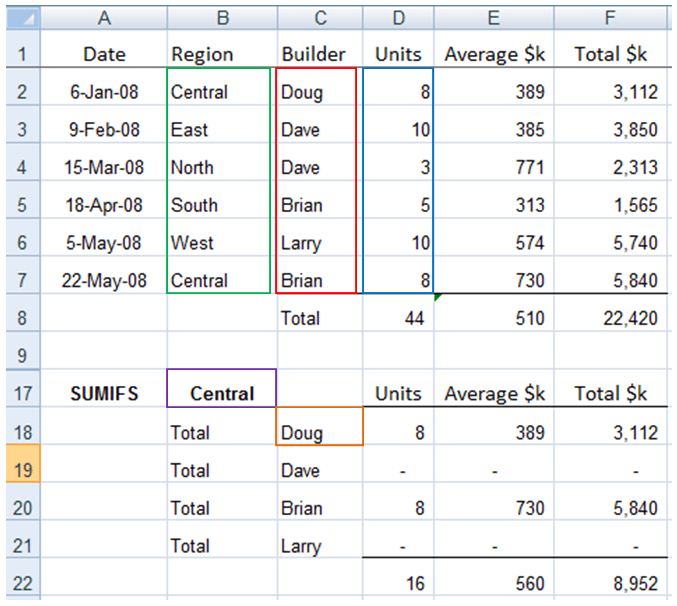
Extending the SUMIF example above, say we wanted to only summarise the data by builder, for jobs in the central region. We could use the SUMIFS function as it allows us to set more than one condition.
Here’s how the formula would be interpreted if we wanted to add up the Units in column D, for Doug’s jobs in the Central region:
=SUMIFS(add the units in column D if, in column C, they are for Doug and, if in column B, they are also for the Central region)
Note: Excel will only include the figures in column D in the sum when both conditions (Doug & Central) are met.
In Excel our formula would read:
=SUMIFS(D$2:D$7,$C$2:$C$7,$C18,$B$2:$B$7,$B$17)
 |
Note: again I’ve used a simple example to illustrate this, but you could also achieve this summary table for each builder by region using a Pivot Table. To watch a tutorial on how to insert a Pivot Table sign up to our Premium Microsoft Office Course or read our Pivot Table Tutorial.
Try other operators in your SUMIF and SUMIFS
Just like the IF formula, the SUMIF and SUMIFS are based on logic. This means you can employ different tests other than the text matching (Doug & Central) we’ve used above.
Other operators you could use are:
- = Equal to
- < Less Than
- <= Less than or equal to
- >= Greater than or equal to
- <> Less than or greater than
For example, if you wanted to sum units greater than 5 the formula would be:
=SUMIF($D$2:$D$7,">5",$D$2:$D$7)















 Excel IF Statement Explained
MD ABDUL KARIM
=(D14:G14)-(H14:U14)
HOW I SOLVE THIS?
Mynda Treacy
I don’t see an issue with this formula. Please post your question on our Excel forum where you can also upload a sample file and we can help you further.
David Hutchinson
Hi Mynda, thanks for your excel articles. I have just started using SumIfs and find them useful. The problem that I am having when extracting data from the trail balance, the formulas work perfectly but the next month there are additional rows and have to redo the formula because the reference has changed. The columns do not change. (I am not in the financial dept; I extract the data for my monthly department reports.)
Thanks
Mynda Treacy
Hi David,
It sounds like this might be fixable by formatting your data in an Excel table. For further help, please post your question on our Excel forum where you can also upload a sample file.
Mynda
Robinson Sakuya
Hi I’m working on a spreadsheet and would like to create date in a single cell, where the sheet can renew on the nest day (the date can be change in a click of a button.)
How can I do that.
Mynda Treacy
The formula =TODAY() will return the current date. However, you would have to write some VBA code to enter a date that doesn’t update in real time, other than manually entering the date yourself.
Yosua
Hi, What is Formula for how many type data for column and it’s not be error if any blank data
For Example :
Sheep
Sheep
Cat
Dog
Dog
Sheep
Cat
For above Column data, I want result = 3
Mynda Treacy
Hi Yosua,
If you have 365 or Excel 2021 you can use this formula:
Alternatively, you can use a PivotTable to do a distinct count.
Mynda
VINAY SHARMA
which function when entered into cell g7 allows you to determine the sum total of annual sales for market regions 18 and greater?
Mynda Treacy
Sounds like a homework question, Vinay. If so, I’d guess SUMIF or SUMIFS can help you.
Aimee
Hi can you explain this formula to me please, it relates to dates and whether a project is on track based on whether the due date is overdue from today’s date.
=IF(B11=””,””,IF(I11″”,1,IF(H11>=(TODAY()+1),2,3)))
thank you.
Mynda Treacy
Hi Aimee,
In English your formula reads:
If cell B11 is empty, then return blank, if I11 (I presume it should read IF(I11=””…) is empty, then return 1, if H11 is greater than or equal to today’s date + 1, then 2, otherwise return 3.
Mynda
Carlos de la Parra
IN (SUMIF AND SUMIFS) FUNCTIONS WE HAVE THE NEXT OPERATORS
= EQUAL TO
< LESS THAN
= GREATER THAN OR EQUAL TO
LESS THAN OR GREATER TO
IN ( IF ) FUNCTION THE OPERATOR
MEAN NOT EQUAL TO
WHY THE LAST OPERATOR HAVE 2 MEANINGS
LESS THAN OR GREATER TO AND ALSO NOT EQUAL TO
Philip Treacy
Hi,
<> means not equal to
<= means less than or equal to >= means greater than or equal to
I’m not sure which operator you are referring to that has 2 meanings?
Regards
Phil
Tom
=SUMIFS(Table1[Market Value], Table1[Name], ‘Trading Sheet’!$A$2, Table1 [
Description] , ‘Trading Sheet’!A5)
Can you help me understand why excel places a space between Table1 and [Description] and puts the remainder of the formula on the second line? It appears to behave like an array.
When I modify the data in Table1 (paste new data over old) the above formula fails with #Ref in [Description] and I need to manually remove the space that excel inserts between Table1 and [Description], after which that space is again inserted and the formula is continued in the second line.
Mynda Treacy
Hi Tom,
That’s odd. I’d have thought it’s because there is a space after the table name, but the other references to Table1 don’t have the space. Can you please post your question and Excel file on our forum where we can see the file and help further.
Mynda
amir
Hello
Can you please explain me why this formula doesn’t work ?
=SUMPRODUCT(Return!$I:$I,–(LEFT(Return!$D:$D,1)=”7″),–(Return!$A:$A>=$B10),–(Return!$A:$A<=$C10))
I know the problem is in the date condition, but I cannot find the problem.
Thanks
Philip Treacy
Hi Amir,
Without your data or knowing the error you are getting, how can we fix this? Which one is the date condition?
Please start a topic on the forum and attach your workbook.
Regards
Phil
Swali
can any one help me explain what this means
=IF(B$5=””,””,VLOOKUP(WEEKDAY(DATE($A$2,$A$3+$A$1-1,B5),2),Sheet3!$D$1:$E$7,2,0))
I want to edit an attendance sheet but once I insert a column everything is getting messed.
Mynda Treacy
Hi Swali,
In English the formula reads:
If cell B5 is empty then return blank, otherwise lookup the weekday derived from the year in cell A2, the month calculated by adding A3 and A1-1 and the day in cell B5, where Monday is 1 and Sunday is 7, in the range D1:E7 on sheet 3 and return the second column, and ensure it is an exact match.
If you’re inserting a column in the range D1:E7 then that will break the formula. You’ll need to edit the second last argument ‘2’ to specify the correct column to return. If you’re still stuck please post your question and Excel file in our forum where we can help you further.
Mynda
Shmiel Minz
Hi i have multiple sheets of data, like 1 has rent income, another has other income, another has mortgage expenses, another insurance expense, other expenses, etc.
What function can I use to get the sum of all data in 1 sheet if the month from column a matches the month from column a in other sheets.
I tried using sumif and sumifs but it didn’t work.
Catalin Bombea
Best option is Power Query, to combine all sheets into one aggregated report. All other possible solutions are just weak workarounds.
Prepare a sample file and upload it to our forum, will help you with this.
Cheers,
Catalin
Slay
What is =’2018′!N13 Formula when doing Fixed Assets Excel report
Mynda Treacy
Hi Slay, 2018 is the sheet name and N13 is the cell being referenced on that sheet.
Slay
Just figure it out now! Thanks anyway for the respond. Appreciate it. This is really helpful.
Rebecca
=SUM(IF(MOD(COLUMN(C10:AG10),2)=0,IF(C10:AG10=”a”,8),0)) I am using this formula but it is missing out every other column I am struggling to find my error is this something you could help with?
Mynda Treacy
Hi Rebecca,
Please post your question and Excel file on our forum where we can see what the formula is referencing and help you further.
Mynda
irfan zaman
=SUMIF(C7:C16,VLOOKUP(J3,B6:F16,3,0),D7:D16) what is the error in my formula i am trying to calculate my intire city value
Mynda Treacy
Hi Irfan,
It depends what the error message is that you’re getting. I suspect it’s something with the value being returned by VLOOKUP. Have you tried replacing VLOOKUP with a text value to ensure the SUMIF formula works. If it does, then you can text VLOOKUP in isolation to troubleshoot further. See this post for ideas on troubleshooting formulas.
If you’re still stuck, please post your question on our Excel forum where you can upload a sample Excel file and we can help you further.
Mynda
kamal goswami
i am using – in blank cell
Mynda Treacy
Not sure what you mean by this, Kamal.
aryan
if i have 5 cells with values 1,2,3,4,5
then i use the formula =sum(large(a1:e1,{1,2,3}))
then i got ans 12
but in some time i have only 2 cell that this formula get fails
i required only one formula that works for all formats i.e i have 2 cell or 1 cell
above formula works upto 3 cell.
Catalin Bombea
Try:
=SUM(IFERROR(LARGE(A1:E1,{1,2,3}),0))
Jen
Please help me. WHat am I doing wrong here?
=SUMIF(B4:B9,1,M4:M9)=SUMIF(B4:B9,2,M4:M9) =SUMIF(B4:B9,3,M4:M9) =SUMIF(B4:B9,4,M4:M9)
I have column A with cells that contain values 1, 2, 3 or 4 and column B has other values (eg. 23, 22, 15, 36. I want to use a formula in column C that add all of the values in column B that are the same value in column A. So if there are 3 cells that contain the number 1, the corresponding cells in column B would be added together to give a value for column C and so on down the column, if the value is 2 in column A all of the values are added together.
Hope that makes sense.
Catalin Bombea
Hi Jen,
The formula you mentioned does not say the same things you mentioned, instead of columns A and B you use B and M in your formula.
Try =SUMIF(A4:A9,1,B4:B9) for 1 condition only
Or:
=SUMPRODUCT((A4:A9>=1)*(A4:A9<=4)*(B4:B9))
bona
=SUMIF(Sheet1:Sheet2!C2:C100,Sheet3F2,Sheet1:Sheet2!F2:F100)
what i did wrong?
how can i do sum with condition for 100 page
Catalin Bombea
Hi,
You should really use Power Query to combine those 100 sheets to find the answers you need, formulas will only get more and more complicated.
Nikki Smout
Hi
I have a drop down box on an invoice where the client can choose 0%, 10% or 20% for tax level
I need to say
IF the drop down box E11 = 10% then multiply box D11 (which is the amount) by 10%
=SUMIF(E11,”10%”,D11*0.1)
What have I done wrong? It works if I do D11:D12 so adding the column below but wont do a * formula – why??
Then if it’s 20% multiply by 20% and if its 0 do nothing enter 0
Thanks Nikki
Catalin Bombea
Hi Nikki,
The criteria range and the sum range arguments in SUMIF function expects a range, not a formula.
Another important fact: those 2 ranges must have the same size.
abdul rahman
column a1 tea=25+coffe=25+ total?
Mynda Treacy
Sorry, not sure what your question is. Please post it in our Excel Forum where you can also upload a sample Excel file.
LEONARD
PLEASE I NEED HELP WITH A FORMULA:
If the FIGURES IN the range A2:A6 is EQUAL FIGURES IN A8:A12 COPY A1 Otherwise, empty text (“”) is returned
=IF([Workbook9]Sheet1!$D$3:$H$3=D3:H3,[Workbook9]Sheet1!$C$3,” “)
Catalin Bombea
You can compare the SUMs of those 2 ranges:
=IF(SUM(A2:A6)=SUM(A8:A12),C3,””)
Carl J Restivo
=SUMIF(J18-J20,”0″)
This was not working
Catalin Bombea
That’s because your formula says: “add all the values from J18-J20 that are zero”. Adding zero values will be always zero. You can COUNT instead the zero values in a range, use COUNTIF.
Wayne
Hi there i would like to know how to for example deduct from 250 and when reaching 0 it must start at 250 again deducting to 0 without putting in the number 250 in every time
Catalin Bombea
Hi Wayne,
Please create a sample file (with manual calculations) and upload it on our forum, it will be easier to understand your situation (hopefully)
At this moment, it’s not clear what you have in mind.
Regards,
Catalin
aisi
Using Sumifs, pls calculate total Item received by each warehouse and the amount of item received by each ware house
Base Data Qty Received Amount
A 22 9705 Total
B 11 5490
C 44 23460
D 33 15670
A 21 10090
E 45 25790
D 33 20902
F 26 15609
Truncated
Mynda Treacy
Hi Aisi,
You’d be better off using a PivotTable for this, assuming the warehouse names are in the ‘Base’ column.
Mynda
Benjamin Weir
I am trying to use the SUMIFS() function to only add values below a given row. Suggestions to getting this to work? This is the function I have so far but Excel doesn’t like it.
=SUMIFS(Time!$F:$F,Time!$A:$A,A5,Row(Time!$A:$A),$F$5)
Time! Column F = Values to add (hours)
Time! Column A = Name of a persion
Column A = The name to match
Column F = The row to start at for adding the values
Catalin Bombea
Hi Benjamin,
Please upload a sample file with your data structure, hard to see the reason for using this formula, there may be better ways to do it.
You can use our forum for upload. (create a new topic after sign-up)
Kelli Inge
I am trying to find a formula to decipher the following: if the value in column K is anything other than zero, then subtract the value in column J from column K. If the value is equal to zero, then leave as zero. I have been struggling to find a formula for this to key into the column beside. What I am trying to do is determine a change in inventory values from the original inventory value to the corrected inventory value.
Mynda Treacy
Hi Kelli,
You need an IF formula e.g.
Mynda
Gary
The information on here is amazing and has helped me to find a solution but i’m sure there is a more efficient solution to this formula and if so could you advise please.
=+SUMPRODUCT(- -(F4:F18>C4:C18),- -(F4:F18>D4:D18),- -(F4:F18>E4:E18))
The arrays will be from a table and will be named.
The cells in C thru F only contain 1’s or 0’s and I only want to count (sum the 1’s) the records in F which are greater than those in C,D &E. i,e 0,0,0& 1.
As i don’t fully understand Sum product as yet I initially tried to use Max for example =+SUMPRODUCT(–(F4:F18>MAX(C4:E18))) and ended up with the above.
Is there a better way?
Catalin Bombea
Hi Gary,
SUMPRODUCT is a native array formula, and because of your specific type of calculation you need to use an array formula. You already have one of the best solutions, the rest can be variations:
=SUMPRODUCT(1*(C4:C18+D4:D18+E4:E18
Bam
kindly define this formula “=SUMPRODUCT(D23:D29-D22:D28,D18-B23:B29,N(D18>B23:B29))”
Thank you
Catalin Bombea
Hi Bam,
the first array D23:D29-D22:D28 will return an array of differences between a cell and the cell above it (D23-D22, D24-D23, and so on)
the second array will return the difference between D18 and each cell in range B23:B29
the third array N(D18>B23:B29) will return 1 or 0 for each cell in B23:B29, depending if that cell is smaller than D18.
As an example, you might have the following results in those 3 arrays:
=SUMPRODUCT({1;21;22;-13;-26;-2;61}, {2;1;0;-1;0;1;2}, {1;1;0;0;0;1;1})
SUMPRODUCT works like this:
1*2*1+21*1*1+22*0*0+-13*-1*0+-26*0*0+-2*1*1+61*2*1
The ones multiplied by 0 will make no difference, as the result is obviously 0, that’s the purpose of the third array, to inactivate those results where B23:B29 is smaller than D18.
Susan Jones
WHAT IS THIS FORMULA DOING? =IF(SUM(C2:N2)=0,””,RANK(N2,N$3:N$600)) ? I know it is ranking clients by sales. But what I am trying to figure out is how to keep it from putting a #NA in a cell that has too low of a sales number.
Secondly, I have a total column that adds all the numbers in a row. I have it formatted as accounting with a $ and two decimals. When I copy the formula down the column I end up with $ – in the cell. I would like for it to be blank with nothing in it. How can I get that to happen? I have tried formatting as General but the $ sign goes away in all the cells, and the same happens if I use the currency formatting as well.
Mynda Treacy
Hi Susan,
You can wrap your IF in the IFERROR function that will hide the #N/A error.
And you can apply a custom number format to hide the hyphen for zero values. Use this:
$#,##0.00_ ;-$#,##0.00;$
More on Excel custom number formats here.
Mynda
Augustine
I Have Data in Sheet1 and Summary in sheet 2
I have to check like this
compare date with data sheet and compare material with data sheet for the result date and sum quantity of material for the result date in summary sheet.
Please give the formula
Mynda Treacy
Hi Augustine,
It sounds like you need a SUMIFS formula for this, but I can’t tell you what it would look like without seeing your file. If you can post your question and Excel file on our forum we’d be happy to help.
Mynda
Ashraf
Date 24/1/2019 i want to add here 6 month
want to know which month is come..
please assist me to give formula
Catalin Bombea
Hi Ashraf,
Try this, assuming that in A2 you have the date:
=DATE(YEAR(A2), MONTH(A2) + 6, DAY(A2))
Maureen
This was extremely helpful! I understand the use of the sumif formula much better. Thank you!
Catalin Bombea
You’re welcome Maureen, glad to hear you found it useful!
Suzanne
This training post is incredibly helpful!!
I’m trying to write an AVERAGEIFS formula that includes certain criteria and excludes one value. I can’t figure out the problem. Here it is:
=AVERAGEIFS(I$2:I$266,$G$2:$G$266,$H274,$J$2:$J$266,$J$273,$M$2:$M$266,$M$273,$N$2:$N$266,$N$273)
It works if I do it like this, but then I can’t drag it to adjacent cells. I want to exclude items marked BEL, which is the value in field N273.
=AVERAGEIFS(I$2:I$266,$G$2:$G$266,$H274,$J$2:$J$266,$J$273,$M$2:$M$266,$M$273,$N$2:$N$266,”BEL”).
Can you help me? Thank you.
Suzanne
Mynda Treacy
Hi Suzanne,
It’s difficult to tell from the formula without any example data. I’m guessing, but have you tried this:
Mynda
Suzanne
I ended up assigning a different value to the NOT BEL cells and counting those. Not elegant, but it worked.
Prem Shah
Hi,
I have already calculated the net order value but couldn´t figure out the formula to calculate the compensation based on the following criteria. Could you possibly help me with this matter?
The compensation is based on the net contract value of an order. Net value is calculated by deducting a one time cost of 333 EUR per terminal and a monthly cost of 13 EUR per terminal from Order Value. These deductions are only made when the Charge Type is Service Fee. The compensation, calculated from net order value, is 8% for Service Fee and Credit, and 4% for Start Fee and Branding.
Mynda Treacy
Hi Prem,
Thanks for your question. It’s a bit complicated to follow. Please post your question and a sample Excel file on our forum where we can help you with a solution.
Mynda
KAGITHA VENKATA SURYANARAYANA MURTHY
{=SUM(IF((‘TBL1617’!B$7:B$1034>=D20)*(‘TBL1617’!B$7:B$1034=D20)*(‘TBL1617’!B$7:B$1034<=E20),'TBL1617'!E$7:E$1034))}
the above formula starting with "{" and end with " } " when i am edit the formula the two signs are disappear and result was show "0" what am i do
Mynda Treacy
The curly braces are not typed into the formula. They are automatically entered by Excel when you complete the formula by pressing CTRL+SHIFT+ENTER. They denote that this is an array formula.
Adam K
I am trying to create a formula on a time sheet that figures out overtime on saturday and sunday if you have met the minimum of 40 hours during the work week. H15 through H19 are my Mon-Fri regular hours column. F column is my total hours worked for the day and G column is used for lunch hours. I is overtime. How do i get my H column on sat and sun to recognized if 40hrs haven’t been met for the week before it starts pushing that time to overtime?
Catalin Bombea
Hi Adam,
You need to upload a sample file with your calculation, hard to tell without seeing your data structure.
Try our forum, create a new topic after sign-in to upload a sample file with descriptions.
Catalin
Oralee Spivey
=SUMIF(D34,”>=6%”)ofB34
What is the correct way to write this?
Philip Treacy
Hi Oralee,
That isn’t summing anything. Are you trying to say ‘if D34 >= 6% of B34 then …’ ?
In which case you need to say what the result of the test is i.e. what comes after then …
You could write it as an IF function :
Which means IF D34 >= 6% of B34, then the result is the value in D34, otherwise the result is 0.
Regards
Phil
Oralee Spivey
=SUMIF(D34,”=>3% OF B19)
We are wanting the formula to be
= 6% of gross wages for Kevin but not > EMPLOYEE CONTRIB.
Kevin’s Emp Cont = B19
Kevin’s gross wages = B34
Kevin’s Comp Employer Cont = D19
So D19 needs to be 6% of his gross wages(B34) but not more than Employee Contribution (B19)
Please if you can email me directly.
oralee@connersince1979.com
Catalin Bombea
Hi Oralee,
Try this in D19:
=MIN(B34*0.06,B19)
Catalin
Shane Persaud
=IFS(IF(SUMIFS(FRI!K:K,FRI!C:C,WTD!C:C)=0,SUMIFS(FRI!U:U,FRI!N:N,WTD!C:C),SUMIFS(FRI!K:K,FRI!C:C,WTD!C:C))=0,SUMIFS(FRI!AG:AG,FRI!AE:AE,WTD!C:C),SUMIFS(FRI!AG:AG,FRI!AE:AE,WTD!C:C)>SUMIFS(FRI!AS:AS,FRI!AK:AK,WTD!C:C),SUMIFS(FRI!AG:AG,FRI!AE:AE,WTD!C:C))
hi can i get help with this formular, the result suppose to give me the greater number but its not working
Catalin Bombea
Hi Shane,
Can you please upload a sample of your data on our forum? (create a new topic after sign-in)
It might require a different approach, but we have to see a data sample first.
Catalin
Jagan Mohan Raghu
Thanks Adam and Mynda, this query & Reply was useful and could better understand “Sumifs”
Mynda Treacy
Glad I could help 🙂
Norman L Coleman I
I can use “” to say blank in the criteria but what do you use to say not blank? I have tried several like “” but to no avail.
Mynda Treacy
Hi Norman,
If you’re referring to the logical test then you test for blank with
=””
and not blank with
<>“”
Mynda
romano
I was assigned in tax department.but I am did not study an accounting course.my boss give me an assignment that I have to do alphalist for the vat returns.the problem is I was using SUMIFS but I cannot get the exact total I needed.is there any formula to solve it?
Mynda Treacy
Hi Romano,
Please post your question and some sample data in an Excel file on our Excel Forum. Please also provide a sample of the desired solution.
Mynda
Arne
Wonderful examples. All I could find was examples with constants to search for. Your examples saved my sanity.
Mynda Treacy
Thanks, Arne. Glad we could help 🙂
JACKSON FRANCIS MALUGALA
HI, THIS HELPS ME A LOT, I HAVE EXCEL SHEET OF STUDENTS SCORES WITH 15 SUBJECTS HISTORY GEOGRAPHY MATHS PHYS CHEMIST BIOS ENGLISH FRENCH COMMERCE BOOK KEEPING ETC,GIVEN CRITERIA A=1,B=2,C=3,D=4 AND F=5, I WANT TO SUM UP THE BEST 7 SUBJECTS ONLY BASED ON CRITERIA DIVISION 1 FROM 1 TO 17, DIVISION 2 FROM 18 TO 21, DIVISION 3 FROM 22 TO 24 DIVISION 4 FROM 25 TO 28 DIVISION 0 THE REST, PLEASE HELP ME THE FORMULA
Catalin Bombea
Hi Jackson,
Can you please upload a sample file with your data, to work on your data structure? Create a new topic on our Forum and upload the file.
Thank you
Catalin
mr fabian
did you the answer, i have the same problem
Mynda Treacy
Please search the Excel Forum to see if Jackson posted his question. If not, you can post your question and supporting file and we’ll be happy to help you.
Mynda
Praveen Bharadwaj K R
Hi,
This is very helpful..but i just wanted to know whether we can use SUMIF or SUMIFS function to sum multiple columns
If possible, request you to please give us the insight for how to use the same
Catalin Bombea
Hi Praveen,
SUMIF cannot do that. You can try this formula, if the sum range is contiguous:
=SUMPRODUCT((A3:A17="a")*(B3:C17))
The above formula is for contiguous sum range, but it will work with non-contiguous rasnges, see this version:
=SUMPRODUCT((A3:A17="a")*(B3:B17+D3:D17))Cheers,
Catalin
VEITINIA
I would like a formula to find
– there are 7 subjects, only English plus best 4 to be counted leaving out 2 subjects
Catalin Bombea
Hi Veitinia,
Please prepare a sample file with detailed instructions on what you are trying to achieve, I will gladly help you.
You can upload the file on our Help Desk (create a new ticket).
Cheers,
Catalin
GOPI
Hi ,
I have done my project with your support .And really sumifs formula is very beauty full.
Thank you.for your support and extant the same.
Kind Regards,
Gopi.A.
Mynda Treacy
You’re welcome, Gopi 🙂
Titus
Hello,
Can you explain the below formula?
=IF(C2=C1,””, SUMIF(C:C, C2,E:E ))
Titus
Catalin Bombea
Hi Titus,
If C2=C1, SUM column E, but only the rows where column C equals to the value from C2.
Catalin
Heather Ratliff
Thank You that worked amazingly!
Catalin Bombea
You’re wellcome, i’m glad it worked 🙂
Heather Ratliff
I am currently using this formula in my excel to calculate the number of people per line of business are on this spreadseet using an array formula
=SUM(IF(F13:F85=”NY MEMBER”,1,0))
I have column C that has three text options: Late, Call OFF and NCNS.
How do I configure the calculation to calculate the number of calloffs per that line of business only? I hope I explained that right for you.
I am trying to calculate how many calloffs per line of business by excluding the ncns and lates.
I hope that you can help . Thank You!
Catalin Bombea
Hi Heather,
This formula is similar to that array formula, but it’s a normal formula:
Use this for the second step you need:
Catalin
PELYMINA D'SILVA
Roll No. Name of the student SCIENCE HISTORY GEOG MATHS TOTAL
1 Almeida Aloma Xena A C B E
2 Amonkar Nidhi D C A E
This is excel sheet
In the total column i want the total grade’s points
and the grade’s points are:-
for A-5, B-4, C-3, D-2, E-1
(what will be the formula)
Catalin Bombea
Hi Pelymina,
Try this formula:
=SUM(INDEX({5\4\3\2\1},MATCH(C2,{"A"\"B"\"C"\"D"\"E"},0)),INDEX({5\4\3\2\1},MATCH(D2,{"A"\"B"\"C"\"D"\"E"},0)),INDEX({5\4\3\2\1},MATCH(E2,{"A"\"B"\"C"\"D"\"E"},0)),INDEX({5\4\3\2\1},MATCH(F2,{"A"\"B"\"C"\"D"\"E"},0)))In C2:F2 there should be the letters corresponding to grades.
It should give you the desired result.
Catalin
Donna
Organization refuses to create a category and allows users to free form entry of school names. Trying to create a SUMIF to cover an array of variations of the name of the school. The SUMIF works with only one “wildcard” text name. For instance, school called “Northwest Elementary,” so I entered “*Northwest*” to include any mention of the school name. But some users abbreviated it “NWES.” How can I include a named range (my array) or multiple wildcard variations in the SUMIF formula?
SUMIFS seems to cover only AND conditions and not OR.
Would appreciate any guidance you can give me. And I VOLUNTEER for this as community service for my Master Gardener certification.
Catalin Bombea
Hi Donna,
You can try a minimum search string that covers all situations, like: “*N*Wes*”, or just “*N*W*”
If this is not working, upload a sample file at our Help Desk, for a personalized solution.
Catalin
Fakhar
Profit Sales
1000 1000
1200 2000
1300 2300
-1000 500
-2000 600
-5000 700
Above mentioned is my data. I want to sum all the sales falling next to the negative profit figure. The total/Result should be 1800/-.
Please guide.
Catalin Bombea
Hi Fakhar,
try this :
Catalin
george
i have big data from 2000-10 with sales. want to count sales in 2000 >100k, 2nd field bn 101k and 500k etc. use pivot 2007
Catalin Bombea
Hi George,
Using a pivot table to manipulate large data sets is a good idea. You can use value filters on sales column to get the desired results. From your message, it’s hard to understand what you need, maybe you can give us more details and show us where you need help in this process.
Cheers,
Catalin
Guy Smith
What a life-saver! Easy to understand and to apply. Thank you very much.
Mynda Treacy
Thanks, Guy. Glad I could help 🙂
seereen
Thank you for wondore information with proper example
Mynda Treacy
You’re welcome, Seereen 🙂
Bill
Mynda, I have a row of numbers, I need to sumif only the ones that are formatted in a color Like red. Thanks
Catalin Bombea
Hi Bill, you can use UDF’s, as this is not possible with regular excel functions. You can find from the web the list of excel color index, or you can use the function CellColorIndex to find the index color of your range. Then you can use that index in SumIfByColor function.
Function CellColorIndex(InRange As Range, Optional _OfText As Boolean = False) As Integer
Application.Volatile True
If OfText = True Then
CellColorIndex = InRange(1, 1).Font.ColorIndex
Else
CellColorIndex = InRange(1, 1).Interior.ColorIndex
End If
End Function
Function SumIfByColor(InRange As Range, _
WhatColorIndex As Integer, SumRange As Range, _
Optional OfText As Boolean = False) As Variant
Dim OK As Boolean
Dim Ndx As Long
Application.Volatile True
If (InRange.Rows.Count <> SumRange.Rows.Count) Or _
(InRange.Columns.Count <> SumRange.Columns.Count) Then
SumIfByColor = CVErr(xlErrRef)
Exit Function
End If
For Ndx = 1 To InRange.Cells.Count
If OfText = True Then
OK = (InRange.Cells(Ndx).Font.ColorIndex = WhatColorIndex)
Else
OK = (InRange.Cells(Ndx).Interior.ColorIndex = WhatColorIndex)
End If
If OK And IsNumeric(SumRange.Cells(Ndx).Value) Then
SumIfByColor = SumIfByColor + SumRange.Cells(Ndx).Value
End If
Next Ndx
End Function
Catalin
william
Hi,
I need help with this one:
=SUMIFS(S3:S1000,Q3:Q1000,TODAY()-1,T3:T1000,”<=41751")
Here "<=41751" means before a specific date like 2014-04-25.
but this date is in a cell and of course can change.
Any answer ?
Thanks
Catalin Bombea
Hi,
Try this:
, this way 41751 is treated as a number, not a text string…
Catalin
Lizz Higgins
How do you get a sumif H$5″,$D$2:$D$7) I can’t get a read on the date cell, but it gives me no error.
Catalin Bombea
Hi Lizz,
The formula should look like: =SUMIF($D$2:$D$7,H$5)
First argument is the criteria range, second argument is the criteria to be searched in the criteria range. The third argument is optional, and must be used only if the range to sum is different than the criteria range. As an example, if you want to sum cells from range E2:E7, but the criteria is on D2:D7, the formula will be: =SUMIF($D$2:$D$7,H$5,E2:E7)
Catalin
Mohammad Salauddin
helpful
Mynda Treacy
Thanks, Mohammad 🙂
Mudassir Hussain
really helpful in excel working peopele
Mynda Treacy
Thanks, Mudassir 🙂
Arslan Tariq
Approved Formulas:
=SUMIFS(H2:H17,A2:A17, “>=19999”,A2:A17, “<=30000")
=SUMIFS(Sheet1!H2:Sheet1!H17,Sheet1!A2:Sheet1!A17, A2)
Optional Formulas:
=VLOOKUP(A2,Sheet1!$I:$J,2,FALSE)
=SUMIFS(H2:H17,A2:A17, "a")
Mynda Treacy
Thanks Arslan, but I’m not sure what you’re getting at. Perhaps you’d care to elaboarte?
fazilahmad
thanks from this page
Mynda Treacy
You’re welcome, Fazilahmad 🙂
Adam
=SUMIF(C2:C7,”Dave”,D2:D7) in this formula if i want to select 2 category s names let see one is Dave and East how can i apply the formula.
Rigion & Builder
Mynda Treacy
Hi Adam,
You need the SUMIFS for that:
Kind regards,
Mynda.
Vikram Chaurasiya
Respected sir/madam,
I would kindy request to you pls help me regarding this formula :- K49*10^6/$K$5/10^4 so which types of formula i can make reqarding this symbol :- ^
Thanks,
Vikram
Carlo Estopia
Hi Vikram,
It would be better if you’d state what type of math
you are using here. To be honest, we are not
statisticians/engineers/mathematicians so we
will know what exact built-in function is equivalent to this
computation of yours.
If you have time, send it here: HELP DESK.
Cheers,
CarloE
Amy
Hello there,
Great website! I am trying to apply your SUMIF formula to my own spreadsheet, but having trouble figuring out how to make this work because my range is a list of DATES- (formatted as 1/1/13).
Can you tell me what your formula would look like if you were sorting by date (column A) in your first example above instead of sorting by name (in your example- “Dave”). In other words, if you were looking to find out how many units were sold in a given MONTH, rather than by a given BUILDER.
Thank you much!
Amy
Mynda Treacy
Hi Amy,
Here is a tutorial on SUMIF/S using dates.
Kind regards,
Mynda.
Anthony Scott
Thankyou so very much!! Extremely helpful!!! Thanks again
Mynda Treacy
You’re welcome, Anthony 🙂
Sam
Hi,
what if the “range” is dynamic, for example I don’t know in which column I need to search for the string?
in that case, can I use Match function to find the column name? how?
Can u pls help?
Thanks.
Mynda Treacy
Hi Sam,
Not really. How many columns are we talking about? Can you just do multiple SUMIFS and add them togehter?
Kind regards,
Mynda.
Ryan
using the sumif formula; what if your ranges are not all next to each other. In other words, the cells that I want to use for the range and sum range are scattered throughout the worksheet.
Mynda Treacy
Hi Ryan,
No, the columns don’t all have to be adjancent to each other, but the size of the ranges should be the same e.g.:
In the above formula the number of rows in the range and sum_range are 9.
Kind regards,
Mynda.
Ashish
Hi
how can we calculate using sumifs if sum range is scattered over the range c1:d9
Catalin Bombea
Hi Ashish,
SUMIFS function does work with ranges with multiple rows and columns, as long as all the ranges do have the same size:
=SUMIFS(A1:E4,A1:E4,”>3″,A1:E4,”<6")
You can try the SUMPRODUCT version:
=SUMPRODUCT((A1:E4>3)*(A1:E4<6)*A1:E4)
You can add as many criterias you need, I used only 2 criterias in this example.
Catalin
Roger
This is what I was expecting. Explanation excellent…
Mynda Treacy
Cheers, Roger 🙂
Manikandan.C
My Formula is =SUMIFS(Summary!M:M,Summary!F:F,”G5″,Summary!E:E,”Active”,Summary!C:C,”CHN”,Summary!N:N,”Not Bulk”,Summary!O:O,”Positive”)
Mynda Treacy
Was that a questions, Manikandan?
Manikandan.C
Thanks For the Posting
Tommy
I want to know it you can help me i battle with my sheet to date() to get some information please let me knoe if i can send my workbook for help
Thanks Tommy
Carlo Estopia
Hi Tommy,
Yes of course, please send your workbook with explanations via HELP DESK.
Cheers,
Carlo
Chris Bankes
Hi,
I have a table where I want to use a sumif where it checks a PO has been raised for the month of January and give me a value. Now the month of January is in a date which has to be converted to a month. i.e. 24/01/2013 -> January. E.G.
PO Received 01/01/2013 £1,751.00
PO Received 01/01/2013 £1,035.00
PO Received 01/01/2013 £4,200.00
PO Received 07/01/2013 £146.14
PO Received 07/01/2013 £247.20
PO Received 08/01/2013 £150.50
Is there a simple way of doing this?
Carlo Estopia
Hi Chris,
Try doing this with tables and then try a formula like this:
Assuming the table below.
In a nutshell, to create a table, simply highlight the range (including headers) of your data.
Then, go to insert ribbon and click 'Table'. Once you have the table you can now reference them
like I did with the formula above.
Read more: Tables, SUMIFS
Note: You must make sure your criteria date and your dates must be consistent as to format.
Cheers,
CarloE
dennis
Hello,
I am having a problem using Not Equal to in SUMIFS formula where the not equal to value is referenced. These don’t work as my range name and cell reference are essentially text.
sumifs(a:a,b:b,”rangename”) or
sumifs(a:a,b:b,”c1″)
I have tried a bunch of syntax options, but cannot accomplish the task.
I need it to refer to another cell or range name that is derived from user input and not have it hard coated into the formula.
Any suggestions would be appreciated.
Thanks
Carlo Estopia
Hi Dennis,
Assume this data at A1:B2 :
Now use formula in this one:
or you may add a named range for Range A1:A2 and name it YourRange or whatever your range name is.
Read More: Named Range
Cheers.
CarloE
dennis
Apologies, the example translated poorly in this text box.
it was a list of values for each fruit, sum for each and a sample of each formula type trying to exclude one of the reference columns.
D / E
Apple /3
Orange/8
Pear/1
Apple /5
Orange/2
Pear/6
Apple/9
Orange/7
Pear/4
I was trying to exclude Apple in the formula as either a referenced cell or range name. The only correct answer (28) was when the text value was included in the formula.
=SUMIFS(E:E,D:D,”$A$1″) = 45 incorrect
=SUMIFS(E:E,D:D,”Apple”) = 28 correct
=SUMIFS(E:E,D:D,”AP”) = 45 incorrect with AP being a range name
i tried a bunch of alternate format options and they all resulted in errors. (original example had a column total that doubled the counts)
Thanks
Carlo Estopia
Hi Dennis,
Don’t put double quotations around your criteria when you want it to be interpreted as other than text/string.
Example:
referencing a cell
referencing a named range
Cheers.
CarloE
R Smith
Thank you!
Jason Forrest
Hi,
I can’t seem to get any SUMIF functions to work. I have excel 2007 and I downloaded your Excel_Blog_Workbooks file, however When I click on a SUMIF cell and then either click off it or try and press enter, I get a “The Formula you typed contains an error” even though I never changed anything and the formula in theory should work.
Any suggestions?
Carlo Estopia
Hi Jason,
I tried to download the file and nothing is wrong even as I simulated the actions
you did that created or triggered the error.
I suggest it is about your Excel’s regional settings or something.
I had this German project before and there are some differences like
We used dots/periods for decimals while they use comma’s for it.
In formulas, we use comma’s to separate arguments while they use
semi-colons. So I’m just saying maybe it has some relevance to your
problem.
So I suggest this:
Change the country or region setting

The country or region setting in Windows, referred to as location, indicates the country or region that you are in. Some software programs and services provide you with local information, such as news and weather, based on this setting.

    Open Regional and Language Options by clicking the Start button Picture of the Start button, clicking Control Panel, clicking Clock, Language, and Region, and then clicking Regional and Language Options.

    Click the Location tab, select your location from the list, and then click OK.
Cheers.
CarloE
Jory
Using the SUMIF formula I am summing amounts on a different tab in the same workbook as my unique identifier (in this case, employee ID). If I were to sort the rows on the tab where the formula is entered, using the filter button, my SUMIF formula doesn’t completely update. It is almost as if the formula contained an absolute reference ($’s).
=SUMIF(‘Payroll Detail’!A:A,’Expected Payouts’!F85,’Payroll Detail’!G:G)
The “‘Expected Payouts’!F85” portion of the formula is the portion that doesn’t get updated. This formula is on the “‘Expected Payouts'” tab and the information I am trying to sum is on the “Payroll Detail” tab. So what happens is when I sort my information on the Expected Payouts tab (which does include the column where the formula is entered), this particular line was on F85 but now is located on F10 however the formula does not update to F10 like a relative reference formula would. Is this just a constraint of this formula or is there something I am doing wrong?
I appreciate any assistance you can provide. This website has been most helpful so far.
Carlo Estopia
Hi Jory,
I suspect you’re putting an absolute reference to your criteria. (see italics)
=SUMIF('Payroll Detail'!$B$2:$B$10,$A$2,'Payroll Detail'!$C$2:$C$10)What you should do is simply lose the dollar($) signs. So what you should do is maintain
the absolute references in your SUM range and Range and change your Criteria range from $A$2 to
simply A2 –just an illustration. Do this to your first formula and drag it down as applicable.
=SUMIF('Payroll Detail'!$B$2:$B$10,A2,'Payroll Detail'!$C$2:$C$10)I hope it helps.
Cheers.
CarloE
IS
Mynda,
You can skip my question, I checkled your “named ranges” tutorial. Great help. Many thanks
Mynda Treacy
Great, glad you figured it out, Igor 🙂
Igor Salazar
Hi – great site… I’m trying to use the SUMIF function using a formula as condition, but doesnt work…
SUMIF(A1:A5;”<$B$7;C1:C5)… The problem is that exceld oesnt recognize B7 as an active cell but as text.
Any idea on how to solve?
Thanks
tommy
Please HELP
I do have a sheet like…..
A1 = 30
A2 = 40
A29 = 20
A30 = 0
A31 = 0
Sum(a31)
And i dont want the reading in A31 i want the last active reading in this cell
Thanks Tommy
Mynda Treacy
Hi Tommy,
I’m sorry, I don’t understand what you mean by ‘reading’. Can you please explain a different way?
Kind regards,
Mynda.
Bob Cronin
Hi Mynda,
Have to admit you have a way of explaining things that really works 🙂
I have got myself in really deep and need some help if it’s possible.
I have a worksheet some 5000 lines long
B1 is selected; I need to add the rows from the cell one below selected to the cell one above the row that holds both an S in column A and a 0 in column C.
The number of rows varies greatly between occurrences. =SUMIF appears to be the way to go, but how do I set the bottom limit.
=SUMIF(B2:B?,A2:A?,”P”,C2:C?,>0)
I realise once the formula is there I can filter the page using the “0” to get the lines I need and paste it in to the cells I want, but I just cannot get my head around this. Dumb plumber here 🙂
A B C
1 S 0
2 P 5.1876 1
3 P 0.25608 1
4 P 0.14784 1
5 P 20.79 1
6 P 12.9532 1
7 P 8.976 1
8 P 5.94 1
9 S 0
10 P 5.1876 1
11 P 0.25608 1
12 P 0.14784 1
13 P 16.34579 1
14 P 8.976 1
15 P 7.49571 1
16 P 40.81 1
17 S 23.3904 1
18 P 2.794 2
19 P 0.8536 2
20 P 0.4928 2
21 P 19.25 2
22 S 0
23 P 1.727 1
24 P 0.8536 1
25 P 0.4928 1
26 P 19.25 1
27 S 0
28 P 3.905 1
29 P 0.8536 1
30 P 0.4928 1
31 P 19.25 1
32 S 0
Bob Cronin
Sorry, cannot edit out what looked like nice columns before i hit send 🙂
Mynda Treacy
Hi Bob,
SUMIF/S won’t work in this case because you need the criteria on the row you want to sum, not before/after. For example; row 17 has an S in column A but 1 in column C, so if I understand you correctly you wouldn’t want to sum rows 18-21.
I’m not sure how you can go about this. You ideally need an identifier on each row that classifies the row as something you want to add or want to exclude. Is there any other data you could use to identify the rows you want to include?
Mynda.
Bob Cronin
Morning Mynda.
Thanks for you reply.
The yellow lines are the ones I need to populate with results. As you can see the number of rows between each yellow line varies. E3:E9 needs to be in E2, I3:I9 needs to be in I2, then down a yellow line and I need E11:E17 needs to be in E10, I11:I17 needs to be in I10 ……..
“Cost”, “TotalMaterialCost”, “LabourTotalCost”, “LabourTotalTime” columns needs to sum the values between the yellow lines. E2, I2, K2, M2. Then E10, I10, K10, M10 …….. on and on.
I thought =SUMIFS using the “S” in column A and the “0” in column N would work, but each way I try I’m wrong
Mynda Treacy
Hi Bob,
SUMIFS definitely won’t work, for the reasons I cited earlier.
I could probably come up with a complicated formula using OFFSETto do this for you but fundamentally the way you have the data laid out isn’t ideal.
What you have is a combination of a report and a database which makes your data incredibly inflexible for analysis purposes, and application of formulas like SUMIFS.
Ideally you would have 1 more column to house the Dxxxx which would mean you could then use some of the built in tools like Subtotalsor Pivot Tables to automatically summarize the data for you.
e.g. Rows 3:9 would have a D10102 in column A, rows 11:17 would have a D10103 in column A and so on. You would get rid of rows containing S as Subtotals or PivotTables will automatically put these in for you.
How much work is it for you do change the worksheet to this layout?
Mynda.
Bob
Mynda,
The file is changable just add a new column not a problem, but am I expecting to much from you?
Mynda Treacy
Hi Bob,
I can’t change the file for you, you need to do that…especially since you only sent me an image. Once that is done you can read through the tutorial for Subtotals or PivotTables and generate the report your need using either of those tools.
If you get stuck I’m happy to help.
Kind regards,
Mynda.
bob
Thank you very much for the information, im away from my PC just have ipad for net few days but will do as you suggested. And i will let you kno0w how it goes
Thanks for the help 🙂
SHAUKAT RAZAQ
Hi,
I need a best formula for MS Plates Inventory in MS Excel,
Please help me.
Best Regards
Mynda Treacy
Hi Shaukat,
I’m sorry, I don’t know what MS Plates is.
Kind regards,
Mynda.
Dee
Hi,
Can you please help me with the SUMIFS example you explain (shown below) HOw would I add a second criteria to my total eg. I want a total units of both Doug and Brian under Central as one total. Not just Doug. I have tried everything but am now lost.
Your formula to get Doug’s total below reads:
=SUMIFS(D$2:D$7,$B$2:$B$7,$B$17,$C$2:$C$7,$C18)
SUMIFS Central Units Average $k Total $k
Total Doug 8 389 3,112
Total Dave – – –
Total Brian 8 730 5,840
Total Larry – – –
16 560 8,952
I want to be able to have “Doug & Brian” if Central as one sum called say for example… D&B?
Hope you can help me.
Many thanks
Dee
Mynda Treacy
Hi Dee,
To sum Doug and Brian requires an OR argument, however SUMIFS can only handle AND arguments.
For example SUMIFS formulas read with AND between each criteria. SUM Units where the region = central and the builder = Doug OR Brian. It can’t handle the OR which means you can only choose one criteria from each column.
What you need is the SUMPRODUCT function like this:
=SUMPRODUCT((D2:D7)*(B2:B7=”Central”)*((C2:C7=”Doug”)+(C2:C7=”Brian”)))
The + operator between the Doug and Brian criteria in the above formula tells Excel to SUM Doug OR Brian.
You can read about how SUMPRODUCT works here.
Kind regards,
Mynda.
Tyson
Having trouble with this: I have a list of dates in one column, profit and loss in another column. I want to be able to keep running totals for each month on another column. do I set the dates and P/L columns in an array and extract the dates or I was using sumif but I couldn’t figure out how the keep a total in the month column being some months will have different numbers of dates.(I.E. Jan might have one transaction, Feb might have 10, March might have 5). I am having trouble with the date ranges in the dates columns \.
Mynda Treacy
Hi Tyson,
Let’s say your dates are in column A and your P&L figures are in column B, then you can use this formula:
Note: row 1 needs to be blank…or the row above your first formula needs to be blank.
Kind regards,
Mynda.
Tessie
Thanks for the free download
Mynda Treacy
You’re welcome, Tessie 🙂
AEH
Hey Guys,
Can any help me with a formula? Basically what i’m trying to achieve is:
If the total of a cell is greater then x minus a per centage from the amount it is over by.
So for example if x is 7500, cell total is 7600, minus 50%, total should be 50.
Can anyone help?
Philip Treacy
Hi AEH,
So if I understand this correctly you have something like this in your sheet :
A1 = 7500
B1 = 7600
C1 = Your result
So in this case the formula you want in C1 is :
=IF((B1-A1)>0,(B1-A1)*0.5,0)
which translates as :
IF B1-A1 > 0, then the result is (B1-A1)*0.5, otherwise the result is 0
Cheers
Phil
Tim
Your comment, “Not very helpful is it?” is typical of my opinion of Microsoft help. However, your tutorial did help me understand SUMIF function. Thanks.
Mynda Treacy
Cheers, Tim. I’m glad I could help you 🙂
Shyam
Hi Mynda,
Well, I am running out of words to admire the way you explain everything about excel….it is right to say that I am excelling in excel 🙂
But, I am at a point that I need extra help from you. I need more questions to practice on every condition, formula, etc., in excel. I googled for it, but no luck. I hope my search ends here! I appreciate your response.
Mynda Treacy
Hi Shyam,
Thanks for your kind words. I find a great place to get practice is by helping answer questions in forums. You often find challenges you wouldn’t have thought of, and as other members of the forum answer the question you are likely to learn a few different ways to solve the problem.
Just type “Excel Forum” into Google and you’re sure to find some.
I hope that helps.
Kind regards,
Mynda.
Tommy
Thanks for your simple but clear demonstration of Excel formula.
Mynda Treacy
Cheers, Tommy 🙂
Ian
SUMIF examples using dates would be nice….and SUMIF accross multiple spreadsheets.
Mynda Treacy
Hi Ian,
Here is SUMIFS using dates.
Here is SUMIF across multiple worksheets.
I hope that helps.
Kind regards,
Mynda.
Pierre Roody
Good evening, this is the work you do, you have given me much help. I thank you already.
My problem with the function sumifs is that I would add the cells found in SEVERAL worksheets with four conditions.
help me stp. thank you in advance
Mynda Treacy
Hi Pierre,
You could try the 3D SUMIFS. Actually this tutorial is for SUMIF but you could use SUMIFS instead.
Kind regards,
Mynda.
Dean
This is a great help.
How can i bring this further by summing if using a word that is only part of a longer word.
For example I want to sumif the word “Apple” is in the cell.
Possible entries are: Green Apple, Red Apple, Granny Smith Apple.
Thanks.
Mynda Treacy
Hi Dean,
You can use wildcards to search for parts of words:
=SUMIF(range,”*apple*”,sum_range)
Kind regards,
Mynda.
Jay
Thanks for the sharing your knowlege
Mynda Treacy
🙂 You’re welcome, Jay.
Brian
You have a very nice website. Thank you for the helpful formulas and especially the easy to understand explanations.
Here is my problem and thanks in advance…I am guessing it is a multiple sum if but am having a hard time finding an example that is close.
For a group project award payout:
1 to 3 team members get payed 2000 each.
Maximum payout is 2000 up to 3…1 person does NOT get 6000
If total teambers is greater than 3 the payout is 6,000 divided by total number of team members.
I am listing each participant on on my excel spreadsheet and want to display the amount of pay each person wil receive
Scenario 1: Total of 1 Player
Team Member 1: $2000
Scenario 2: Total of 3 Team Players
Team Member 1: $2000
Team Member 2: $2000
Team Member 3: $2000
Scenario 3: Total exceeds 3 team members so maximum payout of 6,000 is divided by total of team players
Team Member 1: $1500
Team Member 2: $1500
Team Member 3: $1500
Team Member 4: $1500
Mynda Treacy
Hi Brian,
You could use this formula:
=IF(COUNTA(team_members)>3,6000/COUNTA(team_members),2000)
Where the team_members is the named range containing the list of your team members.
Kind regards,
Mynda.
John
Thanks for your site. I am trying to figure out how to use SUMIF, and I thought that you might have solved the problem, but then I ran into a dilemma. You state that you can use the formula:
=SUMIF(A1:A7,$H$7,B1:B7)
AND
You can use the formula
=SUMIF(A1:A7,”>5″,B1:B7)
So, why can’t I use something of the form:
=SUMIF(A1:A7,>=$H$7,B1:B7)
OR
=SUMIF(A1:A7,”>$H$7″,B1:B7)
The first two give me an answer, but the last one bombs out.
I am trying to write a formula that would scan a column for a date that is less than a particular date. And then I want to sum all of the dollar amounts associated with the dates that are less than or equal to that date.
Got any ideas?
Thanks for your help.
John
Mynda Treacy
Hi John,
I wrote a tutorial on SUMIFS referencing dates here because it can be a bit tricky.
Hopefully you will find your solution on that post.
Kind regards,
Mynda.
bob
John,
I think you’re looking for the following syntax for =SUMIF(A1:A7,”>$H$7″,B1:B7)
=SUMIF(A1:A7,”>”&$H$7,B1:B7)
aliciajoohee
wow i’ve learnt a lot so far through this website, it is the best site about excel i’ve found. wowww im so grateful. you’re really awesome, thanks for teaching, sharing those tutorial.
Mynda Treacy
Thanks, Alicia 🙂
Mynda.
SHWETHA
i want to know whether we can count 1.5 in the cell, for example =SUM(COUNTIF(U5:AY5,”P/P”),COUNTIF(U5:AY5,”P/P”)+SUM(COUNTIF(U5:AY5,”P”)+SUM(COUNTIF(U5:AY5,”P4″,1.5)))
just help me out with this
Here P should be 1
p/p should be 2
and p4 should be 1.5
Mynda Treacy
Hi Shwetha,
You can add COUNTIF formulas but you don’t need the SUM function as well. e.g.
Kind regards,
Mynda.
Greg McIroy
Hi … wonderful site you have here. You communicate the training quite well. Unfortunately, I am still left wondering about the SUMIF.
I want to sum the values in column A (A1:A10) when the first character in text column B (B1:B10) is a 2.
I know I can create a new column C using LEFT(B1,1) and use SUMIF(C1:C10,2,A1:A10), but I’d like not to create a new column.
Any ideas? Thanks!
Mynda Treacy
Hi Greg,
You can use wildcards in your SUMIF to find text in column B that begins with a 2. Like this:
=SUMIF(B1:B10,”2*”,A1:A10)
The asterisk is your wildcard.
I hope that helps.
Kind regards,
Mynda.
Greg McIroy
Thanks so much Mynda. It’s nice that you can come up with the simplest solution for something that I over-complicated.
Have a great day!
~GregM
Mynda Treacy
🙂 You’re welcome.
Lewis
Hi there. I’m trying to create a recruitment report regarding successful/unsuccessful applicants and unsure how to create a formula where if they are successful, the total is counted.
Just now, I am trying this: SUMIF(K2:K20, \=Yes\, K2:K20) but it comes up as zero.
Your help would be appreciated!
Mynda Treacy
Hi Lewis,
Let’s say in column B you have the word “successful” or “unsuccessful” you could use the COUNTIF function like this to count the successful applicants:
=COUNTIF(B2:B20,”successful”)
or like this to count the unsuccessful applicants:
=COUNTIF(B2:B20,”unsuccessful”)
More on the COUNTIF Function.
Kind regards,
Mynda.
Jim Baran
Hope this helps me.
Gary Petersen
Odd, it looks like my comment got garbled. I had written more than that. What I was trying to convey is this.
The SUMIFS formula works quite well when you define the criteria specifically in the formula, but not so well when you tie the criteria to a cell reference. For example, if were to add a date of 2/1/2008 in cell G1 and desire to sum all of the units sold after that date, I think the formula would look like this:
=SUMIFS(D2:D7,A2:A7,>=G1)
I get a result of 0 when I input that formula, however. If I put the actual number representing 2/1/2008 in the formula, it works. The Excel number for that date is 39479. That forumula would look like this:
=SUMIFS(D2:D7,A2:A7,>=39479)
It returns the correct value of 36. I didn’t follow your thought about using the & reference. Can you explain further?
I understand that the SUMIF formula would work for a single criteria, such as my example. What I’d like to do, however, is define two dates and set up the SUMIFS formula to total everthing between them. The problem exists whether one or two criteria are defined.
I’ll check back to see if this comment goes through okay. If it doesn’t, I’ll put a file on my web page with the information. Thanks, Gary
Gary Petersen
I’m having trouble with this function when I try to use a reference to a cell with a >= or =G1″,$A$2:$A$7,”=G1″ with the number for that date and “<G2" with the number for that date, it works. I'll download your spreadsheet later and will try it, but it isn't working withi mine. Any ideas?
Mynda Treacy
Hi Gary,
I’m not 100% clear on your question but I have a feeling that if you try to format your references using >= or =”&A7,criteria2_range,”= are in double quotes and they’re joined to the cell containing the date with the ampersand.
I hope that helped you out, but if I was off the mark please let me know with the exact sample of your formula that isn’t working.
Kind regards,
Mynda.
Zbig
Mynda,
Thanks for the explanation on how to use a cell reference in the expression for the test criteria in the SUMIFS formula. I have been trying for quite some time to find a good explanation on how to use this method of using a reference to a cell as opposed to a constant and I finally managed to make it work.
Thanks.
Mynda Treacy
Thanks Zbig,
Glad you liked it.
Kind regards,
Mynda.
Pauline
Mynda..Wow..Great explanation! I finally understand the spreadsheets that were passed down to me at work! Thank you so much.
Mynda Treacy
Thanks Pauline 🙂
Glad I could help.
Kind regards,
Mynda.
Leo
Hoping for sucess
Philip Treacy
hope we can help you achieve it Leo
Leo
HI
teay
good explanation
Mynda Treacy
Thanks Teay!
Glenn
Hi having a problem understanding the meaning and function of the “” and “=E” in the following formula.
IF(SUM(L10:P10)=0,””,SUMIF(L10:P10,””)-SUMIF(L10:P10,”=E”))
can anyone help me out here. to give context, the formula sums student marks and the values are numeric
thanks
Glenn
the formula as shown above is not pasted correctly. the first sumif should have a “not equal” between the inverted commas. I am not sure how this “not equal” is working (ie its intended function)
Mynda Treacy
Hi Glenn,
When double quotes are used in a formula they are referring to a blank cell. Anything within double quotes, like your “=E” example stipulates that the contents is text.
Your formula will not work since it’s telling Excel to:
IF the SUM of L10:P10 = 0, then put nothing in the cell, otherwise SUMIF L10:P10, where the contents of the cell is empty, minus SUMIF L10:P10, where the contents of the cell is =E.
This formula is incomplete. A SUMIF needs two ranges, the first range is the range with your criteria, the second range contains the values you want to sum.
So for example your formula might read: SUMIF(L10:P10,””,L11:P11) which says sum the range L11:P11 where the corresponding cells in the range L10:P10 are empty.
If you want to send me your workbook I’ll take a look at the formula for you. Just complete a ticket on the help desk.
Kind regards,
Mynda.
glenn
I am trying to figure out the function of “” and “=E” in this Sumif formula
IF(SUM(L10:P10)=0,””,SUMIF(L10:P10,””)-SUMIF(L10:P10,”=E”))
the cells L:P are numerical and represent student marks.
thanks
Scott
in earlier versions of Excel, before SUMIFS, isn’t there a method of multiple criteria summation using SUMIF(AND… or IF(AND…Sum(…?
I have tried several attempts but so far unsuccessful.
Mynda Treacy
Hi Scott,
Yes, there is an alternative to the SUMIFS function if you don’t have Excel 2007 or 2010. It’s called the SUMPRODUCT function and you can see examples of how you can use it to achieve the same results as SUMIFS here:
SUMPRODUCT an alternative to SUMIFS
Kind regards,
Mynda.
Sunil
=SUMIFS(D$2:D$7,$C$2:$C$7,”Doug”,$B$2:$B$7,$B$17)
Mynda Treacy
Hi Sunil,
Have you downloaded the workbook I used in the example above and reverse engineered how mine is working? This might help you figure out what’s going wrong with yours.
Otherwise, drop me an email with your example and I’ll take a look. Just log a ticket on the help desk.
Kind regards,
Mynda.
Sunil
Thanks for the post. I’ve been using SUMIFS but lately I have been having challenges making the “” operator work for non-numeric ranges.
Like in your example, if I want to add all the units for Builder other than Doug, the formula
=SUMIFS(D$2:D$7,$C$2:$C$7,”Doug”,$B$2:$B$7,$B$17)
doesn’t seem to work.
Sunil
Sorry, I meant to put a “” before the word “Doug” in the formula..
=SUMIFS(D$2:D$7,$C$2:$C$7,”Doug”,$B$2:$B$7,$B$17)
andrew christian
thank you for this blog
Carmine Milbourne
thanks to the author for taking his time on this one.
Adam
I want to say your blog is kinda awesome. I always like to read something new about this because I have the similar blog in my Country on this subject so this help´s me a lot. I did a search on the issue and found a good number of blogs but nothing like this.Thanks for writing so much in your blog.. Greets, Adam
Graig Liedtke
Amazing website. I am going to want some time to think about the website=)
Stiller
This is really a great article! I have only one question. How do you do it? Everything on this site is so good.
Carry on the nice work!
dart
Great blog , thanks for the post!
JumgrerbJek
thanks
Mynda
@Kim, glad I could help.
Kim
Thanks for this. I’ve always found these difficult but this helped lots 🙂