
Hi, I am very poor with excel and currently starting a new small self employed business, I have over 10,000 items as spare parts and I would like to create a functional worksheet were I can add 10 columns of data, the headings will be part description and part number. I would like to highlight duplciates in a colour on sheet 1 and if possible count how many duplicates I have. Also if possible on a seperate worksheet show the match locations by cell locations. My wife has copilot and we have created the attached sheets. They are somewhat useful but the match location is not showing. Any help would be greatly appreciated and I am happy to pay someone for this service.
Kind Regards
Lee

Not sure I follow what you want to achieve. Why have 10 columns that seem to be for 5 pairs of product (group) descriptions and part numbers?
Best practice would be to have on large table with two columns. One for all part names and one for all part numbers. But then, I may have misunderstood your needs/intentions.
And the formulas provided by Copilot aren't very elegant, if I may say so. Best that you provide a workbook with, let's say 100 rows of example data including all product groups and with duplicates.
Hi Riny, thanks for your prompt response, I have 5 assets with around 3000 - 5000 items per asset. I am looking for the best solution to check across the five assets where the same spare part number may occur.
Fair enough, but can you upload a file with examples of say 25 parts for each asset and with duplicates? That would give you 125 items. And give some examples of what you want to count for there 125 items and the logic behind. No need to understand Excel at this point, just how you would summarise the date if you had to do it on a piece of paper 🙂
If we can get it to work 125 items it will work on 25000 items as well.
Hi Riny, please see the 25 items across the five assets, I would like to be able to check for duplicates, show which cells the duplicates are on either a seperate sheet or column.
Kind Regards
Lee
Hi Riny, I forgot to say I only want to see the part number duplicates. I do not need to see the description duplicates. I hope that makes sense.
kind Regards
Lee
Hi Lee,
Please see attached. I've added as sheet to show how I would set-up the data table and find the duplicates.
First I copied the 5 assets below each other with generic column names "Part Description", "Part Number" and "Asset". Then I added an index column with sequential numbers from 1 to 125 so that you can always revert to the original order of parts for each assets (if that's important).
Lastly, I added a column that counts the number of occurrences for each part number. 1 = unique, anything else = duplicate.
The light red colour of the duplicate part numbers was done with conditional formatting. Sort the table by part number and you'll see the duplicates neatly grouped together. Creating this table took less time than what it took to write this answer. 🙂
R
Hi Riny, thanks for your help it looks great. Pardon my ignorance but to add to sheet 2 for the remaining checking of my items do i just copy & paste the remaining descriptions & part numbers into sheet 1 then copy to sheet to check for duplicates?
Kind Regards
Lee
Not sure I understand your question. If you already have a "Sheet1" with all your real assets, just copy them asset-by-asset into the table in Sheet2. Just ignore the ones that are in the table now. Just overwrite them.
So, copy the data for Asset 1 from Sheet1 (first two columns without the header row), paste values in B2 on Sheet2 and fill column D with a 1 or your real asset name on all rows.
Repeat this for each asset, though paste the values in B on the row directly below the last row of the table. All formats and formulas will copy as you add rows to the table.
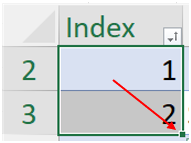
If you find the Index column useful, just renumber all rows. Enter 1 an A2, 2 in A3. Select A2 and A3 and then double-click the 'fill handle' and it will copy a sequence all the way down.
The fill handle is the little square in the bottom right-hand corner of the selected range.
Come back here if you get stuck.
Hi Riny, yes that’s exactly what I wanted to know. The raw data I have is spread across 52 excel worksheets, some have 20 rows of data others have 100’s so I will begin the process of adding the parts description & part numbers into sheet 2 and use your created functions.
Thanks that’s received loud and clear.
Kind Regards
Lee
Great and good luck. Just post again when you get stuck.
PS: "52 worksheets" as in one for every week?
Hi Riny, no it’s just a coincidence on the amount of historic worksheets I’ve got to review & add the part descriptions & part numbers to sheet 1 & sheet 2. Over 10,000 items I’d say as a quick check. Any suggestions or recommendations to be more efficient I’d gladly accept any advice.
Kind Regards
Lee
Well, I would probably use Power Query (PQ) to combine all the data. Though I'm not sure as I haven't seen all your file(s).
But you mentioned to be "very new to Excel" so I doubt that you even heard of PQ. It's not difficult but requires getting used to and some basic knowledge.
Look in the link below to read more about PQ (Mynda has many more PQ tutorials in the Blog section of this site).
https://www.myonlinetraininghub.com/get-started-with-power-query
If this is a one-time exercise and you have a tight dead-line, manual copy paste might take two hours and then you are done. Then, invest some time to learn PQ so that if something similar comes along in the future, you'll be ready for it.
R
Hi Riny, I have heard of PQ but never used it. No worries I’ll take a look & learn. Thanks for the advice & pointing me in the right direction.
Kind Regards
Lee