
If you ever work with large tables of data and you want to insert a VLOOKUP formula that dynamically updates to the next column as you copy it across, then the VLOOKUP with the COLUMNS function is what you need.
That is; the col_index_num part of the VLOOKUP function dynamically updates as you copy it across your worksheet.
=VLOOKUP(lookup_value,table_array,col_index_num,[range_lookup])
For this example I downloaded the current top 10 selling books from Amazon – see below.
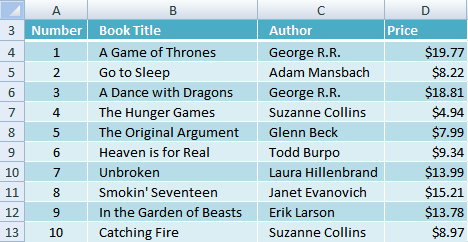
Book number 2 sounds like it might have some tips for getting my two boys to bed…must put it on my shopping list…… Sorry, I digress.
Ok, let’s imagine this list is hundreds or even thousands of rows long and we want to find a quick way to get prices and author information on demand (other than CTRL+F for Find of course).
In the table below we have the Book Title, Author and Price.
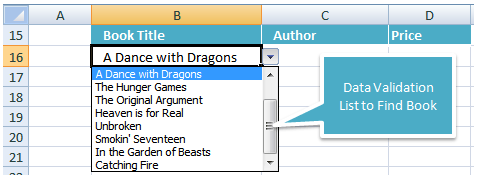
The book title is found using a Data Validation List or Drop Down List, and in column C and D we need a VLOOKUP formula that finds the Author and Price respectively.
We could do this using an ordinary VLOOKUP formula like this:
In cell C16
=VLOOKUP($B16,$B$4:$D$13,2,FALSE)
And in cell D16
=VLOOKUP($B16,$B$4:$D$13,3,FALSE)
But we need to manually edit the column reference for each column we copy the VLOOKUP across to.
Go here for a refresher on the VLOOKUP function.
And if we’ve got a lot of columns that we want to look up, then instead of hard coding the column reference number it’s much quicker to use the COLUMNS function like this:
In cell C16
=VLOOKUP($B16,$B$4:$D$13,COLUMNS($B4:B4)+1,0)
And in cell D16
=VLOOKUP($B16,$B$4:$D$13,COLUMNS($B4:C4)+1,0)

Note: Make sure you use the COLUMNS (plural) not COLUMN as they work quite differently.
What’s going on with the COLUMNS function?
The COLUMNS function returns the number of columns in an array.
The syntax is =COLUMNS(array), where ‘array’ is the column range. For example:
=COLUMNS($B4:B4) gives us 1 i.e. the array is 1 column wide.
So all we’re really doing is calculating the column number we want using the COLUMNS function.
Note: $B4:B4 could just as easily been plain B:B like this =COLUMNS($B:B), as it doesn’t really matter what the row reference is.
VLOOKUP using COLUMNS Function Explained
In our VLOOKUP formula above (in cell C16), our COLUMNS formula is COLUMNS($B4:B4)+1, because:
1. the column we want returned is the second column in our VLOOKUP table,
2. and since =COLUMNS($B4:B4) evaluates to 1 we need to add 1 to get 2 for the second column.
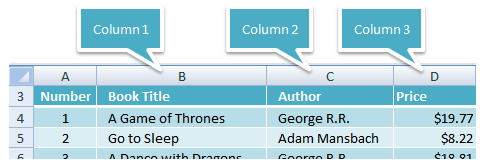
In our VLOOKUP formula in cell D16 our COLUMNS function is COLUMNS($B4:C4)+1 and it evaluates to 2+1=3
We’ve used an absolute cell reference on $B4:C4 (=2) so that when we copied the VLOOKUP formula across from C16 to D16 the COLUMNS part of the formula will automatically increase by 1 (from $B4:B4 to $B4:C4) to give us the correct column number.
Alternative to using COLUMNS is the MATCH function
As an alternative in my INDEX MATCH tutorial I show you how you can use the MATCH function to create a dynamic column reference. Just another way to skin a cat.
The limitation of the MATCH function used this way is that the VLOOKUP formula and the table_array must contain column headers that are the same.
See example towards bottom of INDEX MATCH tutorial.
HLOOKUP with ROWS
Similar to using VLOOKUP and COLUMNS, we can use the ROWS function with HLOOKUP to achieve the same effect, but for the row number.
Syntax for ROWS function:
=ROWS(array) where ‘array’ is the row range. For example:
=ROWS(B$4:B4) gives us 1 i.e. the array is 1 row high.
I think you get the idea, but if you’re not familiar with HLOOKUP you can read my HLOOKUP tutorial and insert the ROWS function in place of the row number in the HLOOKUP formula just as we did for the column numberin the VLOOKUP above.
Enter your email address below to download the sample workbook.
Want more? Sign up for our newsletter below and receive weekly tips & tricks to your inbox, plus you'll get our 100 Excel Tips & Tricks e-book.



I’m not sure if I’m missing something, but if you download the example and insert a column between B and C, cell C16 loses its value- isn’t that the point of this- to be able to insert multiple columns and have the values remain intact?
-Confused in New Hampshire
Hi Steve,
No, this is about being able to copy the formula across to pick up the next column and not have to update the col_ref_num argument manually. Being able to insert columns is best done with INDEX & MATCH like this:
Mynda
Hi, Can i use Columns Function combining with Averageifs Function?
Hi Asim,
No, because there is no argument in the AVERAGEIFS function that asks for a column number. Perhaps you can post your question on our Excel forum with a sample Excel file showing what you want to do and we can help you with a solution.
Mynda
i have a problem kindly guide me
when i drag down vlookup formula , i want only to change lookup value by keepin constant search area, i,e slectio array
but when i rage down the formula selection area also drag down
thanks
Hi,
You need to use the $ symbol properly.
=VLOOKUP(A1, $C$1:$C$100,0) for example has the lookup range absolute (using $ to lock rows and columns), while the lookup value is relative (does not have the $ symbol)
I think you need to edit and insert the “$” before the letter “B” in the example you gave so it is consistent with the example earlier in the paragraph.
We’ve used an absolute cell reference on $B4:C4 (=2) so that when we copied the VLOOKUP formula across from C16 to D16 the COLUMNS part of the formula will automatically increase by 1 (from B4:B4 to B4:C4) to give us the correct column number.
Should be:
We’ve used an absolute cell reference on $B4:C4 (=2) so that when we copied the VLOOKUP formula across from C16 to D16 the COLUMNS part of the formula will automatically increase by 1 (from $B4:B4 to $B4:C4) to give us the correct column number.
Hi Sue,
I didn’t really think it mattered in that context/sentence, but I’ve updated it for you 🙂
Mynda
It’s simple but useful tips, and will be able to justify the capabilities of the Functions. ☺
Hi
Why professional people like yourself using this index function: =B2:index($B$18:$F$24,match($B$10,$B$18:$B$24,0) for example instead
of typing this way as follow: index($B$18:$F24,match($B$10,$B$18:$B$24,0))
Do these type of typing its index formulas do make any sense or any difference in searching for ??
Hi Frank,
The key difference between this:
And this:
Is the first formula returns a range starting in cell B2 and ending in the cell returned by INDEX & MATCH, whereas the second formula only returns the value (or cell reference) returned by INDEX & MATCH.
It’s explained here under point # 4.
Kind regards,
Mynda
Have enjoyed all last year your add hoc email and would like to continue receiving them.
Great Post and a huge help. I did have a question though. Instead of moving one column across at a time, is it possible to move across in multiples of two or three so that only every second or third column is selected instead?
Hi Rob,
Please upload a sample workbook at our Help Desk, it’s easier to understand your situation if i see your data structure.
Thanks for understanding.
Cheers,
Catalin
Hi Mynda
In the VLookup dynamic list tutorial you’ve used 0 for the range lookup part
=VLOOKUP($B16,$B$4:$D$13,COLUMNS($B4:B4)+1,0)
Is 0 a numeric alternative to False in this instance and, if so, could 1 be used instead of True?
Many thanks
cath
Yes Cath, you got it right: 0 is False, 1 is True.
Catalin
Thanks Catalin!
You’re wellcome Cath 🙂
I prepared Vertical List in a sheet and Horizontal in another sheet and this sample is on Excel sheets i want to send this file to see and give me the real Functions or formulas I want your Live Email to send the file
to you
my best regards
your sincerely
Rafi Wartayan
Hi Rafi,
You can use our Help Desk to upload a file.
Catalin
sample of Breakfast meals sample of lunch or diner Sample of Pastry sample of lunch or diner Sample of appetizers
Main stores Items Recipe No1 Tomato Omelet Breakfast Eggs Recipe No2 Gordon Blue Beef Recipe No3 Recipe No4 Fried Chicken Chop poultry Recipe No5 Green Salad appetizers
Units Kg Price Grams Per KG Price per Gram Recipe Ingredients Grams Price per Gram cost28% sailing price100% Recipe Ingredients Grams Price per Gram cost28% sailing price100% Recipe Ingredients Grams Price per Gram Recipe Ingredients Grams Price per Gram Recipe Ingredients Grams Price per Gram
A $2.00 1000 $0.002 A 100 0.2 20 Y 150 0.009 1.35 E 200 I 250 c 180
B $4.00 1000 $0.004 D 150 0.6 90 D 60 0.01 0.6 S 20 J 50 q 20
C $8.00 1000 $0.008 V 50 0.4 20 F 80 0.008 0.64 M 20 K 50 p 20
D $10.00 1000 $0.010 W 20 0.2 4 G 30 0.015 0.45 N 40 L 50 t 50
E $8.00 1000 $0.008 X 20 0.16 3.2 L 40 0.009 0.36 O 10 S 50 u 20
F $8.00 1000 $0.008 A 10 0.08 0.8 W 10 0.003 0.03 Y 40 N 150 X 20
G $15.00 1000 $0.015 E 20 0.3 6 X 20 0.012 0.24 D 10 M 50 Z 20
H $20.00 1000 $0.020 K 25 0.5 12.5 E 20 0.008 0.16 Q 20 W 20 A 20
I $6.00 1000 $0.006 156.5 3.83
J $7.00 1000 $0.007
K $8.00 1000 $0.008 If 156.5 is 28%
L $9.00 1000 $0.009 The 100% will be
M $11.00 1000 $0.011
N $12.00 1000 $0.012 % cost Price
O $13.00 1000 $0.013 28 156.28
P $14.00 1000 $0.014 100 558.14 the sailing price
Q $18.00 1000 $0.018
R $1.00 1000 $0.001
S $5.00 1000 $0.005
T $13.00 1000 $0.013
U $6.00 1000 $0.006
V $4.00 1000 $0.004
W $3.00 1000 $0.003
X $12.00 1000 $0.012
Y $9.00 1000 $0.009 Cost center
Z $16.00 1000 $0.016 Purchasing Department
stores Food Beverage guest supplies Pomic Etc
requesition by Kitchin cheef
Hi Rafi,
You can open a ticket on the Helpdesk and attach a file to that.
https://www.myonlinetraininghub.com/help-desk
Regards
Phil
Hi,
If columns are not fixed in the reference file. How dynamic vlookup would work?
Please answer
Thanks
hi Shwetank,
I’m sorry I’m not sure what you mean. Can you give me an example?
Thanks,
Mynda.
Is anyone still attending to this site? I have a hard question that I can post, if so.
Thanks!
Amanda
Hi Amanda,
Yes, we’re always here. We never went anywhere so please post your qs.
Regards
Phil
I LOVE YOU!
I’ve been trying to learn macros for my coursework, and have had so many issues I didn’t even know where to start. I finally figured them all out, and it worked, except my macro kept replacing the column values, and your formula has allowed me to fix it. 18 hours of work later, my spreadsheet is done. Thank you so much!
Aw, thanks Tristyn 🙂
Glad you found the help you needed here. Well done for completing your marathon spreadsheet.
Mynda.
Hi there – thank you for sharing this. I have wondered for a long time how to do this simply and you nailed it!
Thanks, David 🙂
Very very helpfull. It is a wonderful learning resource. This is the first time I have been able to understand the VLookup function.
Thank you! Please keep on uploading these useful posts.
Cheers, Muhammad 🙂
Thanks! This was such a big help and easy to follow!
You’re welcome, Julie 🙂
hi
I am looking for a way to have another vlookup in the column index of a vlookup? Is that possible? My problem is:
Sheet 1 Column A has some date and hour. Same sheet has several column B through E of different suppliers say Supplier B,C,D,E..I am trying to vlookup in column A for a particular date, in the column index vlookup the appropriate supplier name and return the corresponding value..Hope I am not too confusing
Thanks
Hi Jane,
Perhaps INDEX & MATCH would suit your needs better.
I hope that helps.
Kind regards,
Mynda.
Can you show up how to do these exact same things in Sharepoint? And add the COUNTIF function, I use it all the time!
Hi Marie,
I’m not familiar with how Excel works with Sharepoint. I did find this blog post on entering formulas in Excel using calculated columns here:
Calculated Columns in Sharepoint
Sorry I’m not more help.
Kind regards,
Mynda.
I need to improve