
The Excel HLOOKUP formula is just like the VLOOKUP formula, only the table you are looking up is laid out in a horizontal list, rather than vertically. Hence the ‘H’ for horizontal, and ‘V’ for vertical.
Just like the VLOOKUP, the HLOOKUP function can be used to find an exact match or used in a sorted list.
Download the Workbook
Enter your email address below to download the sample workbook.
We’ll look at a HLOOKUP Exact Match scenario first.
Excel HLOOKUP Formula Exact Match
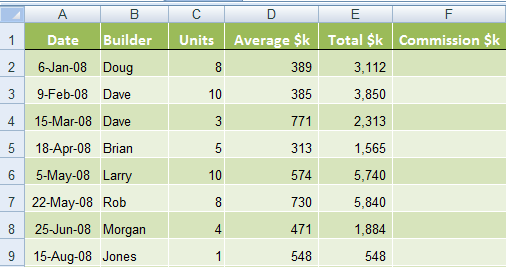
In the table below we want to calculate a commission in column F for each builder. We have each builder’s specific commission rate in a horizontal table in columns H to P, and we’ll use the HLOOKUP function to calculate our commission.
 |
 |
Excel HLOOKUP Function Syntax
HLOOKUP(lookup_value, table_array, row_index_num, range_lookup)
And to translate it into English it would read:
HLOOKUP(find this value, in that table, return the value in row x of the table, but only return a result if you can match the value exactly)
Let’s make it even clearer by applying it to our example:
HLOOKUP(find Doug in cell B2, in the Commission Rates table I1:P2, return the value in row 2 of the table, and only return a value if you find Doug in the Commission Rates table otherwise give me an error)
Firstly let me make a few things clear:
- ‘Return the value in row 2 of the table’ is referring to the row number in the table I1:P2, not the row number of the spreadsheet, even though in this example they are the same.
- ‘Only return a result if you can match the value exactly’ is instructing Excel that we only want information returned if it matches our criteria exactly. i.e. Find Doug in our Commission Rates Table, and if you can’t find Doug, give me an error. The error displayed will be #N/A.
On the other hand, if we told Excel it was ok to not find an exact match, it would return the next best result. i.e. If Doug wasn’t in our table Excel would return the next best result. In this scenario we wouldn’t want it to do that, but this option is handy in other situations which we’ll cover later in this tutorial.
Excel HLOOKUP Formula Example
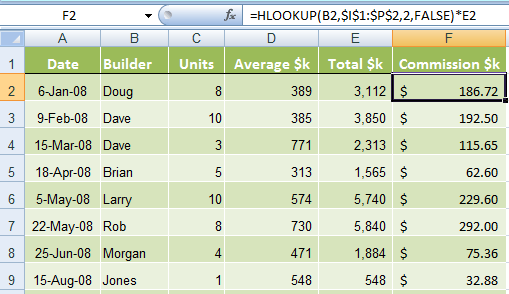
OK, now that’s clarified, in Excel our formula in column F for the above example would be:
=HLOOKUP(B2,$I$1:$P$2,2,FALSE)
Note: you’ll notice the table range I1:P2 has dollar $ signs around it. For more on this read my previous tutorial on absolute references.
This would give us the commission rate for Doug of 6%, but what we really want in column F is the commission $ amount. This is easily achieved with an extension to the above formula as follows.
=HLOOKUP(B2,$I$1:$P$2,2,FALSE)*E2 (with E2 being the Total $k)
 |
Let’s make it even easier by giving the Commission Rates table a named range. Let’s call it ‘ComRates’. We could then more easily write it, and also interpret it quickly when revisiting the worksheet at a later date. With a named range of ‘ComRates’ our formula would read:
=HLOOKUP(B2,ComRates,2,FALSE)*E2
Excel HLOOKUP Formula on a Sorted List
The Sorted List version looks almost the same up to the last argument ‘FALSE’. In a Sorted List HLOOKUP formula you can either leave this last argument blank, or enter ‘TRUE’.
Although the formula looks the same when you use ‘TRUE’, HLOOKUP finds the nearest match for the value you’re looking up. Let’s look at an example.
Using the previous example, again we want to calculate the Commission $ amount. However, this time the commission is based on the Total $k amount and where it falls into our Commission Rates table.
As a result our Commission Rate is based on where the Total $k falls into the scale on our table.
 |
Taking the table below our HLOOKUP sorted list formula for column F in English will read:
=HLOOKUP(Find the Total $k in cell E2, in the commission rates table, return the value in row 3 of the table, if you can’t find the exact amount go to the next lowest amount)
In Excel it will be entered as follows (including the *E2 to get the actual $k commission amount as we did above):
=HLOOKUP(E2,$J$1:$Q$3,3,TRUE)*E2
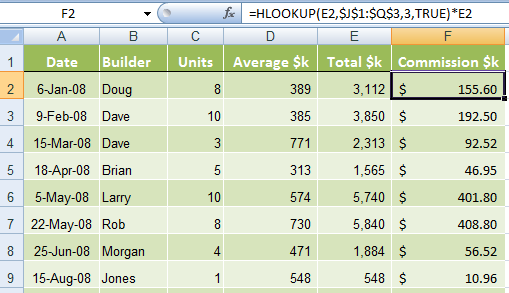 |
Note: Excel doesn’t actually take into consideration row 2 in our Commission Rates table. I have simply put it there to help understand the commission ranges. Excel is in fact looking for the exact Total $k amount in our Commission Rates table, but when it can’t find it, it finds the next best lower amount and returns the value in row 3.
Excel HLOOKUP Formula Rules & Common Mistakes!
- HLOOKUP reads from top to bottom. You must have the information you are looking up, in a row above the information you want returned.
- You can have as many rows as you like in your table, just so long as you follow the ‘top to bottom’ rule above.
- The ‘Table’ you are looking up can be in the same spreadsheet, or same workbook on a different sheet, or a different workbook altogether.
- If you find Excel is telling you it can’t find the value you’re looking up in your table by returning a #N/A result, but you can ‘plain as day’ see they’re both there. It’s likely you’ve got one formatted as text and another formatted as general. To check this go to each cell and look in the formula bar to see if one is prefixed by an apostrophe ‘.
- For the Exact Match version the table doesn’t have to be sorted in any particular order, but you must not have duplicates, unless the information on each duplicate is exactly the same. For example, if Doug appeared twice in our Commission Rates table with different percentage rates for each instance, Microsoft Excel would return the rate on the first instance of Doug.
- With the Sorted List version; if we had duplicates in our Commission Rates table Excel will find the last instance of the value and return the result in row 3. For example, if instead of the amount $2,001 in cell M1, you had $1,001 again. Excel would return the value of 4% as it’s finding the last best match for our amount. The tip here is to remove any duplicates or you’ll end up with erroneous results.
- The HLOOKUP Sorted List version requires the list to be sorted in ascending order from left to right. If it’s not sorted you end up with nonsense.



Excel HLOOKUP Formula on a Sorted List,
=HLOOKUP(E2,$J$1:$Q$3,3,TRUE)*E2
Example 2 calculation- Not able to understand solution
kindly help asap.
Hi Alok,
In English, the formula reads:
=HLOOKUP(Find the Total $k in cell E2, in the commission rates table, return the value in row 3 of the table, if you can’t find the exact amount go to the next lowest amount)
I hope that helps.
Mynda
Thank you very much
I’ve done both the V-Lookup and H-Lookup exercises and I ran into the same problem with both of them. In the V-Lookup, the initial formula brought back #N/A in one cell after I dragged and copied the formula down. In the H-Lookup, it brought back 2 #N/A’s. All the other cells brought back the correct info. I have sat here and stared at the formula’s, in the formula bars, over and over comparing them and the ONLY thing different is the lookup value address – which is the way it should be, right? I’ve checked the cells, they are all formatted “general”, there are no apostrophe’s in the formula bar. They’re all the same. Any ideas?
When I redid the first one on a second sheet, it worked just fine. Everything was exactly the same. I haven’t redone the H-Lookup yet.
L.E.:
Never mind, I figured it out. You may want to mention that if there is an extra space in your lookup column, you’ll get an #n/a error. (There was an extra space behind both the names in my lookup table, deleted them and it was fine)
Glad you figured it out Liz, wrong formatted data is always messing up formulas 🙂
Catalin
i use the trim function on all text data when using lookups
Hello, I have an Excel question that are not related to the above task. I am wondering is it possible to have a drop down list and have each items in that list linked to a different image? Thanks, Sheryle
Hi Sheryle,
Yes, you can set another cell with an Hyperlink(INDEX+MATCH) formula that returns from a reference table the path corresponding to selected item.
Catalin
Dear Mynda,
Please advise me whether in Excel you can write Figures in words e.g.
US$ 10,000.00 In word US Dollar Ten Thousand and Zero Cents only.
Appreciate your prompt reply.
Regards,
Vivek Kalzunkar
Hi Vivek,
This VBA will convert numbers to words.
I hope that helps.
Kind regards,
Mynda.
Hello Mynda,
I know the date the product was sold.How can I write a formula to compute the product price ?
Date Sold Price
January – April 2013 Rs 98.00
May – August 2013 Rs 105.00
September – December Rs 112.00
Please help me!
Hi Rangana,
Do you want to look up a date and find a price for that date? If so you need your dates in a separate cell, not ‘January – April 2013’ in one cell, unless you’re looking up the text ‘January – April 2013’ as opposed to the date value.
Also if your data is in a column format you need the VLOOKUP formula not HLOOKUP.
So your VLOOKUP formula will be like this (where your dates and prices are in A2:B3):
=VLOOKUP("January - April 2013",A2:B3,2,FALSE)I hope that helps.
Kind regards,
Mynda.
Very essential for every one
Hi Subash,
Cheers!!
CarloE
You have done a great job Mynda Treacy.
very helpful contents.
Thank you so so much dear.
keep it up.
Regards,
Vijay
Thanks, Vijay 🙂
Mynda, I thank for your patience in explaining the steps in Hlookup formulas but it has not solved my problem. I would appreciate if you can help me with my issue with two lookup values. I can get the answers with Vlookup but the list may goes to more than 1000 items. Here is roughly what I want to solve: One items may be sent to different places (about 10) at different rates. Thank you.
Hi Yar,
I’m sorry, I don’t understand what you mean by “One items may be sent to different places (about 10) at different rates”.
Can you please explain again.
Thanks,
Mynda.
Can you let me know the keyboard shortcut for selecting a chart or a graph or a table in a worksheet in excel.
Thanks in advance
fredy
Hi Fredy,
There isn’t a shortcut for selecting a chart in a worksheet. The shortcut to insert a new chart is F11 (you need to have your data selected first). To select a table simply have your cursor anywhere in the table and CTRL+A to select all. This will select all of the cells in the table.
I hope that helps.
Kind regards,
Mynda.
Hello Mynda, You do a great job in walking us through the steps so we can understand topics that are complex and confusing to those of us who are not Excel experts. First you take time to translate Microsoft’s gibberish gooblegook into plain English and then you apply it to the example. You are one of the rare few who do a good job. Most Excel posters assume the readers are experts and rush through foundational steps that are important in helping us grasp arcane concepts. Keep up the great work. George
Thanks, George. I sincerely appreciate your kind words. Glad you like my tutorials.
Kind regards,
Mynda.
Hello Mynda,
Great Job. I have been looking at all your formulas but nothing seems to help me solve the issues I have. Probably I am not looking it right but here is the example.
Dallas 2010 5
Dallas 2011 6
New York 2010 4
New York 2011 3
Chicago 2011 4
Chicago 2010 1
I want the above data to be displayed as
(Header) 2010 2011
Dallas 5 6
New York 4 3
Chicago 2 1
can you please tell what functions I should use?
Thanks
Hi JP,
If your data is in 3 separate columns. i.e. Column A contains the team, column B contains the year and column C contains the value you could use a PivotTable to create your report.
Kind regards,
Mynda.
very productive
Cheers, Alok 🙂
sign me up
Nice, I will try this, too