
You might think you already know wildcards in Excel.
Most people use them in COUNTIF or maybe XLOOKUP and stop there. That is only scratching the surface.
Wildcards appear in far more places than formulas, and when you combine them with other Excel tools, you can solve problems faster and with less effort.
In this guide, you will learn both the basics and several advanced uses that can improve how you work with data.
Table of Contents
- Watch the Excel Wildcards Video
- Get the Example File
- What Are Wildcards in Excel
- XLOOKUP with Wildcards
- FILTER for Multiple Matches
- COUNTIF with Wildcards
- SUMIFS with Partial Matches
- Data Validation Using Wildcards
- Strict Validation Without Wildcards
- Advanced Filter with Wildcards
- Find and Replace with Wildcards
- Using Wildcards Inside IF Logic
- Escaping Wildcards
- Conditional Formatting with Wildcards
- Why Wildcards Matter More Than You Think
- Take Your Excel Skills Further
- Final Thoughts
Watch the Excel Wildcards Video

Get the Example File
Enter your email address below to download the free file.

What Are Wildcards in Excel
Excel supports three wildcard characters:
- * Asterisk: represents any number of characters
- ? Question mark: represents exactly one character
- ~ Tilde: is used to escape wildcards when you want them treated as normal text
These are mainly used in text matching scenarios, but the real power comes from how you combine them with functions and tools.
XLOOKUP with Wildcards
A common starting point is searching for text within a larger string.
For example, if you want to find descriptions containing the word boots in the table below:
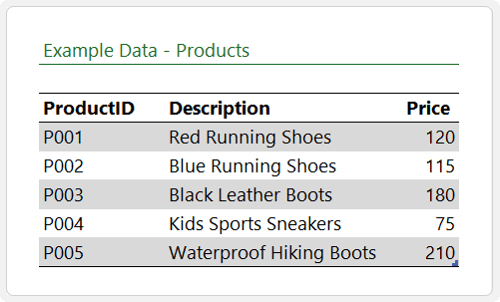
You can use the XLOOKUP function like so:
=XLOOKUP("*boots*", Products[Description], Products[Description], "Not found", 2)
And the result is below:
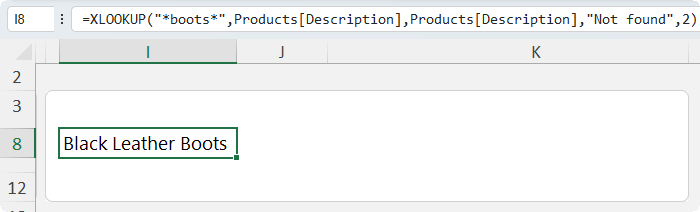
Key points:
- The asterisk before and after boots allows for partial matches anywhere in the text string
- Match mode 2 tells XLOOKUP to interpret wildcards correctly
- Note that XLOOKUP only returns the first match
This approach works well when you expect a single result. If you have multiple matches, you need a different tool.
FILTER for Multiple Matches
If you want all matching records, the FILTER function is the better choice:
=FILTER(Prod, ISNUMBER(SEARCH("boots", Prod[Description])))
And the result is below:
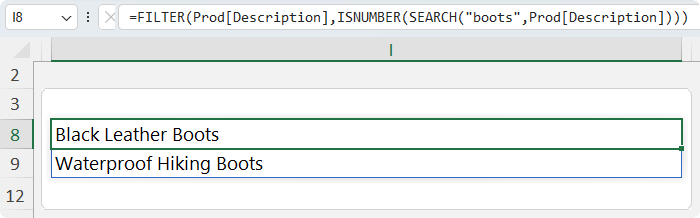
How it works:
- SEARCH finds the position of the text
- ISNUMBER converts results into TRUE or FALSE
- FILTER returns all rows where the result is TRUE
Unlike XLOOKUP, this returns all matching rows.
COUNTIF with Wildcards
Wildcards turn the COUNTIF function into a flexible text search tool.
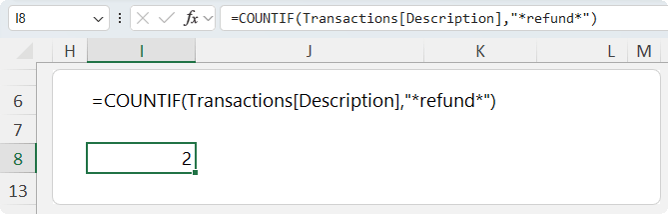
For example, we can count how many descriptions contain the word refund in this table:
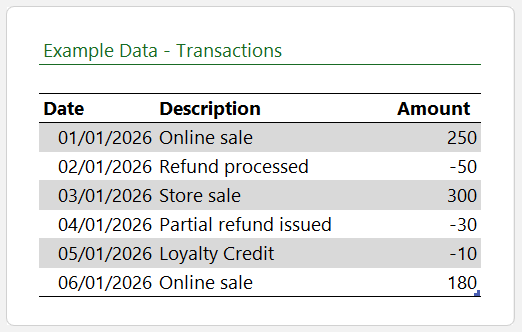
Using this formula:
=COUNTIF(Transactions[Description], "*refund*")
This counts matches regardless of where the word appears in the text and returns 2:
SUMIFS with Partial Matches
You can apply the same logic when summing data with the SUMIFS function.
For example, we want to sum the revenue for online channels:
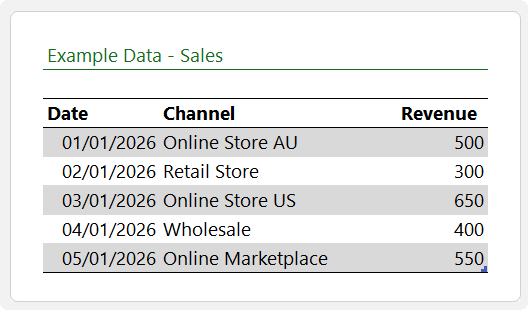
We can use this formula:
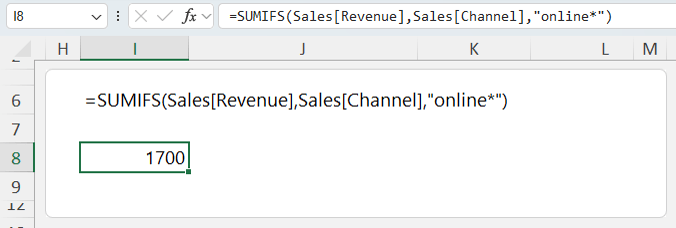
=SUMIFS(Sales[Revenue], Sales[Channel], "online*")
Which returns 1700:
In this case:
- The text starts with online, so no wildcard prefix is required
- The trailing wildcard allows for variations like online store or online ads
This removes the need for exact matches in SUMIFS.
Data Validation Using Wildcards
Wildcards are also useful for enforcing patterns.
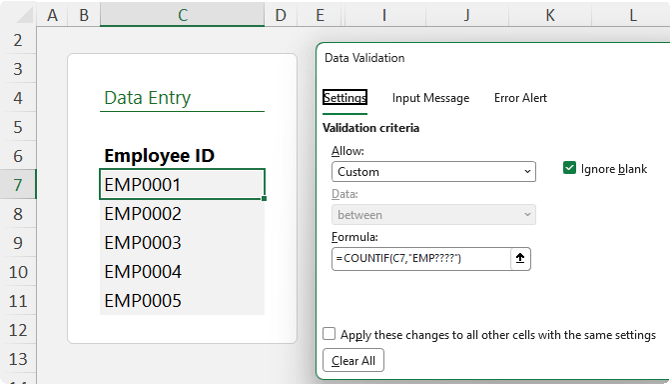
We can use the formula below in a custom data validation rule to ensure employee IDs follow the format EMP followed by four characters:
=COUNTIF(C7, "EMP????")
The question marks enforce exactly four characters after EMP as shown in the image below:
However, this approach has limitations. It does not enforce uppercase or numeric-only rules.
Strict Validation Without Wildcards
For stricter rules, combine multiple functions:
=AND(
EXACT(LEFT(G7,3),"EMP"),
LEN(G7)=7,
ISNUMBER(--RIGHT(G7,4))
)
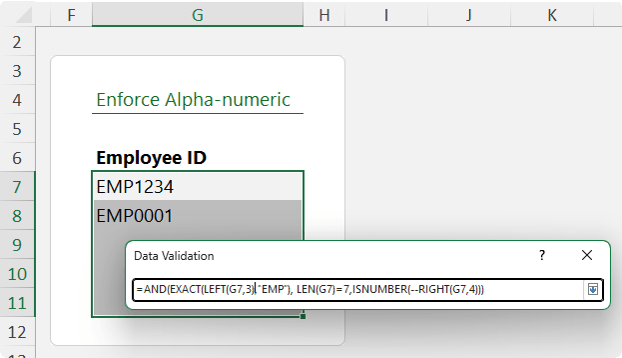
This ensures:
- The prefix is exactly EMP in uppercase
- The total length is correct
- The last four characters are numbers
Wildcards are helpful, but not always sufficient on their own.
Advanced Filter with Wildcards
Formulas are not the only place wildcards work.
Advanced Filter allows you to extract records quickly.
For example, using criteria like:
ABC*
You can extract all records where values begin with ABC.
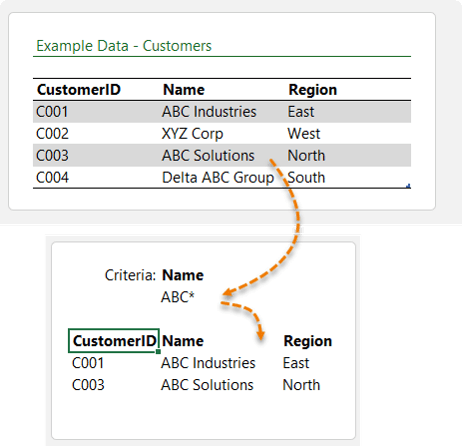
Keep in mind:
- Advanced Filter is not dynamic
- You must re-run it after changes
Find and Replace with Wildcards
Wildcards are extremely useful for cleaning data with the Find and Replace tool.
To remove text in brackets:
- Open Find and Replace with Ctrl+H
- Find: (*)
- Replace with: leave blank
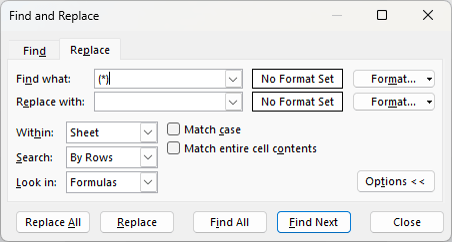
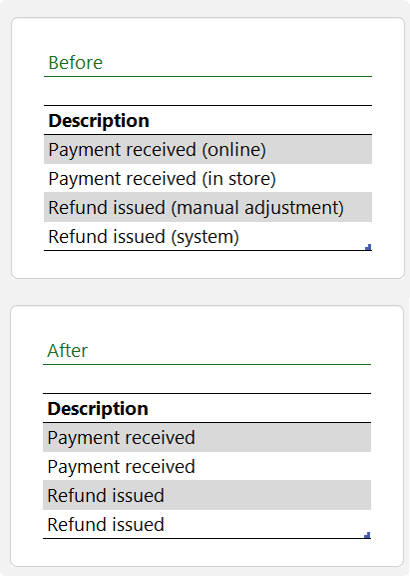
This removes everything inside parentheses, even if the text varies:
Using Wildcards Inside IF Logic
IF does not support wildcards directly.
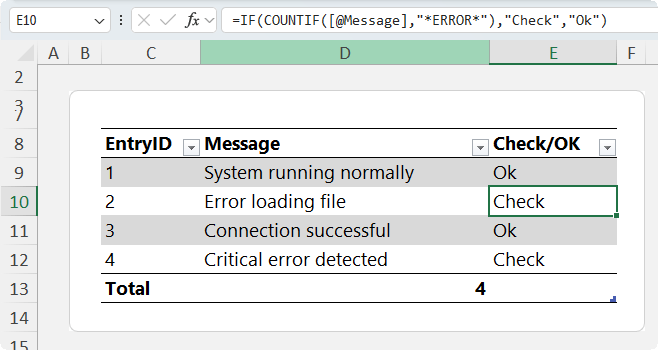
However, you can combine it with COUNTIF:
=IF(COUNTIF([@Message], "*error*"), "Check", "OK")
This allows you to flag rows based on text patterns:
Escaping Wildcards
If your data contains actual wildcard characters, Excel will still treat them as wildcards.
To search for a literal asterisk:
=COUNTIF(Notes[Note], "*~**")
The tilde tells Excel to treat the asterisk as a normal character.
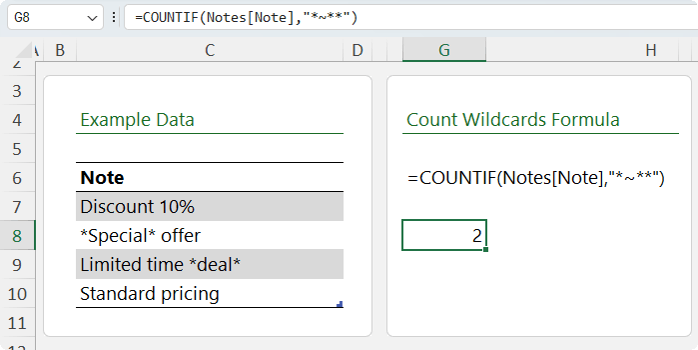
This is often overlooked and can lead to incorrect results.
Conditional Formatting with Wildcards
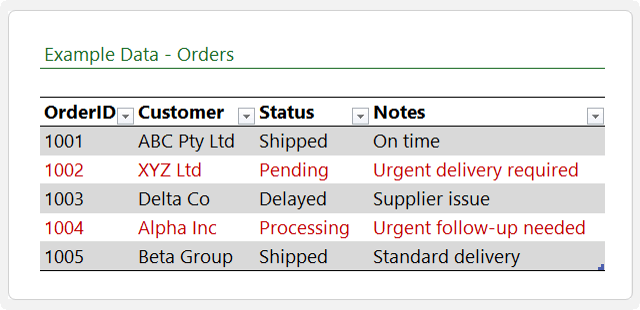
You can use wildcard logic in conditional formatting to highlight rows, for example the rows below where the Note contains ‘urgent’:
Example:
=COUNTIF($F7,"*urgent*")
Apply this as a rule to highlight rows containing the word urgent.
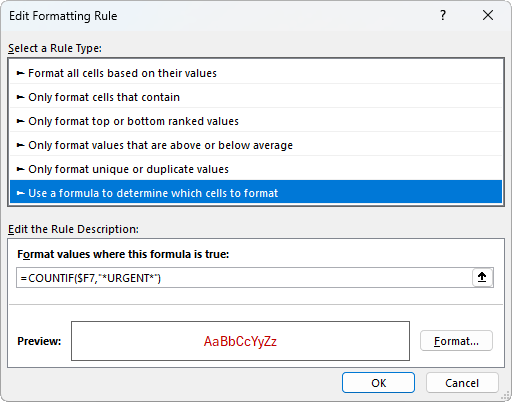
This is especially useful when you want to format multiple columns based on text in a single column, which can’t be done with the built in conditional rormatting tools.
Why Wildcards Matter More Than You Think
Wildcards may seem simple, but their real value comes from combining them with:
- Lookup functions
- Dynamic arrays
- Data validation
- Filters
- Conditional formatting
Once you start using them across these tools, your workflow becomes faster and more flexible.
Take Your Excel Skills Further
This type of logic is what separates basic Excel users from confident, advanced users.
If you want to get comfortable combining formulas, validation, and data tools, the Excel Expert course walks through everything step by step.
You will learn how these features connect so you can build spreadsheets that are both powerful and reliable.
Final Thoughts
Wildcards are one of those features that look simple at first.
Once you start combining them with Excel’s tools, they become a powerful way to search, clean, validate, and analyse data.
Most users stop at the basics. That is where the opportunity is.


Grazie per le tue condivisioni e per le interessanti lezioni. Utilizzo Excel per hobby e sono le persone come te che me ne hanno fatto innamorare. Spieghi in modo chiaro e comprensibile, mi faccio aiutare anche da google translate ;-).
Grazie ancora,
Giuseppe
Grazie mille, Giuseppe!