
I exported a list of email addresses for six different relationships for EDAs. The data is currently showing EDA name in each of the six relationship title columns. I need to combine data to show email addresses for different relationships in just one row for each EDA.
For example, column A is email address, column B is President, column C is VP, etc. There are several blank cells because not all EDAs have all six relationships.
My export has 372 emails in column A. I would like to see only 93 rows, with six columns - column A will be EDA name, column B title will be president and data will be the presidents email address, column C title will be VP and data will be VPs email address, etc.
There are 93 EDAs, which I have listed on the second worksheet.
I've removed all but 13 rows of data, with only three EDAs to show an example. My desired outcome is displayed on the third worksheet.
Thanks in advance for any advice anyone can give.

In the attached, I used Power Query to Unpivot the email table.
let
Source = Excel.CurrentWorkbook(){[Name="Table1"]}[Content],
#"Unpivoted Other Columns" = Table.UnpivotOtherColumns(Source, {"Email"}, "Attribute", "Value")
in
#"Unpivoted Other Columns"
I then loaded the EDA table to Power Query
let
Source = Excel.CurrentWorkbook(){[Name="Table2"]}[Content]
in
Source
I then joined the two tables
let
Source = Table.NestedJoin(Table2, {"EDA"}, tEmail, {"Value"}, "tEmail", JoinKind.LeftOuter),
#"Expanded tEmail" = Table.ExpandTableColumn(Source, "tEmail", {"Email", "Attribute"}, {"Email", "Attribute"}),
#"Pivoted Column" = Table.Pivot(#"Expanded tEmail", List.Distinct(#"Expanded tEmail"[Attribute]), "Attribute", "Email")
in
#"Pivoted Column"
You can see the end result matches your expected results in the attached file.
Thank you so much for your super quick reply! I appreciate it, and yes, thats exactly the result I'm looking for.
The problem is... I have very little experience with Power Query so I have no clue how to recreate what you've done. I just opened my file and then launched the power query editor to see if I could figure it out, but I don't even know where to enter all those commands? I tried "Enter Data" in the New Query section, but that didn't work.

I assume that you real data is different from what's included in your example file. Though if the table structures are the same, the easiest would be to copy your real data into Table1 and Table2 in Alan's file and then just refresh all.
In case you want to copy Alan's merge query into your real file, from the Data ribbon start with a blank query. That opens a blank PQ Editor window.
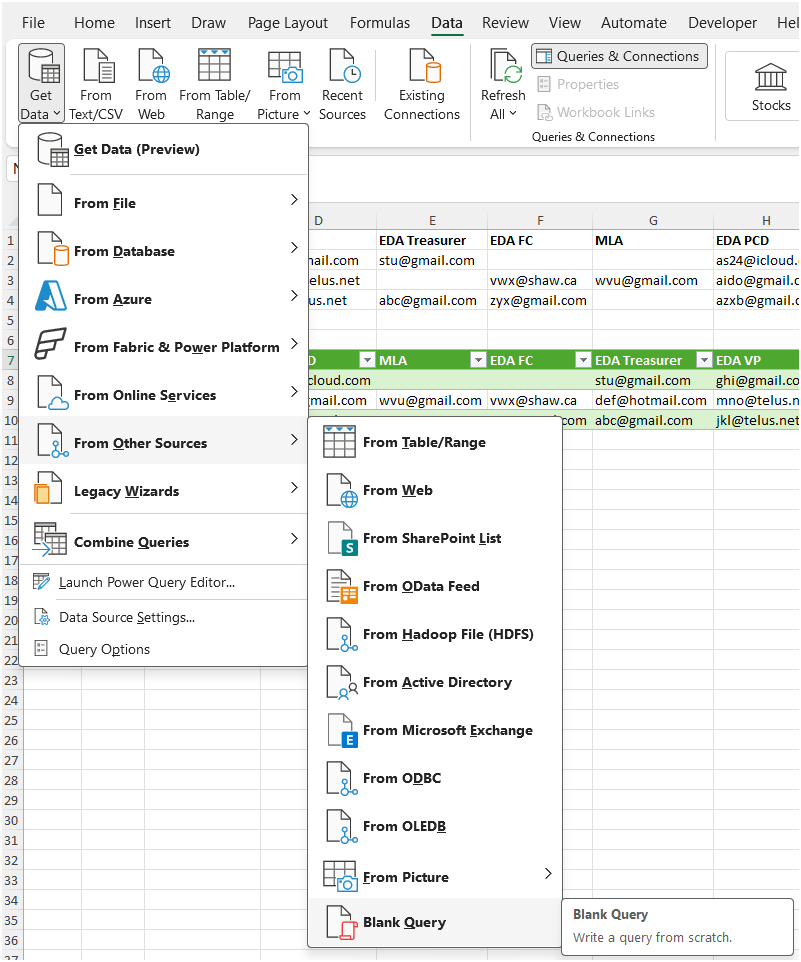
Now select the 'Advanced Editor' button from the 'Query' group and copy/paste Alan's code into that editor window and turn this:
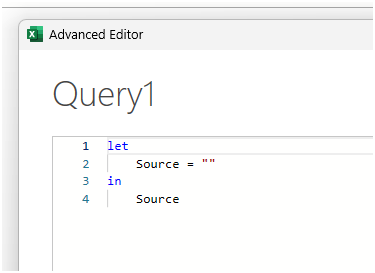
into this:
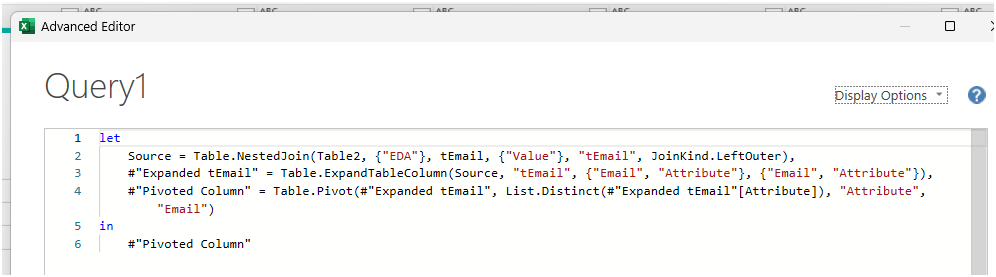
and press done. From there you should be able to finish it yourself. I assume that you have already connected PQ to each of the two source tables. Just make sure that you use the correct table an column names in the merge query.
If you still get stuck, I'd recommend you search Mynda's blog. You'll find plenty resources there regarding PQ from beginner to advanced level. Otherwise consider taking a course.
@riny thank you so much for taking the time to explain. i really appreciate the help!

In case you want to use a formula solution you can check the example in the attached copy of your file. Just using the XLOOKUP function.
@sehlsan that's exactly what i've been looking for! thank you! something about the forumula confused me a little though - when I'm on cell C10, i click to view the function arguments, and then i move my cursor along the formula bar, i don't understand why the lookup_value changes from C$9 to $B10 in the function arguments? it seems there are two different formulas within this one, but it doesn't look like that in the formula bar?
@sari-becker, yes, there is a second XLOOKUP inside the first, will try to explain what the formula does. The formula used here is from cell C10 in your Desired Outcome sheet.
Syntax of XLOOKUP:
=XLOOKUP( lookup_value, lookup_array, return_array, [if_not_found], [match_mode], [search_mode])
1st XLOOKUP:
=XLOOKUP($B10,
**2nd XLOOKUP**,
'EDA Relationships_13Jan2026'!$A$2:$A$14,
"")
Look for Chill Nor in lookup array (?) and give the email address in return, else show nothing.
As the column headers are the same, I want to find the range dynamically and do so by using a second XLOOKUP to find the corresponding column header in the lookup table/range and thus get needed data. In this way I can use the same formula in all neighboring cells, no need to adjust for each column.
2nd XLOOKUP:
XLOOKUP(C$9,
'EDA Relationships_13Jan2026'!$B$1:$G$1,
'EDA Relationships_13Jan2026'!$B$2:$G$14)
Look for EDA President in the table/range headers and return the range data for that column.
If you highlight the second XLOOKUP in the formula bar and press F9, you will see that it returns the data as an array constant. The first XLOOKUP is using this as its lookup_array.
Complete formula:
=XLOOKUP($B10,XLOOKUP(C$9,'EDA Relationships_13Jan2026'!$B$1:$G$1,'EDA Relationships_13Jan2026'!$B$2:$G$14),'EDA Relationships_13Jan2026'!$A$2:$A$14,"")
I hope I have managed to give a good enough explanation. There is more information about different XLOOKUP use cases in Mynda's blog Excel XLOOKUP Function.
Br,
Anders
@sehlsan makes perfect sense! thank you so very much!