
Most Excel users stick to built-in conditional formatting rules. A colour scale here, a “greater than” rule there.
But the moment you start using formulas, everything changes.
Formula-based conditional formatting allows you to highlight entire rows, flag missing data, catch errors, track deadlines, and more. All automatically and in real time.
In this guide, you’ll learn practical, real-world examples you can apply immediately to stop manually scanning spreadsheets for issues.
Table of Contents
- Excel Conditional Formatting Formulas Video
- Get the Conditional Formatting Example File
- 1. Format Entire Rows Based on One Cell
- 2. Compare Two Columns Automatically
- 3. Flag Missing Data in Rows
- 4. Highlight Rows Containing Keywords
- 5. Create Date-Based Alerts That Update Automatically
- 6. Detect Duplicates with Full Control
- 7. Create Banded Rows That Work with Filters
- Take Your Conditional Formatting Further
Excel Conditional Formatting Formulas Video

Get the Conditional Formatting Example File
Enter your email address below to download the free file.

1. Format Entire Rows Based on One Cell
One of the most useful techniques is formatting an entire row based on a value in a single column.
Scenario
You have an orders table like this:
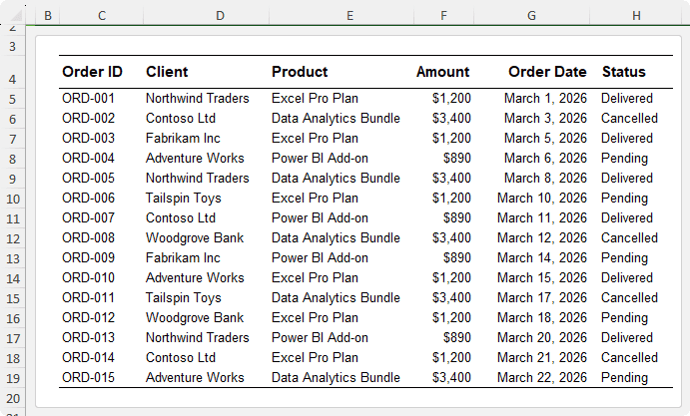
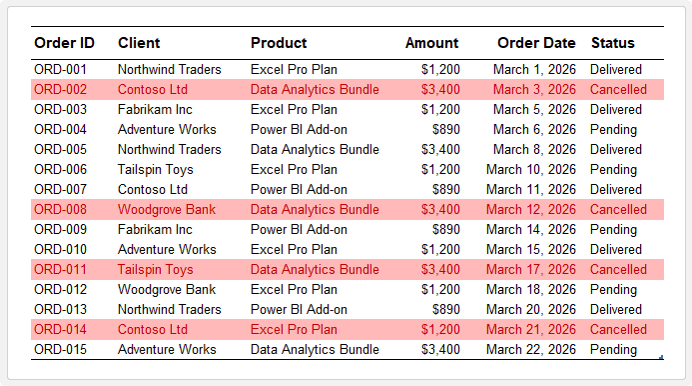
You want any row where the status is “Cancelled” to stand out.
Steps
- Select the full data range
- Go to Conditional Formatting → New Rule
- Choose “Use a formula to determine which cells to format”
- Enter this formula:
=$H2="Cancelled"
Key Concept
- The column is locked with $F so Excel always checks the Status column
- The row is relative so the rule evaluates each row individually
Now the entire row highlights when the status changes to Cancelled, and it updates instantly.
2. Compare Two Columns Automatically
Scenario
You want to flag rows where actual spend exceeds budget:
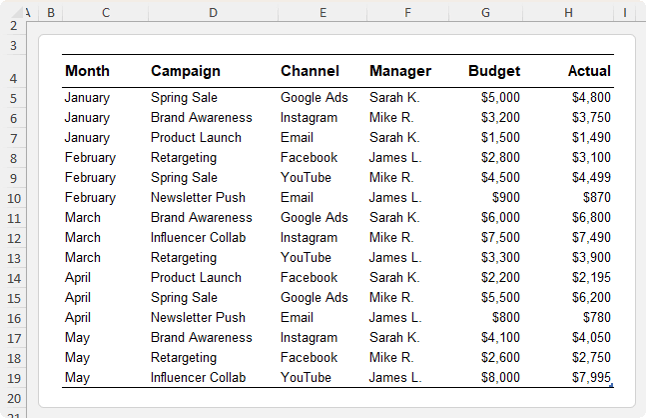
Formula
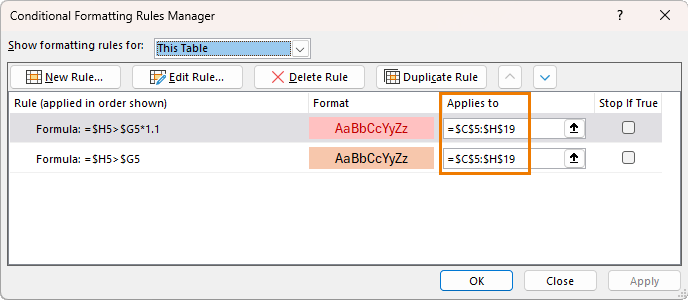
=$H5>$G5
This checks if Actual is greater than Budget.

Improve It with Thresholds
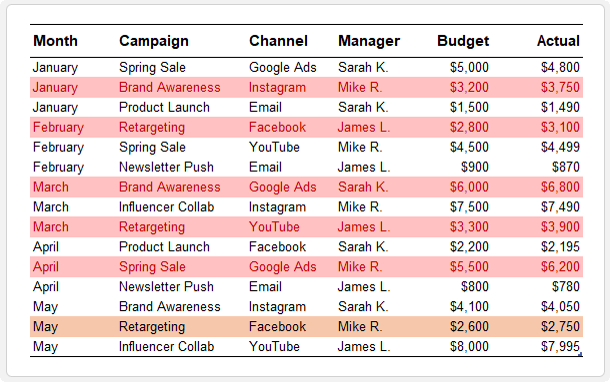
Add a second rule to highlight rows where spend is more than 10% over budget:
=$H5>$G5*1.1
Result
- Slightly over budget → one colour
- Significantly over budget → stronger colour
You can instantly identify problem areas without scanning numbers.
Important Tip
Use Manage Rules to control priority. Place the stricter rule above the general one so it takes precedence.
3. Flag Missing Data in Rows
This is one of the most practical rules you’ll use.
Scenario
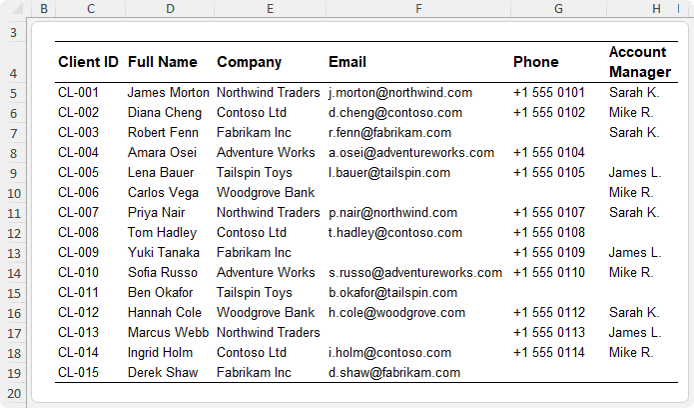
You have a contact list with missing emails, phone numbers, or account managers:
Formula
=SUM(--ISBLANK($C5:$H5))
How It Works
- ISBLANK checks each cell in the row
- It returns and array of TRUE or FALSE values, one for each cell in the row
- The double unary converts TRUE/FALSE to 1/0
- SUM adds them up to a single value required by the conditional format
Result
- If any cell is blank → result is greater than 0
- The row is highlighted
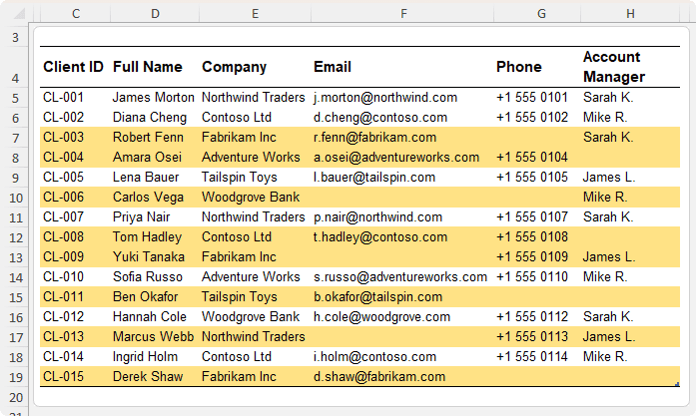
Fill in the missing data and the formatting disappears automatically.
4. Highlight Rows Containing Keywords
Scenario
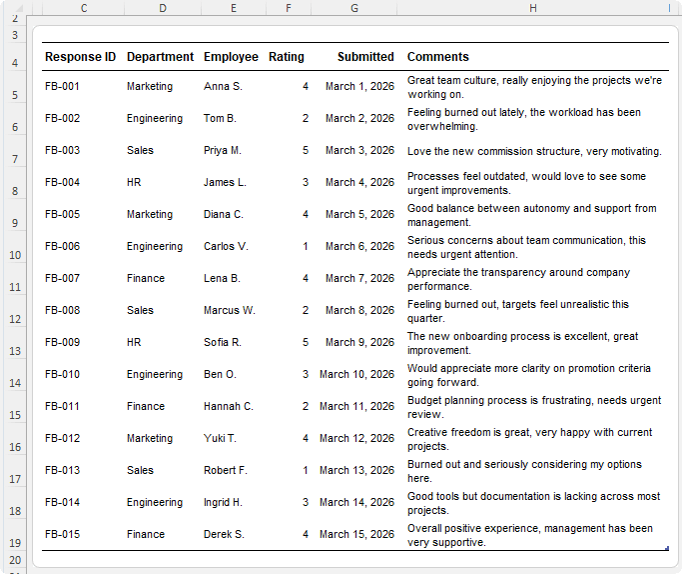
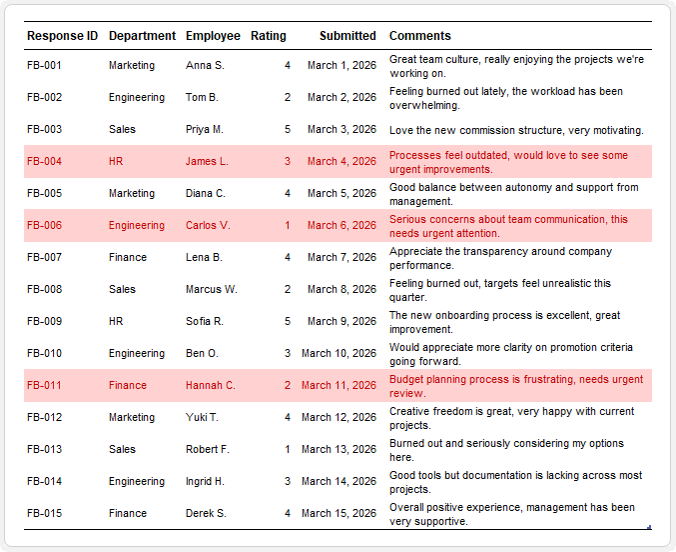
You have a Comments column and want to find specific keywords like “urgent” or “burned out”.
Formula for “urgent”
=SEARCH("urgent",$H5)
Why This Works
- SEARCH returns a number if the word is found (it is not case sensitive)
- It returns an error if not found
- Conditional formatting treats numbers as TRUE and errors as FALSE
Add Multiple Signals
Create another rule for “burned out”:
=SEARCH("burned out",$H5)
Result
- Urgent issues → one format
- Burnout mentions → another
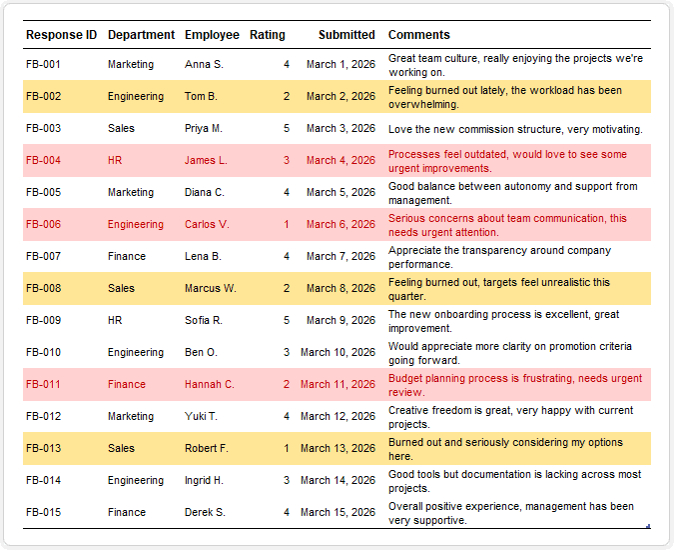
You can prioritise without reading every comment.
5. Create Date-Based Alerts That Update Automatically
Scenario
You manage contract renewals and need to know:
- What is overdue
- What is coming up soon
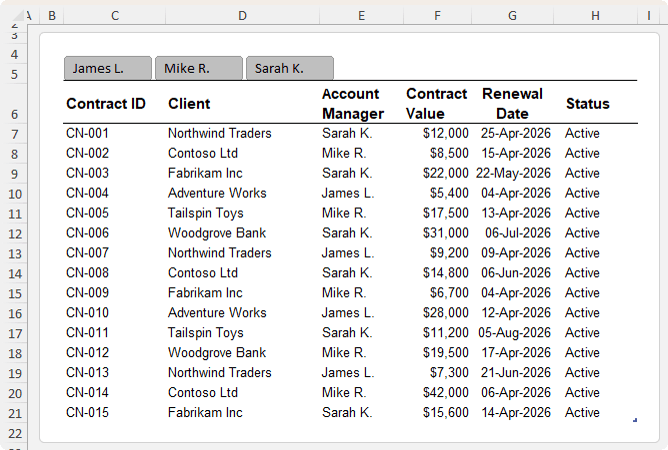
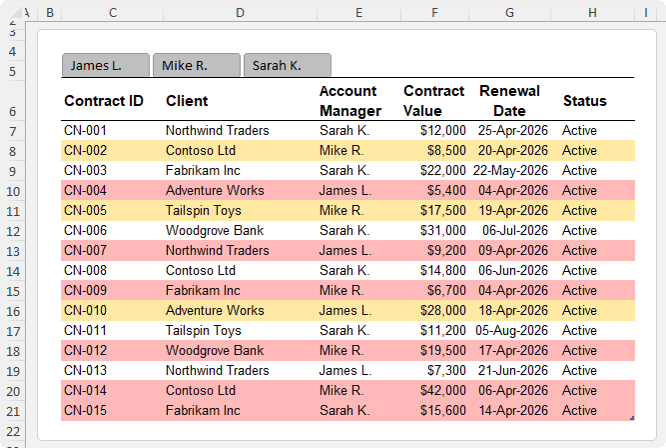
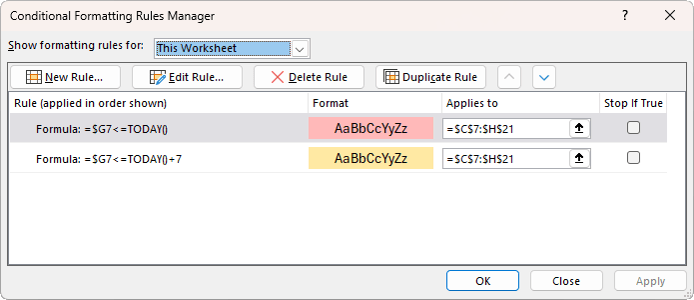
Overdue Contracts – format red
=$G7<=TODAY()
Contracts Due in Next 7 Days – format yellow
=$G7<=TODAY()+7
Key Benefit
The TODAY function recalculates automatically.
That means:
- A contract that was fine yesterday may be overdue today
- No manual updates required
Tip: Always set rule priority in the Conditional Formatting Manager so overdue items override upcoming ones:
6. Detect Duplicates with Full Control
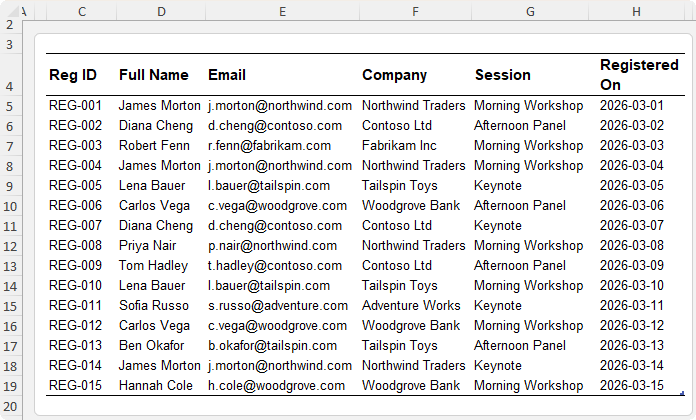
Excel has a built-in duplicate rule, but it flags both the original and duplicate.
Using formulas gives you more control. Let’s take the following data:
Highlight Only Duplicate Entries
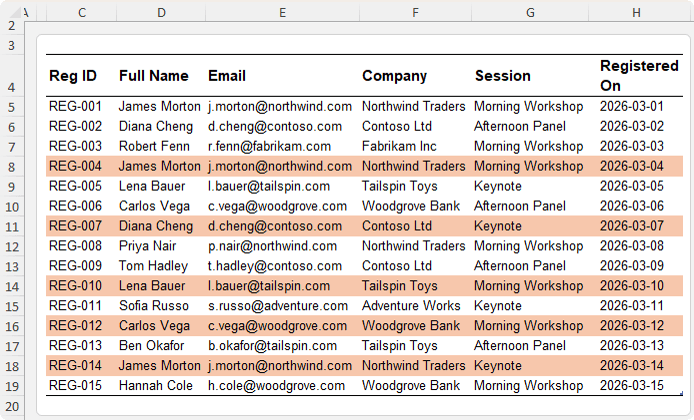
=COUNTIF($E$5:$E5, $E5)>1
How It Works
- The reference $E$5:$E5 enables the range to expand as Excel moves down
- The first occurrence is counted once
- Counts of duplicates return a value greater than 1 and the format is applied
Result
- Original entry stays clean
- Only duplicates are flagged
Advanced: Match Multiple Columns
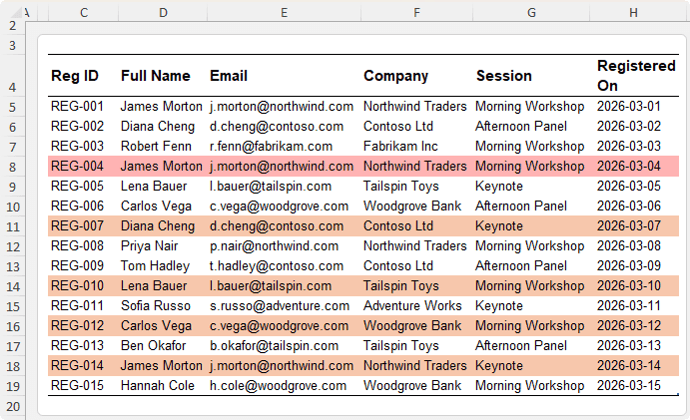
Use COUNTIFS to detect duplicate email and session combinations:
=COUNTIFS($E$5:$E5, $E5, $G$5:$G5, $G5)>1
Result
- Exact duplicates → stronger formatting
- Partial duplicates → lighter formatting
This creates a clear hierarchy of issues.
7. Create Banded Rows That Work with Filters
Excel Tables offer banded rows, but they limit some functionality like dynamic arrays, so we need an alternative approach.
You can recreate banding with conditional formatting.
Formula
=MOD(SUBTOTAL(3, $C$5:$C5),2)
How It Works
- The first argument of SUBTOTAL specifies the function: 3 is COUNTA. However, SUBTOTAL counts visible rows only
- This respects filters
- MOD alternates between 0 and 1
Result
- Every second visible row is formatted
- Banding adjusts automatically when filtering
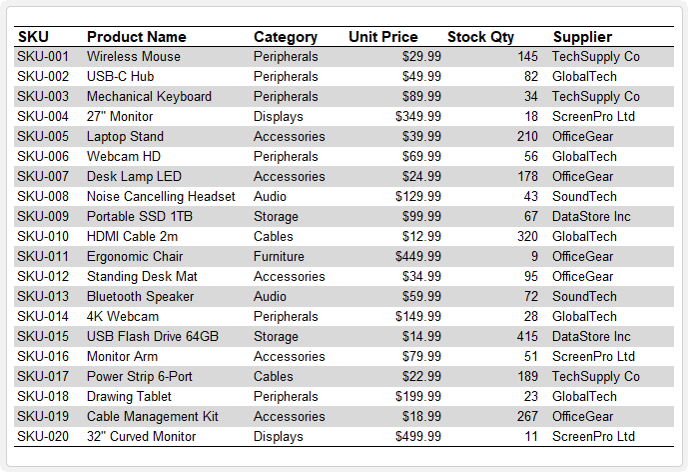
This is far more flexible than standard table formatting.
Take Your Conditional Formatting Further
Everything in this guide builds on core Excel functions.
The more functions you know, the more powerful your conditional formatting becomes.
Functions like XLOOKUP, SUMIFS, and IF can be combined to create highly intelligent rules that adapt to complex data scenarios.
If you want to go deeper into formulas and unlock more advanced techniques, you can explore the full Advanced Excel Formulas course here.
If you start using these formula-based rules, you’ll spend far less time checking spreadsheets and far more time acting on insights.


Mynda,
Thank you for being so generous with all your expertise & advice over the years – notably your letters on Conditional Formatting:
Your previous showing how CF is actually, fundamentally done made all the difference in the world. No longer do I try to do it with Format Painter!!!
Your advice on using a helper row/column to see if the CF formula is actually doing what was planned was valuable – the insights provided helping my CF evolve from a dog’s breakfast to reliably useful results. I no longer routinely do it, but after 5 minutes of trouble-shooting, introducing it usually makes short work of solving the problem.
Question about Important Tip Use Manage Rules to control priority. Place the stricter rule above the general one so it takes precedence.
Could you elaborate about this? I thought checking Stop if True gave the effect of precedence. Leaving it unchecked allowed evaluation to continue and if a following CF formula was true, it would be applied, negating the previous applicable one.
Conditional formatting treats numbers as TRUE and errors as FALSE. Wowsers! Did not know this – it will eliminate a lot of future IFERROR() verbiage.
Question, as I understand, both dynamic functions like TODAY() and CF are recalculated before every operation. Do you have any kinds of rules of thumb for when to start keeping an eye on their use to prevent noticeable lags in Excel response?
Loved the new-to-me formula finesses used in the last few examples.
No doubt you’ve answered these questions previously and I should just dig for them in your site. But part of these comments are also for anyone starting out as turned around about CF as I was.
All the best to you and yours,
Fred
Hi Fred,
Great to hear how far you’ve come with CF, that helper column tip is a game changer when things get messy.
On rule priority vs “Stop If True”:
– The order of rules (top to bottom) always defines priority
– “Stop If True” just controls whether Excel keeps evaluating rules after a match
So:
– If Stop If True is checked, Excel stops at that rule
– If it’s unchecked, Excel continues and later rules can also apply formatting e.g. first rule is cell fill, second rule is font colour, both can be applied unless “stop if true” is checked. However, if both rules are fill colour, the first rule will be applied if it’s TRUE and the second rule will be ignored even if it’s TRUE.
That’s why I recommend:
– Put more specific rules at the top
– Use “Stop If True” when you want to “lock in” that result and prevent further rules being applied
On performance:
You’re right, CF and functions like TODAY() recalc frequently. Practical rules of thumb:
– A few hundred rows → no issue
– Thousands of rows with simple formulas → still fine
– Thousands with complex array-style CF formulas → start paying attention
Watch for:
– Noticeable lag when editing
– Slow scrolling
– Delays applying changes
If that happens:
– Simplify formulas
– Limit the applied range (avoid whole columns)
– Consider helper columns instead of complex CF logic
Appreciate you sharing your experience too, that will help others more than you think.
Mynda
for the manual banding, I have always used “=Mod(row(),2)” rather than the subtotal that you mention. It seems clearer, but there may be something that i am missing
The advantage to SUBTOTAL is when you filter rows, the bands automatically adapt to only display on the visible rows, thus keeping the banding alternating. Try filtering your data and you’ll see the limitation of ROW.