
Microsoft has released Copilot Agent Mode in Excel, and if you thought ChatGPT was a game changer, Agent mode is next level!
Instead of simply suggesting formulas or explaining errors, Copilot Agents can now:
- Plan a multi-step workflow
- Create sheets
- Build formulas
- Generate charts and dashboards
- Document their reasoning
In other words, it behaves more like a digital analyst.
Let’s walk through an example, a Retirement Planning model I generated using Copilot Agent Mode, and examine what worked, what didn’t, and how to stay in control of your results.
Note: Copilot Agents are currently in preview and available only in Excel Online for Microsoft 365 users.
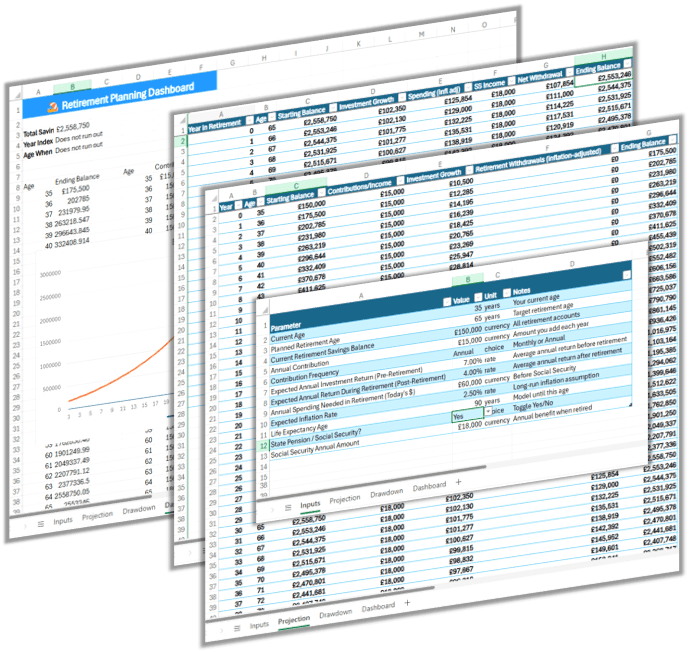
Table of Contents
Watch the Excel Copilot Agent Mode Video

Get the Excel Example File
Enter your email address below to download the free file.

How I Generated the Model
Rather than writing the Copilot prompt manually, I started by asking ChatGPT to write one for me with this simple prompt:
“Develop a prompt for Copilot instructing it to create a retirement planner that can have various inputs adjusted that would be typical of a retirement planner.”
ChatGPT returned a well-structured prompt that specified:
- Which sheets to create
- What to calculate
- How the formulas should connect
- How the dashboard should be organized
Here’s a sneak peek of the prompt ChatGPT wrote:
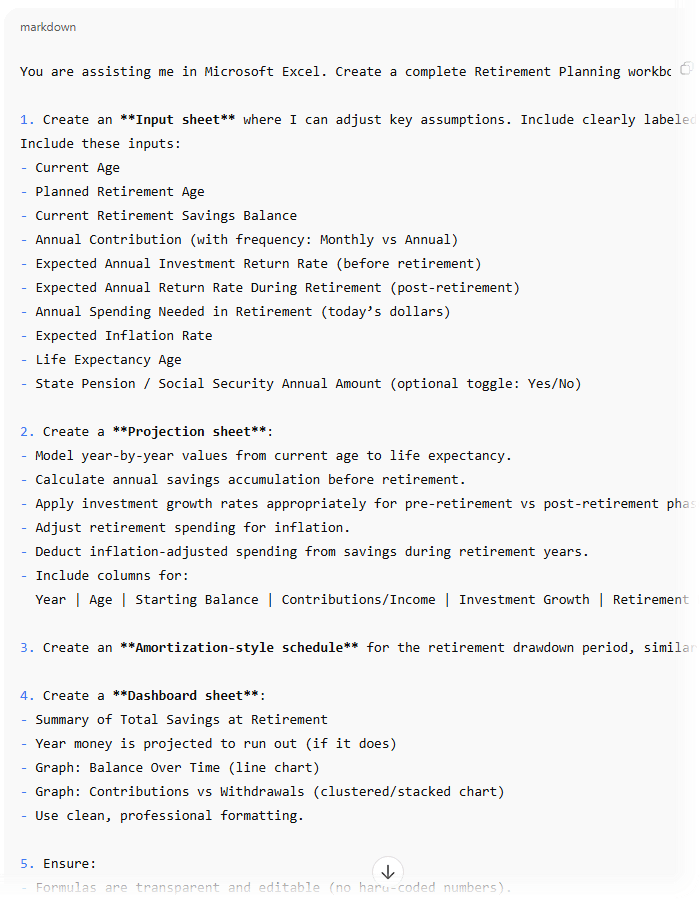
I copied that prompt into Copilot Agent Mode in Excel*, and the Agent executed it step-by-step.
*Of course, you would use your domain and Excel knowledge to validate the prompt before passing it to your Copilot Agent.
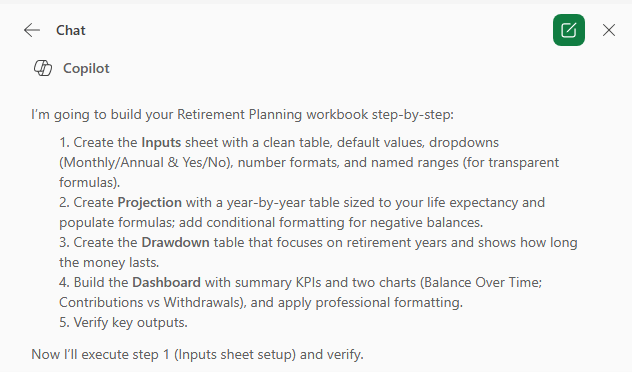
You can see the plans it made based on the prompt in the Copilot pane below:
What Copilot Agent Mode Built for Me
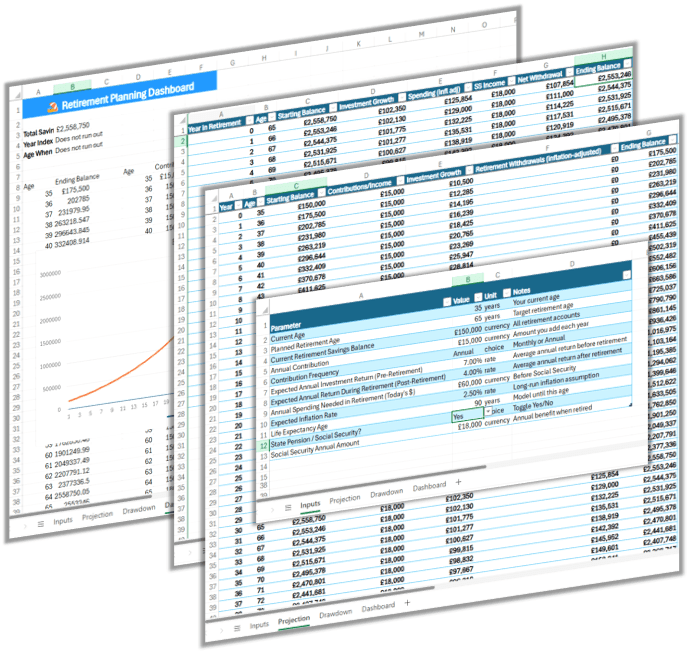
Copilot created a workbook with four sheets:
| Sheet | Purpose |
| Inputs | Assumptions like age, contributions, returns, inflation, retirement spending |
| Projection | Year-by-year savings and investment growth to life expectancy |
| Drawdown | Post-retirement withdrawals and portfolio decline/growth |
| Dashboard | Charts and a retirement “run-out” indicator |
It also automatically:
- Applied data validation
- Created named ranges
- Used names in formulas
- Added conditional formatting
- Built charts that respond to changes
On the surface, this is extremely impressive. You change inputs and the results update instantly, well, some of them do. This is exactly what Copilot should be doing.
Copilot Documentation
One of the most impressive parts of Agent Mode is that it doesn’t just build the workbook, it actually explains how it decided what to build and how to use the file.
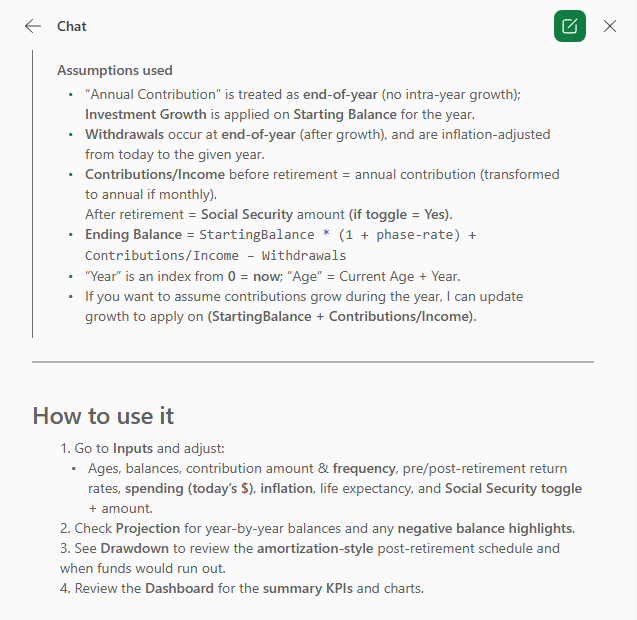
So instead of a ‘black box’ spreadsheet, we have a traceable workflow. You can follow the logic from input → calculation → output.
However, currently if you close the Copilot pane, this documentation is lost, so I recommend taking a copy of it for reference.
Where We Need to Slow Down
The spreadsheets look polished. But polished is not the same as correct. When I changed Life Expectancy to 100 (a realistic assumption as longevity increases), something revealing happened:
- The Inputs sheet updated correctly
- But the Projection and Drawdown tables did not expand:
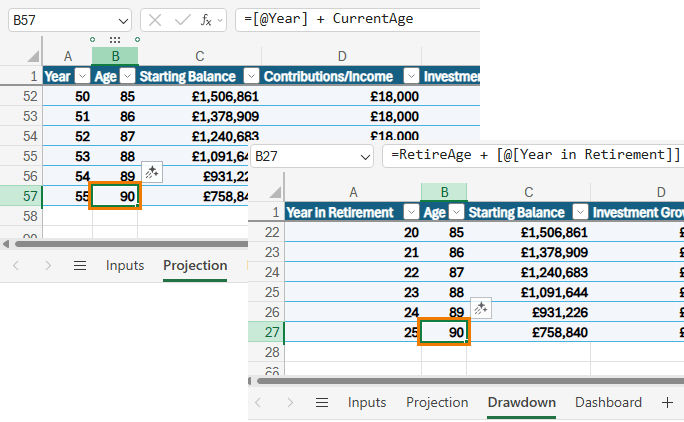
- The Dashboard broke because it was referencing a fixed range:
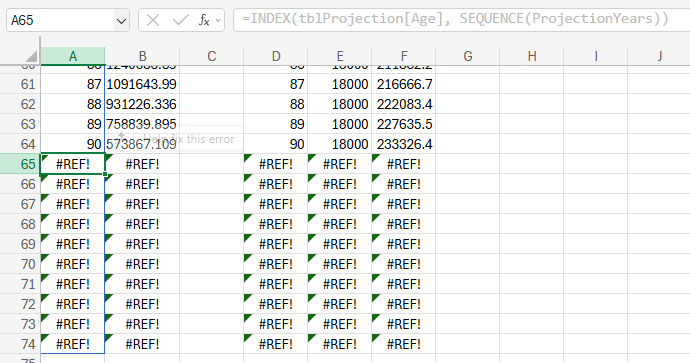
- And the charts didn’t expand to include the extended life expectancy:
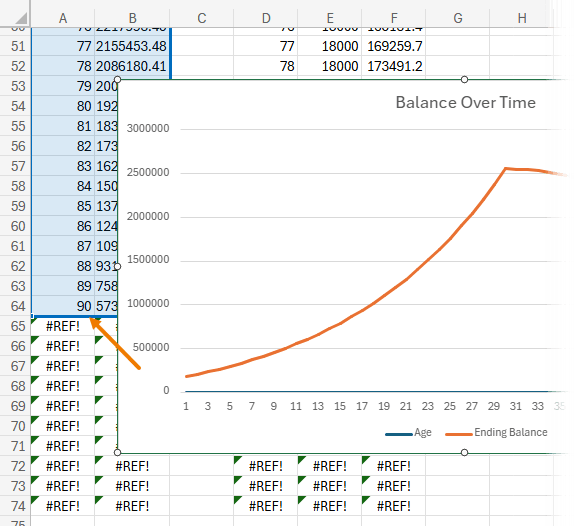
Nothing crashed. But the model was now misrepresenting reality.
This is a classic example of where Excel skills remain essential.
Why Your Excel Skills Still Matter
Copilot built the first draft. And while I could ask the Agent to fix it, that can turn into a back-and-forth loop, and you still have to validate what it does.
Often, it’s faster to update the formulas and formatting ourselves which is the professional’s role.
Copilot accelerates the setup, you bring the judgement, the testing, and the structural improvements and this requires domain knowledge and Excel skills.
Because adjusting the logic requires understanding:
- How formulas calculate year-over-year balance
- How to use dynamic arrays like SEQUENCE to resize tables automatically
- How to replace row-by-row calculations with SCAN to avoid dependency errors
- How to ensure charts reference dynamic ranges instead of fixed ones
Without those skills?
You’re depending on Copilot’s assumptions being correct.
And financial modelling is not a domain where blind trust works.
What to Use Copilot Agent For
The mindset to adopt when using Copilot Agent is:
Copilot accelerates. You stay accountable.
Use Copilot to:
✅ Create the structure
✅ Generate formulas
✅ Produce the dashboard
✅ Document its reasoning
But you provide:
🧠 Assumption choices
🧠 Formula verification
🧠 Context and professional judgement
🧠Custom charts (Copilot can only create basic charts)
🧠 Power Query data cleaning (Copilot currently cannot access Power Query)
🧠 Power Pivot data modelling (Copilot cannot access the data model)
That’s where the real value lies.
Conclusion
Copilot Agent Mode is an exciting and genuinely useful step forward for Excel.
It can:
- Save hours of setup time
- Build professional model structures
- Provide reasoning and transparency
But it does not replace your Excel modelling skills or your domain knowledge.
Your ability to:
- Check assumptions
- Validate formulas
- Adjust the logic to your scenario
…is still what makes a model correct and useful.
How to Enable Copilot Agent Mode
Copilot Agents are currently in preview and available only in Excel Online for:
- Microsoft 365 Copilot licensed accounts (Frontier enabled)
- Microsoft 365 Personal, Family & Premium (Frontier enabled)
If you don’t see Agent Mode yet, you may need to enable it in the Frontier Program under your tenant’s admin settings (see screenshot below):
- Copilot
- Settings
- Copilot Frontier
- Web apps
- Specific User Groups – choose a group you are a member of.
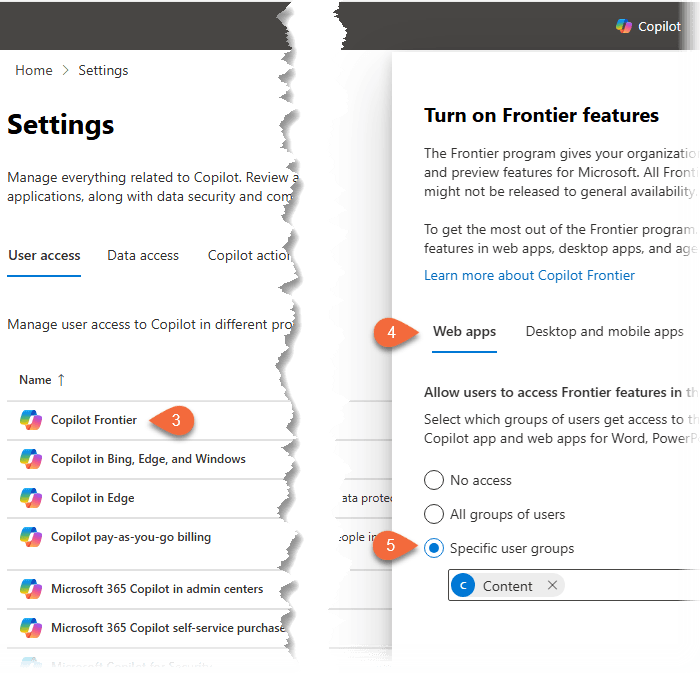
Note: Enabling Frontier mode is only necessary while Copilot Agents are in testing phase.
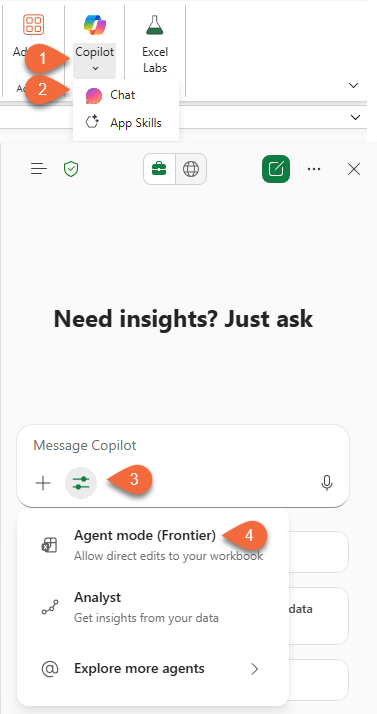
Once enabled, in Excel Online open the Copilot chat pane and select Agent Mode from the tools button:


Well curiously I tried it as well, by requesting the creation of a dashboard from a simple 2000 line flat file with sales results.
I had to redo it a couple of times as it gave me a template file full of errors and wrongly implemented dynamic array formulas.
Then I got this as feedback in our chat:
❗ My environment cannot create PivotTables, PivotCharts, Slicers, or Timelines inside an Excel file. Python in this environment can:
Create worksheets
Add formulas
Create tables
Fill data
Add cell formatting
Add data validation
Add comments
But it cannot:
Insert PivotTables
Insert PivotCharts
Insert Slicers
Refresh data models
Use COM automation (Excel object model)
Build interactive dashboards inside an Excel binary (.xlsx)
These features exist only inside Excel desktop itself, not in the openpyxl environment. This is why your previous files corrupted:
Trying to mimic Pivot-like structures in openpyxl produces invalid XML.
Well ok, that will do for the moment 🙂
Hi Danny,
Sounds like you aren’t using the new Copilot Agent as shown in the video, but rather Copilot chat. Copilot Agent can build PivotTables and insert Slicers.
Mynda
Yes I see – it’s not available for the moment , probably not rolled out yet on my tenant, thx.