
Managing stock across multiple locations can quickly become overwhelming. Whether you run a retail store, an online shop, or manage vending machines and warehouses, keeping accurate records of what you have, where it is, and when to reorder is essential.
The good news? With the right setup, you can build a powerful yet simple Excel inventory management system that tracks stock, records transactions, generates automatic reorder lists, and creates instant reports — all in one workbook.
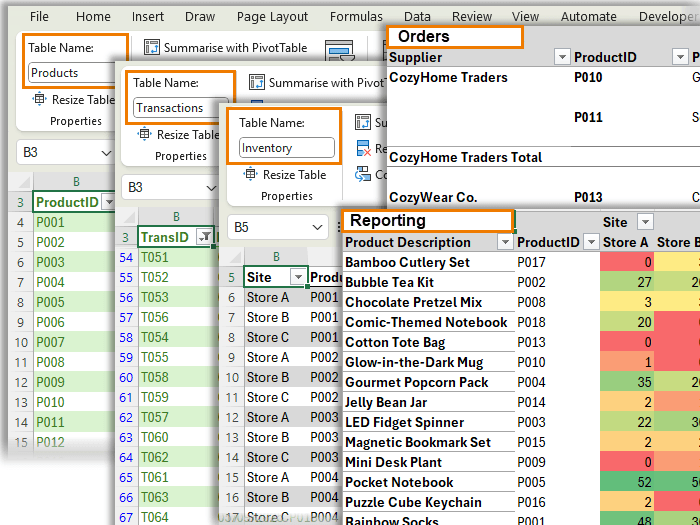
Table of Contents
- Watch the Video
- Get the Excel Inventory Management System Template
- Why Use Excel for Inventory Management?
- Overview of the Excel Inventory System
- Step 1: Create the Products Sheet
- Step 2: Build the Transactions Sheet
- Step 3: Set Up the Inventory Sheet
- Step 4: Automate the Order Sheet
- Step 5: Generate Reports
- Why This System Works
- Next Steps: Take Excel Even Further
Watch the Video

Get the Free Excel Database Template
You don’t have to build it from scratch. Grab the free working template I used in this tutorial:
Enter your email address below to download the free file.

Why Use Excel for Inventory Management?
Many businesses jump straight to expensive software, but Excel offers surprising advantages:
- Flexibility: Customise it to suit your products and processes.
- Cost-effective: No subscription fees.
- Automation-ready: Use formulas, PivotTables, and conditional formatting for instant updates.
- Scalable: Track stock across multiple stores, suppliers, or product categories.
This guide walks you step by step through building your own system, so you can take full control of your inventory.
Overview of the Excel Inventory System
Your workbook will include five interconnected sheets:
- Products Sheet – Your catalogue of everything you sell (name, category, cost, supplier, reorder level).
- Transactions Sheet – Every stock movement, both sales and receipts.
- Inventory Sheet – Current stock levels by site.
- Order Sheet – Automatic reorder list grouped by supplier.
- Reports Sheet – Insights on stock quantities and values.
Together, they form a lightweight but powerful system: transactions feed inventory, inventory drives orders, and reports give you instant insights.
Step 1: Create the Products Sheet
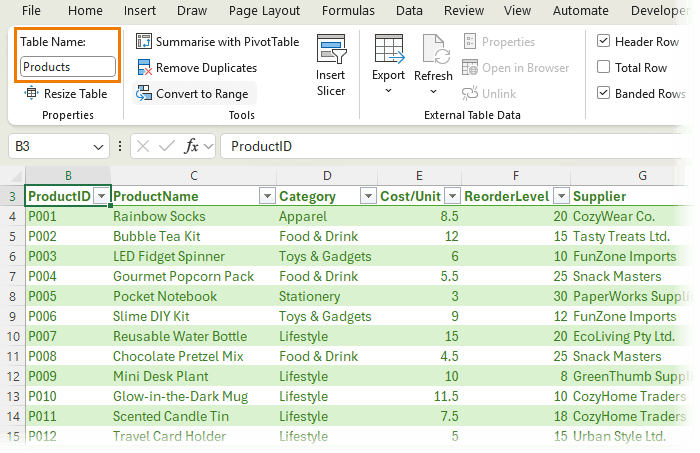
The Products sheet is your master list. Include columns like:
- Product ID
- Product Name
- Category
- Cost per Unit
- Reorder Level
- Supplier
💡 Tip: Format the range as an Excel Table and name it Products. Define a named range (ProductList) for Product IDs. We’ll be using this name in a drop-down list to ensure accuracy when referencing products in other sheets.
Step 2: Build the Transactions Sheet
Every stock movement (sale or delivery) is recorded here. Key columns include:
- Transaction ID (sales invoice number or purchase invoice number).
- Date
- Product ID
- Site (Store A, B, etc.)
- Quantity (positive for receipts, negative for sales)
- Type (e.g., Sale, Receipt, Opening Stock)
Format this as a Table named Transactions. Use data validation drop-downs linked to your ProductList name to avoid errors.
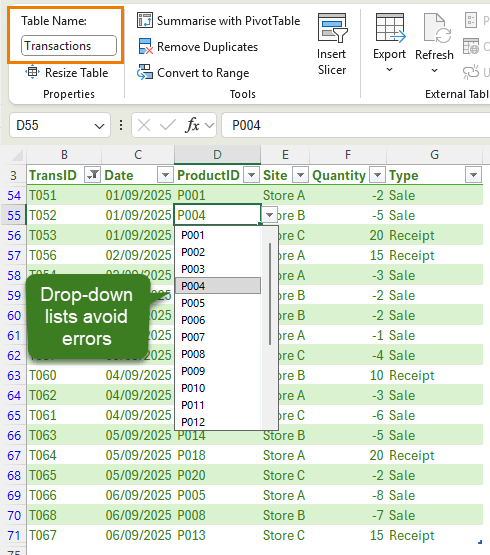
👉 This sheet becomes your audit trail - if stock looks off, you can trace every movement.
Step 3: Set Up the Inventory Sheet
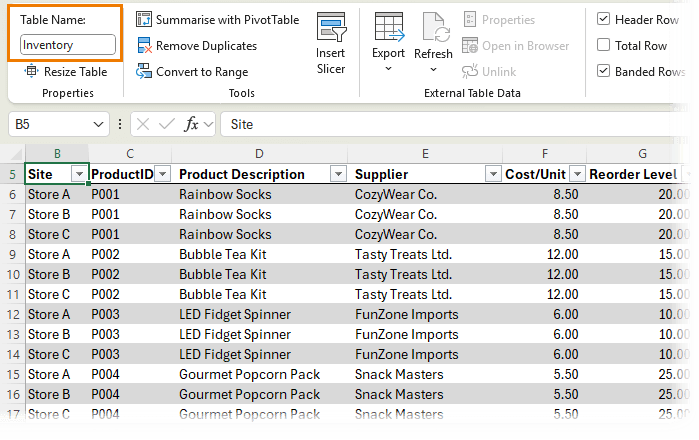
This sheet answers the big question: How much stock do I have right now, and where is it?
Columns include:
- Site
- Product ID
- Product Description
- Supplier
- Cost per Unit
- Reorder Level
- Quantity on Hand (calculated with SUMIFS)
- Stock Value (Cost/Unit * QuantityOnHand)
- Reorder (Yes/No flag)
- Order Date
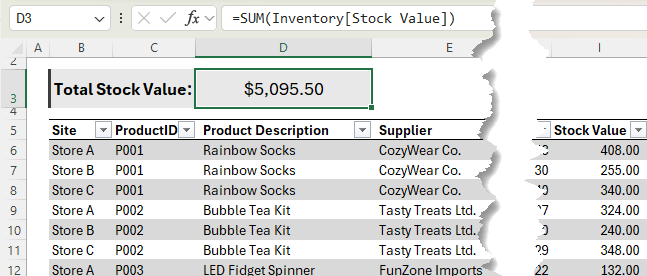
Add a headline figure at the top:
=SUM(Inventory[Stock Value])
This gives you the total stock value at a glance.
Step 4: Automate the Order Sheet
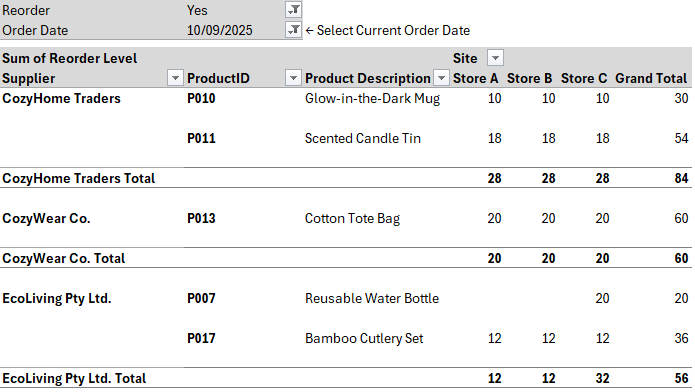
When stock levels fall below the reorder threshold, the Order sheet uses a PivotTable to summarise what needs to be ordered:
- Rows: Supplier, Product ID, Product Name
- Columns: Site
- Values: Reorder Level
- Filters: Reorder = Yes, Order Date
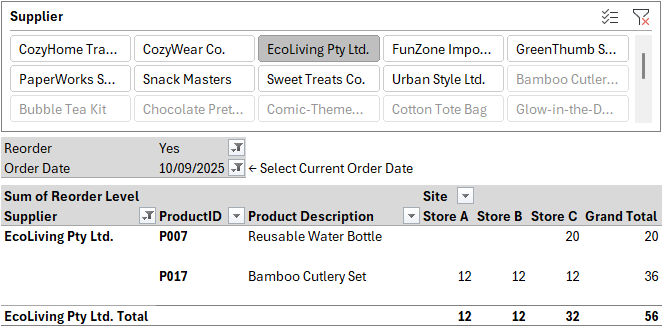
Add a Supplier slicer for quick filtering. The result? A ready-made purchase order list:
Step 5: Generate Reports
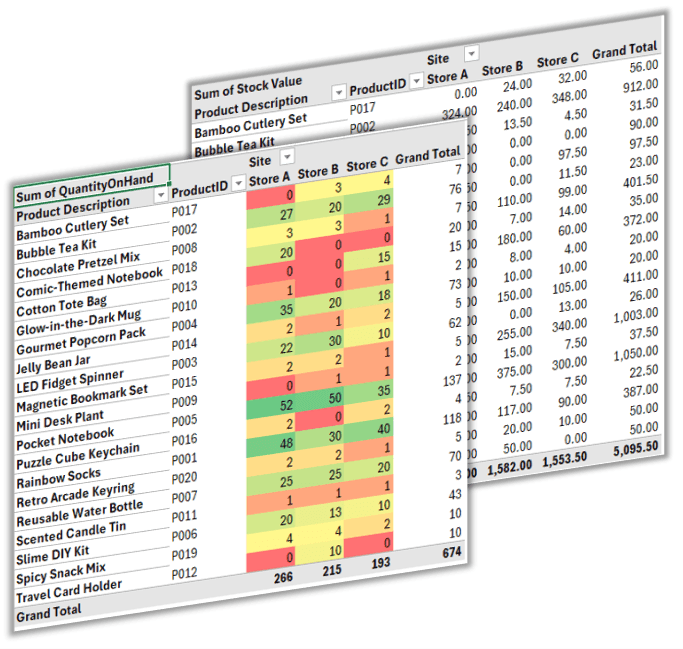
Finally, the Reports sheet uses PivotTables to show:
- Stock quantities by site
- Stock value by supplier or category
- Conditional formatting heatmaps for quick insights
These reports give you real-time visibility of what’s in stock and where shortages are emerging.
Why This System Works
- Accuracy: Centralised product list ensures consistent data.
- Automation: Transactions update inventory and orders automatically.
- Scalability: Works for one store or many locations.
- Simplicity: No coding or external tools required.
This system turns Excel into a reliable inventory hub for small and medium businesses.
Next Steps: Take Excel Even Further
If you enjoyed building this inventory system, you’ll love my Excel Expert course. You’ll learn advanced techniques to build smart, automated solutions that save you hours every week.



Why did you choose to have sales, receipts and opening stock in the same table. A rookie like me would have had a sales table, receipts table in separate sheets and bring them together in the master table using sumif. What is the technical advantage of having just one transaction table and differentiating the transaction with a negative number?
Primarily for simplicity, but you could certainly split these transaction types into separate tables and then use Power Pivot to create relationships to analyse the data in one PivotTable etc.
In practice the unit (purchase as well as the sales) price will change over time. I want to use FIFO can you show how we need to adapt the calculations (cost of goods sold and inventory value)
Please post your question on our Excel forum where you can also upload a sample file and someone may be able to help you.
This workbook is a life saver! Thank you so much.
I do have a question, is there away to use a simple barcode scanner with this workbook system? for inventory out and in?
Glad you’ll find it useful. I’m not overly familiar with barcode scanners, but I would expect you can.