

Hi All
We're receiving packing lists with mixed size and shoe pair details. Splitting size details manually is time-consuming. Could we explore options for a more streamlined process, like an automated split formula or an alternative approach.
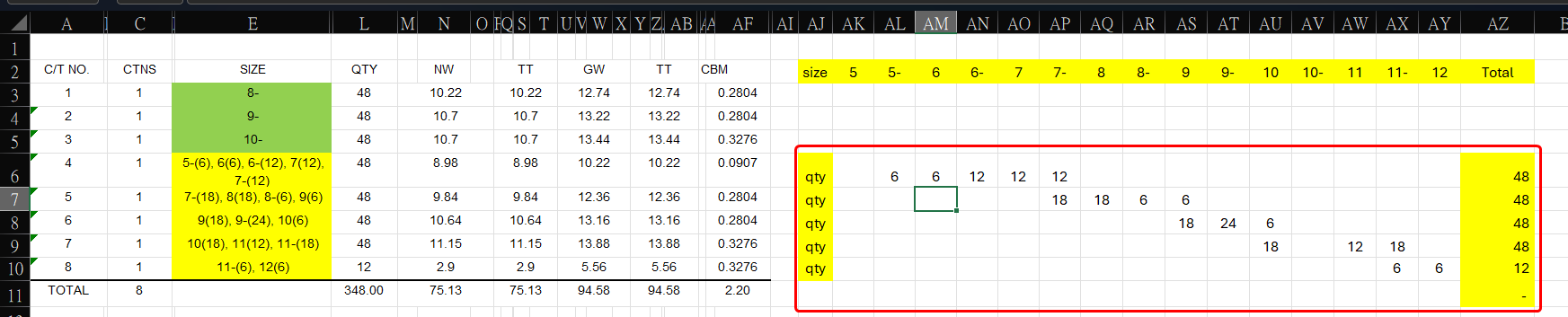

Indeed, quite a messy pack list. Empty columns/rows, merged cells and mismatched headers as a result. But Power Query (PQ) can clean it up quite easily.
The attached workbook contains a PQ solution that should work for you. Just copy the pack list data (columns A:AE) excluding the header and total rows into the table on the 'data' tab and then refresh the table in the 'split' tab.
Hi Riny,
Thanks for your suggestion. Can you please share the link for PQ (Power Query)? I'd like to use this method to save time.
@navsal66 Once again, I don't understand the question. What do you mean by "share the link for PQ".
Provided that you are on Excel 2016 or later, PQ is integrated in Excel on the Data ribbon. In modern versions it in the group of icons called "Get and Transform Data". If you are using an older Excel version, search the web for "power query Excel 2013" and choose one of many links that help you down-load and install the PQ add-in.
In the blog section of this forum you will find many PQ related tutorials. I suggest you check these out first and get a basic understanding of PQ. Then, you will be able to open the Power Query editor and follow all the applied steps in the file I attached earlier.
In the meantime, you can try my earlier suggestion and just copy paste/values (section by section) from the pack list/invoice data columns A:AE (without headers and total) and paste it into the blue table called "_packlist" and then select any cell in the orange table. Right-click and Refresh. That's it.