
Notifications
Clear all
Excel
2
Posts
2
Users
0
Reactions
565
Views
Topic starter
So I sometimes have to merge several sheets to add information to create 1 complete sheet. After I add these sheets, I do a sort based on a key (usually it is the Serial#), and that will (can) add duplicate rows. Unfortunately, removing duplicates doesn't work yet because the merge information is still on separate rows and hasn't been merged yet. This is because the merge on, say, a user email address, only keeps these addresses together (on separate rows) and does not actually merge the data together .. Do you know a way to fix this?? thx
Posted : 16/04/2026 2:30 am
Hi,
First, get both files into Power Query. Open your main file, select the data, then Data → From Table/Range. If the second file is separate, close that first one as "connection only", then Data → Get Data → From File → From Workbook and pick your second file. Load that one too.
Now in Power Query, click your main table, go to Home → Merge Queries → Merge as New. Select the Serial# column in both tables, leave it on Left Outer join, hit OK.
You'll get this new column that just says "Table" in every cell. Click the little arrows icon on that column (the expand button). Important: uncheck "use original column name as prefix" and only select the columns you actually need from the second file. I just grabbed "Last Access Date" and left everything else unchecked. If you select all columns like I did the first time, you'll end up with duplicates like "Product" and "Table2.Product" - annoying.
Then just delete any extra columns you don't want, drag them around to reorder if needed, and Close & Load.
Done. One row per Serial#, all the data merged properly. And when the source file updates, just hit refresh - no need to do it all over again.
Way easier than trying to sort and remove duplicates manually.
Now in Power Query, click your main table, go to Home → Merge Queries → Merge as New. Select the Serial# column in both tables, leave it on Left Outer join, hit OK.
You'll get this new column that just says "Table" in every cell. Click the little arrows icon on that column (the expand button). Important: uncheck "use original column name as prefix" and only select the columns you actually need from the second file. I just grabbed "Last Access Date" and left everything else unchecked. If you select all columns like I did the first time, you'll end up with duplicates like "Product" and "Table2.Product" - annoying.
Then just delete any extra columns you don't want, drag them around to reorder if needed, and Close & Load.
Done. One row per Serial#, all the data merged properly. And when the source file updates, just hit refresh - no need to do it all over again.
Way easier than trying to sort and remove duplicates manually.
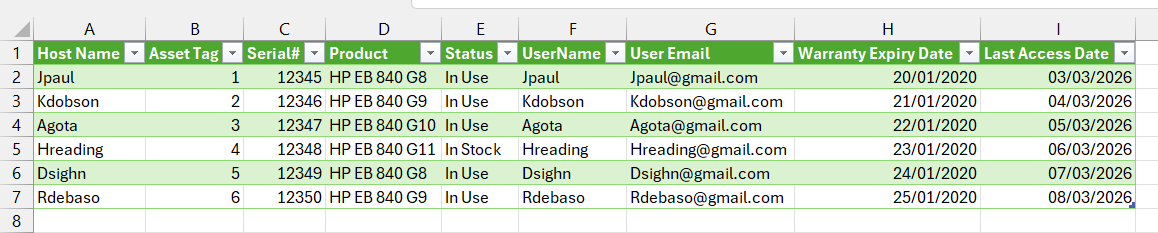
Code M query for merge.
let
    Source = Table.NestedJoin(Table1, {"Serial#"}, Table2, {"Serial#"}, "Table2", JoinKind.LeftOuter),
    #"Expanded Table2" = Table.ExpandTableColumn(Source, "Table2", {"Host Name", "Serial#", "Product", "Username", "Last Access Date"}, {"Table2.Host Name", "Table2.Serial#", "Table2.Product", "Table2.Username", "Table2.Last Access Date"}),
    #"Removed Columns" = Table.RemoveColumns(#"Expanded Table2",{"Table2.Serial#", "Table2.Product"}),
    #"Changed Type" = Table.TransformColumnTypes(#"Removed Columns",{{"Warranty Expiry Date", type date}, {"Table2.Last Access Date", type date}}),
    #"Removed Columns1" = Table.RemoveColumns(#"Changed Type",{"Device Name"}),
    #"Reordered Columns" = Table.ReorderColumns(#"Removed Columns1",{"Table2.Host Name", "Asset Tag", "Serial#", "Product", "Warranty Expiry Date", "Status", "UserName", "User Email", "Table2.Username", "Table2.Last Access Date"}),
    #"Renamed Columns" = Table.RenameColumns(#"Reordered Columns",{{"Table2.Host Name", "Host Name"}}),
    #"Reordered Columns1" = Table.ReorderColumns(#"Renamed Columns",{"Host Name", "Asset Tag", "Serial#", "Product", "Status", "UserName", "Warranty Expiry Date", "User Email", "Table2.Username", "Table2.Last Access Date"}),
    #"Removed Columns2" = Table.RemoveColumns(#"Reordered Columns1",{"Table2.Username"}),
    #"Reordered Columns2" = Table.ReorderColumns(#"Removed Columns2",{"Host Name", "Asset Tag", "Serial#", "Product", "Status", "UserName", "User Email", "Warranty Expiry Date", "Table2.Last Access Date"}),
    #"Changed Type1" = Table.TransformColumnTypes(#"Reordered Columns2",{{"Asset Tag", Int64.Type}, {"Host Name", type text}}),
    #"Renamed Columns1" = Table.RenameColumns(#"Changed Type1",{{"Table2.Last Access Date", "Last Access Date"}})
in
    #"Renamed Columns1"
Posted : 16/04/2026 10:09 am