
Imagine needing to send payment reminders to 50 clients, or event updates to 200 conference participants. Doing that manually in WhatsApp would take hours. With Excel, you can generate the messages in seconds.
In this guide, I’ll show you how to turn Excel into your personal WhatsApp assistant, from simple one-off messages to advanced automation with personalized templates.
Table of Contents
- Watch the Video
- Get the example file and Country Code List
- The Secret Behind WhatsApp Automation
- Step 1: Download WhatsApp Desktop
- Step 2: Build WhatsApp Links in Excel
- Step 3: Automate with Customer Data
- Step 4: Add Advanced Message Templates
- Step 5: Scale and Personalize Effortlessly
- Conclusion
- Next Steps: Automate Even More
Watch the Video

Get the Excel Example File
Enter your email address below to download the free file.

The Secret Behind WhatsApp Automation
WhatsApp has a built-in link format that instantly opens a chat with any phone number:
https://wa.me/whatsappphonenumber?text=urlencodedtext
It consists of three simple parts:
- wa.me – WhatsApp’s official API link.
- Phone number – With country code, no “+” sign, spaces, or dashes.
- Message text – Your message.
When you paste this link in a browser, it opens the WhatsApp desktop app with the message ready to send.
Step 1: Download WhatsApp Desktop
To make automation work seamlessly, install the WhatsApp desktop app and link it to your account.
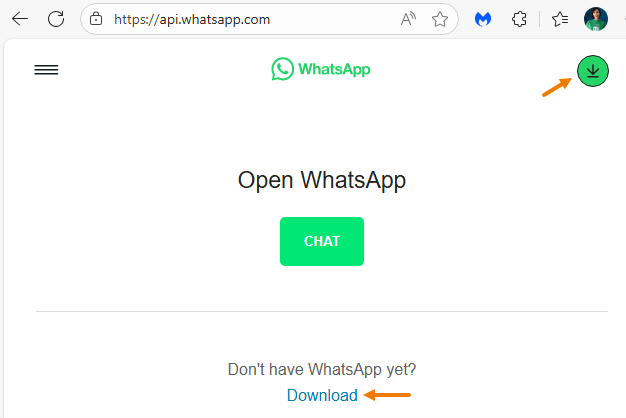
This ensures every generated link opens directly in the desktop app with the message pre-filled.
Step 2: Build WhatsApp Links in Excel
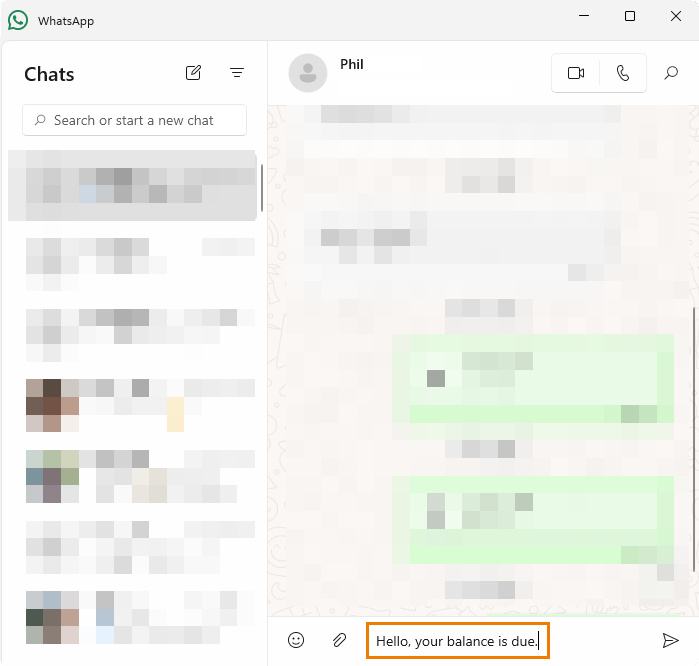
Let’s start with a simple manual link using the HYPERLINK function in Excel.
=HYPERLINK("https://wa.me/61412345678?text=Hello, your balance is due.")

Clicking this opens WhatsApp with the exact message ready to send.
Step 3: Automate with Customer Data
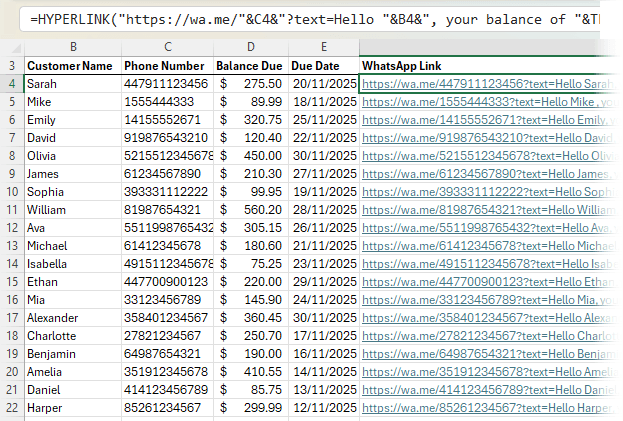
Typing individual links is impractical for dozens (or hundreds) of contacts. Instead, let Excel pull details from your dataset automatically:
=HYPERLINK(

"https://wa.me/"&B2&
"?text=Hello "&A2&

", your balance of "&TEXT(C2,"$#,##0.00")&

" is due on "&TEXT(D2,"D-MMM-YY")&

". Please contact us to arrange payment."

br)
- B2 = Phone number
- A2 = Customer name
- C2 = Balance due
- D2 = Due date
The TEXT function ensures the amount has consistent formatting (e.g., $1,500.00) and the date appears in a clear format (e.g., 15-Nov-25).
Copy the formula down, and Excel automatically generates personalized WhatsApp links for every customer.
Step 4: Add Advanced Message Templates
Not all messages are payment reminders. You might want to send appointment confirmations, promotional offers, or thank-you notes. By combining the SWITCH function with your hyperlink formula, you can create dynamic templates:
=HYPERLINK("https://wa.me/"&B2&"?text="&
SWITCH(H2,

"Payment Reminder","Hello "&A2&", your balance of "&TEXT(C2,"$#,##0.00")&" is due on "&TEXT(D2,"D-MMM-YY")&". Please contact us to arrange payment.",

"Appointment Reminder","Hi "&A2&", reminder: Your "&E2&" appointment is scheduled for "&TEXT(F2,"D-MMM-YY h:mm AM/PM")&".",

"Promotional Offer","Hey "&A2&"! We have an exclusive offer: "&G2&". Limited time only!",

"Thank You Message","Hi "&A2&", thank you for your business! We appreciate your loyalty."

))
- H2 = Message type (chosen from a dropdown list)
- E2 / F2 / G2 = Additional details (appointment, time, or promo text)
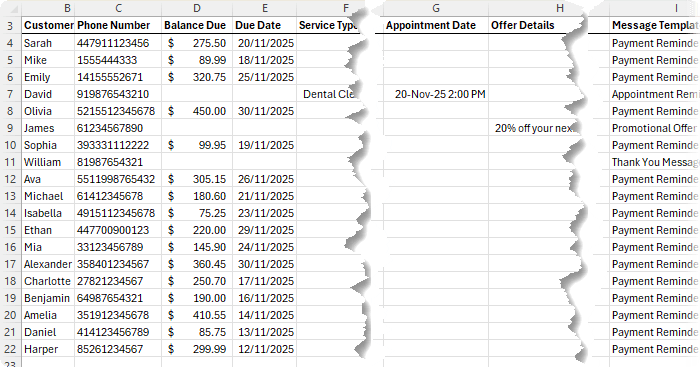
With this setup, you can change the message type in one cell, and Excel generates a tailored WhatsApp link instantly.
Step 5: Scale and Personalize Effortlessly
- Dropdown lists let you switch message types quickly.
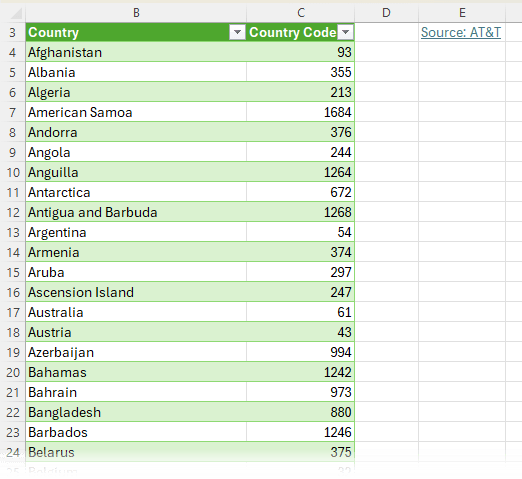
- Country codes sheet ensures numbers are correctly formatted.
- Copy-down formulas enable scaling to hundreds of rows.
With this system, you can:
- Send payment reminders at scale.
- Confirm appointments instantly.
- Run promotional campaigns.
- Thank loyal customers personally.
Conclusion
With just a few formulas, Excel can transform WhatsApp from a manual chore into a powerful automation tool. Whether you’re a small business chasing payments, a consultant managing appointments, or an event organizer, this approach saves hours while keeping communication professional and personalized.
Next Steps: Automate Even More
Once you’ve automated your WhatsApp messaging, you’ll likely want to automate other tasks too. Excel’s macros and VBA can take you to the next level — from auto-sending emails to building full business workflows.



Hi Mynda, can I send over 2,000 messages on this every month?
Hi Eileen, you’d have to check WhatsApp’s API terms and conditions for limits on outgoing messages. I suspect if you tried to send 2000 messages in one go, it’d be a problem, but might be ok over a month.
Thank you for your info about automating whatsapp messages, but I have a problem sending Arabic text, is there any solution?
You’d have to reach out to WhatsApp for support, sorry.
this is ok but how do we send the message to all the client we listed in the whatsapp at once
You can automate pressing the ‘send’ button in WhatsApp with another tool like Power Automate.
Hi Mynda,
a great idea with a lot of potential. Has anyone reported having solved the complete automation? I mean, in any way, either directly from Excel or using Power Automate. If so, can you share the solution?
It would be a fantastic solution if Excel could send messages to individuals or groups at a given time.
I don’t have an end to end solution I can point you to, but Power Automate is certainly one path you could use. Note: The WhatsApp API does not allow you to send to groups.
Hi Mynda,
Tons of Thanks for such a wonderful tip and trick. Please let me know, am I able to send Photo/Brochure to my client with this function.
Great to hear you liked it, Vijay! You can include a link to a photo or brochure. I’m not how this would display in the WhatsApp message though.
Hi, does this allow for a “Send All” option where the messages would be sent to all recipients in one click? or do we have to send each message manually?
You’d have to use Power Automate or similar to send all and press the send button in WhatsApp.
Hi Mynda,
Very nice and usefull! Thanks a lot.
Do I need Power Automate to send the message? There is not something like a “send” command?
To send the message, you must click the send button or press Enter. There’s no command in the WhatsApp API that will do it. The other option to investigate is using Power Automate to click the send button for you.
I have downloaded the Excel file and replaced the 1ste row number with my own number (I live in South Africa) and I keep on gettingan error when clicking on the hyperlink.
“This page isn’t working at the moment”
“HTTP ERROR 429”
How do I fix it, please?
Hi Sarel,
Error 429 is a Rate limit hit: For outgoing messages: Message failed to send because there were too many messages sent from this phone number in a short period of time.
Resend the failed messages.
It might not be you specifically causing the rate limit hit, it might be that my video has proved popular and many people are trying it, causing the limit hit. Either way, there’s nothing you can do but wait for it WhatsApp to reset the limit.
Mynda
Thanks very much for a tip I found potentially very useful, Mynda.
BTW, I tried adding a Line Feed and a Carriage Return to the end of my text in the hope that WhatsApp may also send the message on its way, as it does if I hit the Enter button at the end of my messages, but it still sat waiting for a click on the arrow.
Great to hear, Chris! The line feed/carriage return is a character, whereas pressing Enter on your keyboard is a different action depending on where it is used, so I can see why inserting a line feed wouldn’t trigger pressing Enter in the same way. If you want to automate pressing Enter, you can use Power Automate to click the links in Excel and then press Enter in WhatsApp.