
The Excel TIME function combines separate hour, minute and second values and converts them into a time serial number. If the cell format was General before the formula is entered, the result is formatted as a date.
Syntax: =TIME(hour, minute, second)
| hour: | A number from 0 (zero) to 32767 representing the hour. Any value greater than 23 will be divided by 24 and the remainder will be treated as the hour value. For example, TIME(27,0,0) = TIME(3,0,0) = .125 or 3:00 AM. |
| minute: | A number from 0 to 32767 representing the minute. Any value greater than 59 will be converted to hours and minutes. For example, TIME(0,750,0) = TIME(12,30,0) = .520833 or 12:30 PM. |
| second: | A number from 0 to 32767 representing the second. Any value greater than 59 will be converted to hours, minutes, and seconds. For example, TIME(0,0,2000) = TIME(0,33,22) = .023148 or 12:33:20 AM. |

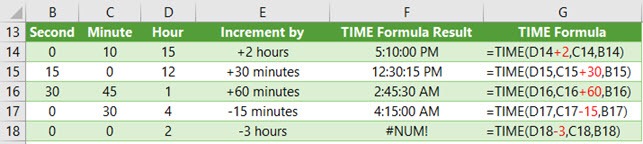
Notice the last result shows the #NUM! error. This is because it results in a negative time and Excel can't calculate that. More on how to solve this later.
Note: If we add time that takes us past 24 hours it will add the excess time to 0 time, effectively starting the clock again. See examples below.

Excel Time Function Conundrum
Let's say and your local time in sunny Queensland, Australia right now is 4:00 AM (the sun is just coming up), and you want to find the time in New York.
You know your local time is GMT+10, and you know that the time in New York is GMT-5.
This is starting to sound like one of those maths questions you used to get in school. You know the ones that go something like:
“Michael is two years older than three times Jennifer's age. If Jennifer is ‘x’ years old, how would you calculate Michael's age?”
Don’t worry I wouldn’t do that to you. My question is much simpler…well maybe:
What formula would you use in Excel to calculate the local time in New York if it’s 4:00 AM in Queensland, Australia?
Here, I’ll help you out:
The calculation you want to do is:
=4:00AM – (10hrs + 5hrs)
And the answer is 1:00 PM.
While this example is easy in your head it’s not so straight forward in Excel.
Problems Calculating Time in Excel
- Excel can’t handle negative times. So taking the example above your formula would result in a negative time and all you’d get is ######.
- When you enter time in Excel you need to enter it in h:mm:ss format. Simply entering ‘10’ for 10 hours will confuse Excel.
Here’s my solution:
There are a few ways to tackle this, and the image below illustrates 2 options:
Rows 4 and 7 show the components of my calculation, and rows 5 and 8 show the behind the scenes view (from the formula bar) of what I actually typed in the cells above.
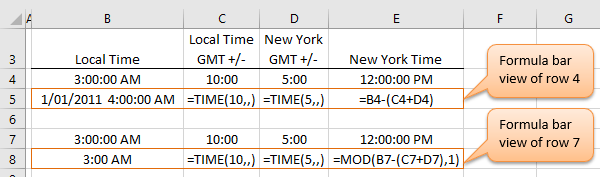
- Cell B4 – You can help Excel handle a negative time by including the date component.
- Cells C4 and D4 – I’ve used the TIME function to enter the hours I want to adjust by.
Tip: Notice in my example the TIME formula only has hours specified. I’ve left the minutes and seconds blank. - Cell E4 – this contains my formula =B4-(C4+D4)
- Rows 7 and 8 show an alternate calculation that doesn't require the date to also be entered with the time. It uses the MOD function in cell E7 to avoid a negative time result.
Ok, you might be thinking you could have done all that in your head. But trust me. When you have family in England, Ireland and Indonesia and clients all over the world it can get pretty tiring (read ‘confusing’) constantly converting time.
For Extra Credit
I’ve actually taken it one step further (as you may expect) and incorporated a VLOOKUP table that lists all of the Time Zones.
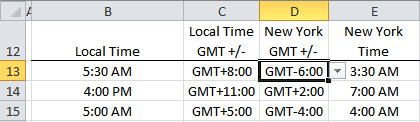
And I’ve inserted drop down lists to select the time zone from my table with a named range of time_zone.
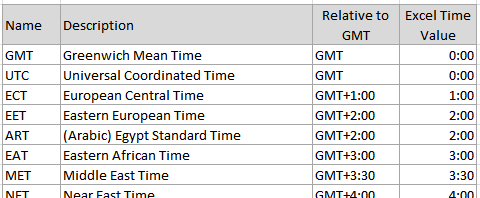
And then I used a VLOOKUP formula in column E like this one in cell E13:
=B13-VLOOKUP(C13,time_zones,2,FALSE)+VLOOKUP(D13,time_zones,2,FALSE)
Download the file here and use it yourself.
Of course if you only have one time zone that you’re constantly converting to then you can add a time zone to your Outlook calendar and see your local time and other time zone side by side.
Free eBook - Working with Date & Time in Excel
Everything you need to know about Date and Time in Excel - Download the free eBook and Excel file with detailed instructions.
Enter your email address below to download the comprehensive Excel workbook and PDF.


Hi!
I can not get this to work in my Swedish Excel 365
=-TIME(11,,)
=-TIME(10,,)
…
…
=-TIME(1,,)
All Formulas with =-TIME() give me ########
But Formulas without the “-“, no problem
Hi Kent,
Dates/Times cannot be negative, but you can try without TIME function.
=1/24 will give the same result as =TIME(1,,),
=10/24 will give the same result as =TIME(10,,)
I have log-in and log-out time for different people. for eg:
person A was from 15:45 to 19:10
Person B was from 15:55 to 20:08
Person C was from 16:55 to 17:35
Person D was from 16:56 to 20:20
if I want to find min by min how many people were present in the room, How can I calculate?
my start time is 15:45 and end time is 20:20, but between 16:56 to 17:35 I had 4 people.
I have to calculate 10 days of data from min to min, how can I do that?
Thanks,
R Peter
Hi Peter,
This formula will give you a count between specific hours:
=SUMPRODUCT((A1:A10>=TIME(15,53,0))*(B1:B10<=TIME(17,53,0))) In Column A you should have the "From" time, in column B the "to" time.
Hi,
this has been really useful, but I can’t work out how to handle negative time.
I have a timesheet where planned staff hours and actual hours are recorded.
Over the year the staff work their full contracted hours, but on a monthly basis they may work up to 5 hours less than their contracted hours, and make the time up over busier times of the year.
Do I have to convert it back to decimals?
Janice
Hi Janice,
Yes, converting time to decimals is the best way to handle this scenario. This tutorial might help you with that:
https://www.myonlinetraininghub.com/excel-time-calculation-tricks
Kind regards,
Mynda
Hi,
I’ve been trying to use your sheet but have found a problem.
— It doesn’t work for positive time differences.
For example say London 03:30 (GMT) to Paris (GMT+1:00) gives 02:30 rather than the correct answer of 04:30. I think it is because your calculation only SUBTRACTS values.
I then saw your suggested function to check the SIGN of the time difference but excel demands you use and apostrophe in form of any sign value which I think stop the function being evaluated properly.
This is a real shame as I was so close to making my scheduling sheet really nice to use – back to individual calculations it seems.
Thanks for the blog – very interesting.
Hi Euan,
I’ve updated the file so you can use the VLOOKUP solution to calculate the time in Paris.
Cheers,
Mynda
That’s GREAT! Many thanks for fixing that, I couldn’t see a way around the problem. Very surprised to get such a rapid response too, brilliant.
You’re welcome, Euan 🙂
Hi,
I am using this formula
=NOW()
And it gives me date and time.
I would like to use this cell to display current time only like “5:28 PM”.
Kindly guide or confirm the correct formula..
Hi Gopal,
Right click the cell, choose Format Cell, go to Custom section, and paste this format in the “Type” field: h:mm AM/PM
Or you can select it from list 🙂
Catalin
Nice example and example worksheet.
I had a problem downloading the example from FF V22=1, it just opened the file directly in a new FF tab. Is there a problem with the hyperlink or my setup?
Suggestion, could you add a “back” button/hyperlink to each of the example tabs. I’ve been using the “back” key, but a button would be friendlier for the mouse generation.
The Time calc is nice, it would be a little more useful if you added 2 things (I have to my copy ) an input file “Current Time” or “Lookup Time” and a new column “Relative to Current Time”.
Hi Ron,
I’m sorry I don’t know what you’re referring to with “FF V22=1”.
Great idea with the input time etc., thanks for sharing.
A ‘back’ button is a good idea for the workbooks. I shall add it to the To-Do list.
Kind regards,
Mynda.
=TIME(9:36:30) thinking it would display 9:36:30
It says “you’ve entered too few arguments for this function”.
My question is Why? It’s the same thing you did in the example.
I’m a dumb guy sometimes NOT :
=Time(,,,) Correct
It’s late please forgive me
No worries, Christopher. Glad you figured it out for yourself 🙂
I am using this formular
=NOW()
And it gives me date,time am/pm
I would like to use this cell to workout other time zones and just see the date and time at that time.
Hi Vittorio,
Try a set-up like this
A1 – NOW()
B1 – -8 or + 8 (TIME DIFF)
C1 – Your Formula:
Make sure your formula’s cell is formatted as ‘DATE hh:mm’ format as well,
and the time difference as number format.
Cheers,
CarloE
Re the Excel TIME function page – there is an eror in the example shown giving the time difference between Queensland and New York.
The calculation should read 4:00am – (10hr + 5hr)
and the correct answer is 1:00pm (a 15hr time difference)
Cheers, Mike. All fixed!