
If you think SUM is handy, wait til you meet SUBTOTAL. SUBTOTAL has so many tricks up its sleeve you’ll be mesmerised, but don’t be put off because this formula is simple.
If you’ve ever worked with hidden rows you’ve probably wanted to find the total of a column excluding what’s hidden. What about finding out the AVERAGE, COUNT, MAX, or MIN excluding the hidden or filtered rows? SUBTOTAL can do all this and more, and it’s one of the easiest formulas to get your head around.
Excel SUBTOTAL Formula
The syntax of the SUBTOTAL function in Excel is:
=SUBTOTAL(function_num,ref1,...)
Don’t be put off by the ever helpful syntax. I said this formula was and you’ll see as I translate it into English:
=SUBTOTAL(what type of total do you want, what range/s do you want to subtotal)
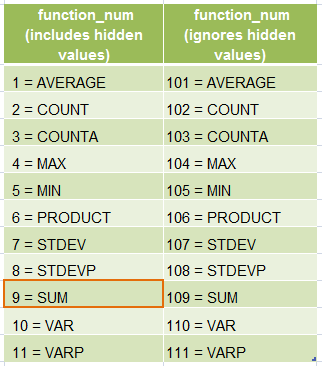
function_num is referring to the type of total you want. You see, SUBTOTAL can be used to SUM, COUNT, AVERAGE and much more. See the table below for a complete list of the different types of totals you can use SUBTOTAL for. You simply enter the function_num from the table below into your formula to instruct Excel what type of total you want.
|
|
For example if we wanted to SUM a column of data containing hidden rows (say our range is C4:C32) our formula would read:
=SUBTOTAL(9,C4:C32)
This would give us the total for all values in the range C4:C32 including those on hidden rows. i.e. those rows hidden using right-click row > Hide.
Note: Rows hidden as a result of filters are also ignored by SUBTOTAL.
Now you see how easy it is, let’s go over some of the features of SUBTOTAL:
1) In the table above there are two columns: the first column containing function numbers 1-11 will exclude any cells that are hidden by a filter.
2) The second column containing function numbers 101-111 do the same as above, but will also exclude any cells in rows that have been manually hidden.
Note: Both ranges of SUBTOTAL function numbers will exclude rows hidden manually and hidden with a filter when both types are applied in the same table.
3) You can use SUBTOTAL on more than one range. e.g. =SUBTOTAL(9,C4:C32,D4:D32,E5:E7 etc.etc) Simply separate any non-contiguous ranges by a comma.
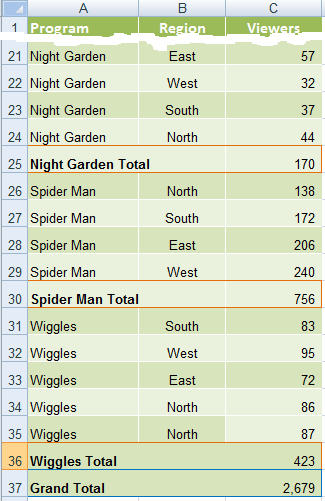
4) SUBTOTAL ignores any other subtotals in the range. Taking the example below, our Grand Total on row 37 will not include the Night Garden Total, Spider Man Total, or the Wiggles Total even though the range for the Grand Total formula is C21:C36.
 |
Tips and Ideas for SUBTOTAL
- You can automatically insert SUBTOTAL’s (as I did above) using the SUBTOTAL tool on the ‘Insert’ tab of the ribbon. You’ll find a detailed video tutorial in our Premium training program on how to insert a SUBTOTAL automatically.
- Why not put the SUBTOTAL formulas at the top of your data. This is handy if your data goes on for thousands of rows and you don’t want to be scrolling to the bottom to see the totals all the time.
- Set your SUBTOTAL formula up to dynamically update for any new rows added to the bottom of your data by using the OFFSET function nested in your SUBTOTAL, or link the SUBTOTAL formula to an Excel Table.
Don’t forget you can get more free Excel training and video tutorials from My Online Training Hub. Sign up here for instant access to our free online training.
Got a clever way you use SUBTOTAL? Let us know by leaving a comment.


When I’m entering a formula, is there a way to view the valid function numbers dynamically?
Yes,
Select the reference and press the F9 key.
How do I subtotal multiple sheets in a file? I would like to subtotal using the same format for each tab and I would like to complete at once. I think I can create a macro and leave the sheet name the same for all tabs and run a macro for each sheet. But I would rather subtotal multiple sheets at once. Is there a way to do this or do I need a VBA macro to complete?
Thanks for your help!
Hi Heather,
Do you mean like this: https://www.myonlinetraininghub.com/how-to-insert-subtotals-in-excel
Mynda
=SUBTOTAL(9,E1:E132) What does the “9” mean in this formula?
Hi Ken,
9 represents the SUM function, for all the cells from the indicated range. There is another version of the SUM function in SUBTOTAL:
Subtotal(109,E1:E132). 109 repesents a SUM of the fisible cells only, from the indicated range.
excellent tips
Thanks, Sushil. Glad you found them useful.
Mynda
Thank you so much Mynda, this is awesome!
You’re welcome, Phina. Glad you liked it 🙂
Manythanks Myanda.Easy to follow and understand and very clear
My pleasure, Anne. Glad I could help 🙂
Thank you for making very nice, easy to understand videos in Premium training on subtotals.
Thanks, Sanjay. Glad you’ve found them useful 🙂
Realy i like it way which you describe the all formula’s.excellent
Thanks Lalit
Wondeful!!!
Thanks, Amarnath 🙂
Hello Mynda,
When I try to apply the Subtotal formula: =SUBTOTAL(9,SUBTOTAL[Viewers]), in the spreadsheet you provide in this tutorial, it gives me an #REF, no result. What does it mean, why is it giving me that message, what am I doing wrong?
Hi Orlando,
It seems Excel did not like the fact that there was a named range that is the same as a Function. i.e. Subtotal. It’s odd that it didn’t throw an error originally. I’ve made a change now so that the table is called SUBTOTAL_tbl.
Please download the Excel file again here.
Note: this is a .xlsx file please ensure your browser doesn’t change the file extension on download.
Kind regards,
Mynda.
is not “subtotal” takes into account only VISIBLE rows. then why thos 101 to 109
Hi R Venkataraman,
Thanks for dropping by.
I don’t understand actually what question you’re trying to raise here?
Are you asking why function_nums 101 to 109 is redundant because you premised
that “subtotals” are only for visible rows; hence, there’s no need to state that 101 to 109
are for visible rows only?
Well, I think this is what this post is all about that there are two types of function_nums:
those that disregards visibility of data:1 to 11 and those that considers only visible data: 101 to 111.
So, there it is. There is such thing as subtotaling everything regardless of visibility ; that is, using
function_nums: 1 to 11. Therefore,stating that 101 to 111 function_nums are for visible data only is not redundant afterall.
Cheers!
CarloE
This site was… how do I say it? Relevant!
! Finally I’ve found something which helped me. Cheers!
Cheers, Daniel 🙂 Glad you like it.
Shouldn’t grand total in example 4 be 1,349? …very confusing.
Hi Steve,
Thanks for your feedback and sorry for the confusion. The total is correct, it’s just that the image doesn’t show rows 2:23. I have improved the image to hopefully make it clearer that there are hidden rows.
Kind regards,
Mynda.
Hi
Your explanation is quite simple and impressive. Thanks for the great work.
Cheers, Shanthi 🙂
Hi! After sorting the table in alphabetical wise, In the Sub Total Tab, along with other boxes, if we also tick the “Page Break Between Groups” , it will automatically adjust page wise. It will be very easy to take print outs.
Further, select the top row(Heading) in the “Print Titles” Tab, so that the top row is automatically repeated in every page.
Once done, we can also convert the whole thing in to a PDF and mail, the end user will find it very convenient to use it, by taking prints, without taking any trouble of once again setting the page etc.,
oooph!!!
🙂 Cheers, Raghu. They’re great ideas.
Hello, I am trying to use the SUBTOTAL function for more than one sheet in a large, filtered Excel file. It works perfectly on one sheet but does not work at all on subsequent sheets.
Hi Ann,
The SUBTOTAL function will not work across multiple worksheets. One solution is to put an individual SUBTOTAL on each sheet and then use the SUM function to add them up across the multiple sheets.
Alternatively you can use this 3D SUMIF function to sum based on specific criteria.
I hope that helps.
Kind regards,
Mynda.
Thanks a lot.
You’re welcome, Rasim 🙂
Hi,
I just saw a table kind of thing named subtotal in named range option.
I want to know how can i do the same kind of wonder.
thanks for this kind of support to the learner.
Hi Ajay,
Are you referring to Excel Tables?
Kind regards,
Mynda.
You are superbbbbbbbbbbbbbb…………
🙂 Wow! Thanks, Abhishek.
Your’s Online Training is very useful for me. But I can’t pay for master training because of My condition is not allow to me for paying sorry………
Thanks
An interesting and helpful website.
Excellent book for excel users
Thanks Martin 🙂
THANKS
wow. great explanation.
I just signed up to your blogs rss feed. Will you post more on this subject?
Hi Badmash,
yes we will be posting more on this and many other topics.
You can get access to our training by signing up for free here FREE Office Training
Regards
Phil