
Excel formulas can be difficult to understand, especially when you return to a workbook months later or hand it to someone else.
A formula may work perfectly, but that does not necessarily mean its purpose is obvious. This becomes a problem in shared workbooks, financial models, payroll files, reporting templates and any spreadsheet that needs to be reviewed or audited.
One way to make formulas easier to follow is to add a comment directly inside the formula itself.
This article shows you how to do that using three useful Excel techniques:
- N() for adding comments to formulas that return numbers
- REPT() for adding comments to formulas that return text
- LET() for building clearer, self-documenting formulas in Microsoft 365
You will also learn why the N() trick sometimes causes a #VALUE! error, and how to choose the right method for your formula.
Table of Contents
- Watch the Video
- Get the Example Excel File
- What Does the Excel N Function Do?
- Why Put Comments Inside Excel Formulas?
- How to Add a Comment to a Numeric Excel Formula with N
- How to Add a Comment to a Text Formula with REPT
- Use LET to Create Self-Documenting Excel Formulas
- N vs REPT vs LET: Which Method Should You Use?
- Excel Version Compatibility
- Best Practices for Adding Comments Inside Excel Formulas
- Frequently Asked Questions
Watch the Video

Get the Example File
Enter your email address below to download the free file.

What Does the Excel N Function Do?
The N function converts a value into a number.
Its syntax is simple:
=N(value)
The result depends on the type of value you give it.
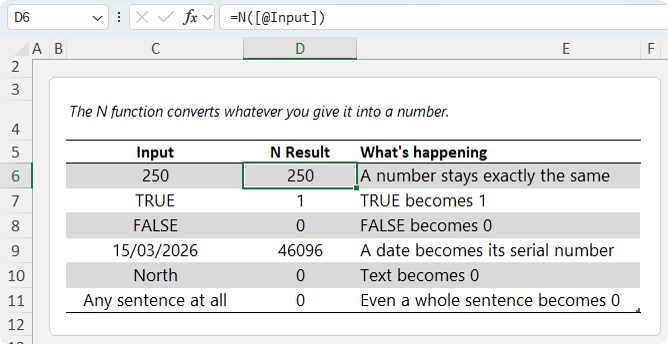
At first glance, this function can seem a little underwhelming. There are many ways to convert TRUE and FALSE into 1 and 0, and most users do not need to turn a date into its serial number.
The useful behaviour is this:
=N("Any text here")
Because text always returns zero, you can place explanatory text inside a formula without changing the result.
That gives you a practical way to create formula comments that travel with the formula wherever it goes.
Why Put Comments Inside Excel Formulas?
Excel already has comments and notes, so why not use those?
Cell comments and notes can be useful, but they also have limitations:
- They can create visual clutter across a worksheet.
- They sit outside the formula logic.
- They may not be visible if the file has comment indicators turned off.
A comment inside the formula lives with the logic itself.
When someone selects the cell and views the formula bar, they can see not only how the calculation works, but also why it was written that way.
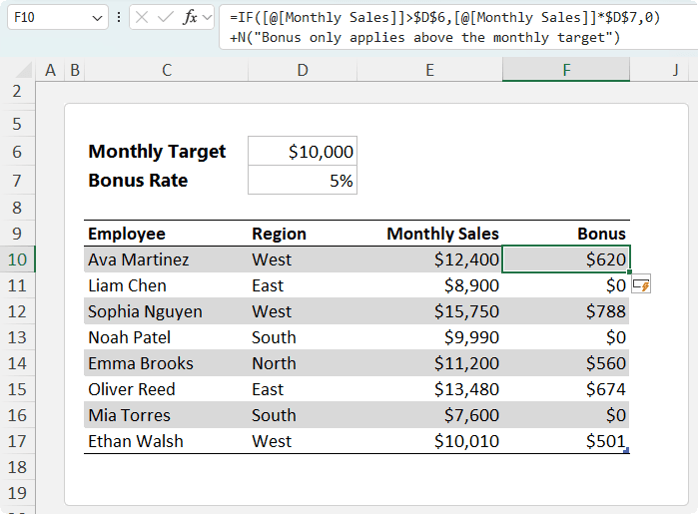
This is particularly useful for formulas with business rules, exceptions, thresholds or assumptions that are not immediately obvious.
How to Add a Comment to a Numeric Excel Formula with N
Suppose you are calculating a monthly sales bonus.
Sales representatives earn a 5% bonus only when their monthly sales meet or exceed a target.
A typical formula might look like this:
=IF([@[Monthly Sales]]>=$D$6,[@[Monthly Sales]]*$D$7,0)
In this example:
- $D$6 contains the monthly sales target.
- $D$7 contains the bonus rate.
- The formula returns zero if the sales target is not met.
The formula works, but someone reviewing it later may not immediately understand the business rule.
You can add an explanation using N():
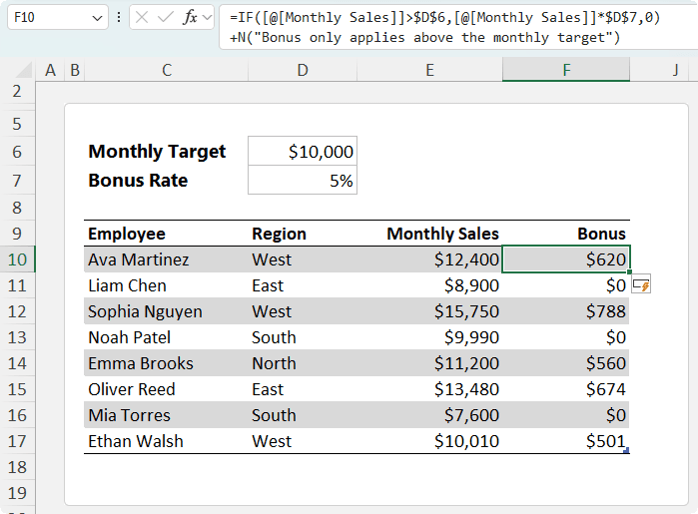
=IF([@[Monthly Sales]]>=$D$6,[@[Monthly Sales]]*$D$7,0)+N("Bonus only applies above the monthly target")
The text inside N() returns zero.
Because adding zero does not change the calculation, the result stays exactly the same.
However, the explanation is now visible in the formula bar whenever the cell is selected.
Why This Technique Works
The formula works because Excel evaluates this part:
N("Bonus only applies above the monthly target")
as:
0
So Excel is effectively calculating:
Original Formula + 0
The output is unchanged, but the formula contains useful documentation.
This is a simple technique, but it can make a workbook far easier to review and maintain.
The +N("comment") technique is best for formulas that return numbers.
Why +N Does Not Work for Text Formulas
The +N("comment") method only works when the main formula returns a number.
It does not work when the formula returns text.
For example, suppose you are creating a full name for invoice headers:
=[@[First Name]]&" "&[@[Last Name]]
You might try to add a comment like this:
=[@[First Name]]&" "&[@[Last Name]]+N("Full name for invoice headers")
However, this returns a #VALUE! error.
The problem is that Excel cannot add a number, even zero, to text.
The formula is trying to combine text with arithmetic:
"Jane Smith" + 0
That does not work.
Fortunately, there is another formula trick that solves this problem.
How to Add a Comment to a Text Formula with REPT
For text formulas, use REPT() instead of N().
The REPT function repeats text a specified number of times.
For example:
=REPT("Ha ",3)
returns:
Ha Ha Ha
But if you repeat text zero times:
=REPT("Ha ",0)
Excel returns an empty string.
An empty string behaves like blank text, so you can join it to another text formula without changing the displayed result.
Here is the full name formula again, this time with a built-in comment:
=[@[First Name]]&" "&[@[Last Name]]&REPT("Full name for invoice headers",0)
The result still displays the full name.
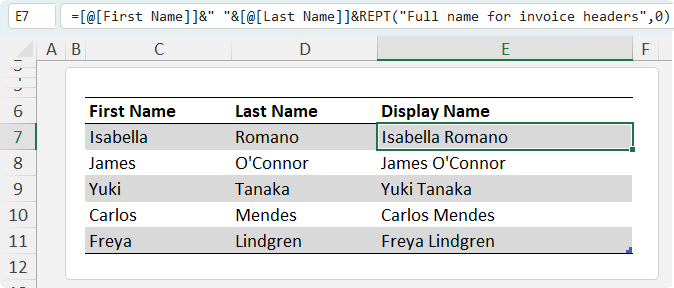
The text inside REPT() does not appear in the cell because Excel repeats it zero times.
However, the explanation remains visible in the formula bar.
Why the REPT Comment Technique Works
This part of the formula:
REPT("Full name for invoice headers",0)
returns an empty string:
""
So Excel is effectively calculating:
"Jane Smith" & ""
Joining an empty string to text changes nothing.
This makes &REPT("comment",0) the text equivalent of +N("comment").
Use These Two Patterns for Formula Comments
You can remember the techniques with one simple rule.
For formulas that return numbers, use:
+N("Your comment here")
For formulas that return text, use:
&REPT("Your comment here",0)
Here are examples of both.
Use LET to Create Self-Documenting Excel Formulas
If you use Microsoft 365, the LET function provides an even cleaner way to make formulas easier to read.
LET allows you to assign names to parts of a formula and then use those names in the calculation.
The basic syntax is:
=LET(name1,value1,name2,value2,calculation)
Instead of repeating cell references and complex expressions, you can give them meaningful names.
For example, here is a standard bonus formula:
=IF(D10>=$D$6,D10*$D$7,0)
It works, but it is not especially readable.
Here is the same logic using LET:
=LET(
note,"Bonus only paid above monthly target",
target,$D$6,
rate,$D$7,
sales,D10,
IF(sales>=target,sales*rate,0)
)
This formula is easier to understand because each input has a meaningful name.
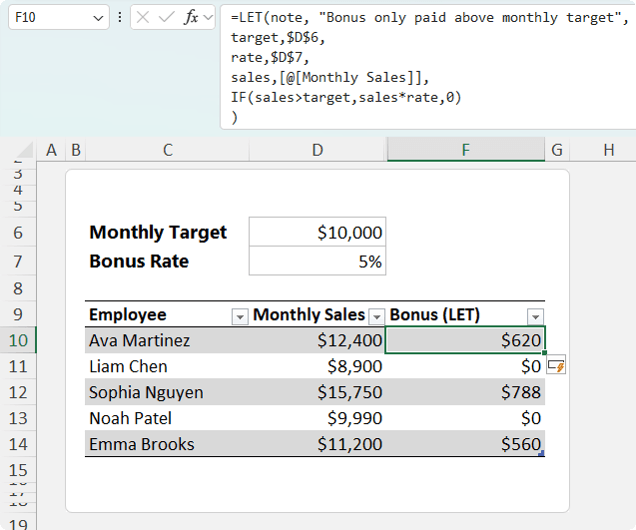
You can read the final calculation almost like a sentence:
IF sales is greater than or equal to target, multiply sales by rate, otherwise return zero.
How LET Creates a Built-In Comment Slot
Notice the first variable in the formula:
note, "Bonus only paid above monthly target"
The note variable is not used in the final calculation.
Excel allows this, which means it can act as a built-in comment slot.
Unlike the N() approach, there is no need to add zero to the calculation.
Unlike the REPT() approach, there is no need to join an empty string.
The note simply sits at the start of the formula as documentation.
This is one of the less obvious but very useful features of LET.
Benefits of Using LET in Excel Formulas
Using LET can improve formulas in several ways.
- Make Complex Formulas Easier to Read
- Reduce Repetition
- Make Formula Reviews Faster
- Include Documentation Inside the Formula
Check out the comprehensive LET function tutorial here.
N vs REPT vs LET: Which Method Should You Use?
Each technique has a different purpose.
| Method | Best For |
| +N("comment") | Numeric formulas |
| &REPT("comment",0) | Text formulas |
| LET() | Microsoft 365 formulas that need clarity and named inputs |
Excel Version Compatibility
The N() and REPT() techniques work in older versions of Excel, making them particularly useful for files shared across teams with mixed software versions.
The LET function is available in Microsoft 365 and newer perpetual versions of Excel that support dynamic array-era functions.
If you regularly share workbooks with people using older versions of Excel, it is worth knowing both approaches.
Best Practices for Adding Comments Inside Excel Formulas
Formula comments are useful, but they should be used selectively.
Keep Comments Short
The purpose is to clarify the business logic, not explain every basic calculation.
Good example:
=N("Bonus only applies above the monthly target")
Less useful example:
=N("This formula checks whether the sales number in this row is greater than or equal to the value in D6 and then multiplies sales by the percentage in D7")
Explain the Rule, Not the Syntax
A reader can usually work out what an IF function does.
What they may not know is why the threshold exists.
Focus comments on things such as:
- Policy rules
- Assumptions
- Thresholds
- Exceptions
- Definitions
- Data exclusions
- Reporting conventions
Use Consistent Language
Use a similar style across the workbook.
For example:
=N("Excludes cancelled orders")
=N("Excludes internal transfers")
=N("Excludes transactions before the acquisition date")
Consistency makes formulas easier to review.
Do Not Use Formula Comments as a Substitute for Good Design
A formula comment can improve clarity, but it cannot fix an overly complicated model.
Where possible:
- Use clear worksheet names.
- Keep inputs separate from calculations.
- Use Excel Tables and meaningful column headers.
- Avoid unnecessary nesting.
- Use helper columns when they make the logic easier to audit.
- Use LET to name repeated calculations.
Frequently Asked Questions
Can You Add Comments Inside Excel Formulas?
Yes. You can add comments inside numeric formulas using:
+N("comment")
For text formulas, use:
&REPT("comment",0)
For Microsoft 365 formulas, you can also use an unused variable inside LET().
Does N Change the Result of an Excel Formula?
When N() contains text, it returns zero.
For example:
=N("This is a comment")
returns:
0
Adding this to a numeric formula does not change its result.
Why Does +N Give Me a #VALUE! Error?
This usually happens because your formula returns text rather than a number.
Excel cannot add zero to text.
Use this pattern instead:
&REPT("comment",0)
Can I Use N to Convert TRUE and FALSE to 1 and 0?
Yes.
Use:
=N(A2>B2)
This returns:
- 1 when A2>B2 is true
- 0 when A2>B2 is false
This is useful when you need to total or average logical tests.
Does LET Work in All Versions of Excel?
No. LET is available in Microsoft 365 and newer versions of Excel, but it is not supported in older Excel versions.
For maximum compatibility, use N() for numeric formulas and REPT() for text formulas.
Make Your Excel Formulas Easier to Understand
A good Excel formula should do more than return the right answer.
It should also be understandable when someone reviews it later.
Using N() comments for numeric formulas, REPT() comments for text formulas and LET() for clearer logic can make your spreadsheets easier to audit, maintain and share.
The key patterns are simple.
For numeric formulas use:
+N("comment")
and for text formulas use:
&REPT("comment",0)
Once you start using these techniques for important assumptions and business rules, you can make even complex spreadsheets far easier for others to follow.
Download the free practice workbook and try the examples for yourself.
For more advanced Excel formula techniques, explore the Advanced Excel Formulas course, where you will learn how to combine functions, simplify complex logic and build more powerful spreadsheets.



For a text formula, I use =T(N(“comment”))&…, which prepends a null string (“”) to the remainder of the formula.
Nice, thanks for sharing!
Succinctly explained.
Thanks! Glad you liked it.
Nice REPT tip!
Thanks, Abbot! Since you liked that, you’ll love this comprehensive tutorial on REPT.