
What if using AI felt less like asking a chatbot a question and more like briefing an assistant on a messy business task?
Not just, “summarise this” or “write me a formula,” but:
- Here are the files
- Here is the problem
- Work out what matters
- Come back with:
- the analysis
- the management presentation
- and the recommendations
That is exactly what I tested with Genspark’s Super Agent.
In this example, I gave Genspark a set of messy business customer feedback files for a fictional company. The files included customer emails, sales exports, returns data, and sales targets.
From one prompt, Genspark created three useful outputs:
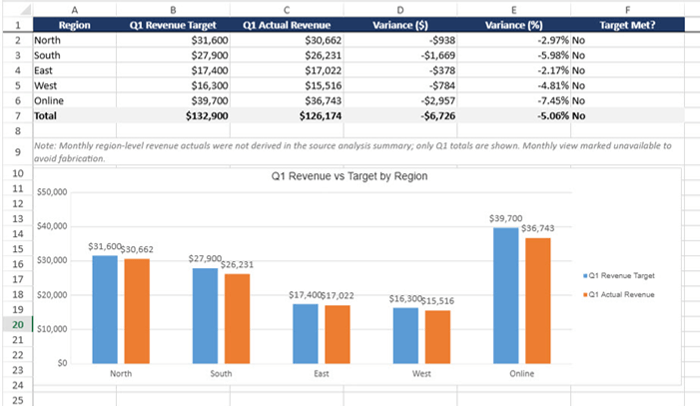
1. An analysis spreadsheet complete with formulas and charts
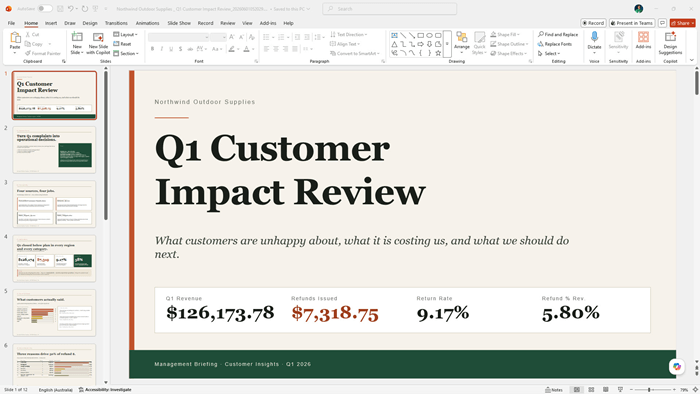
2. A management presentation
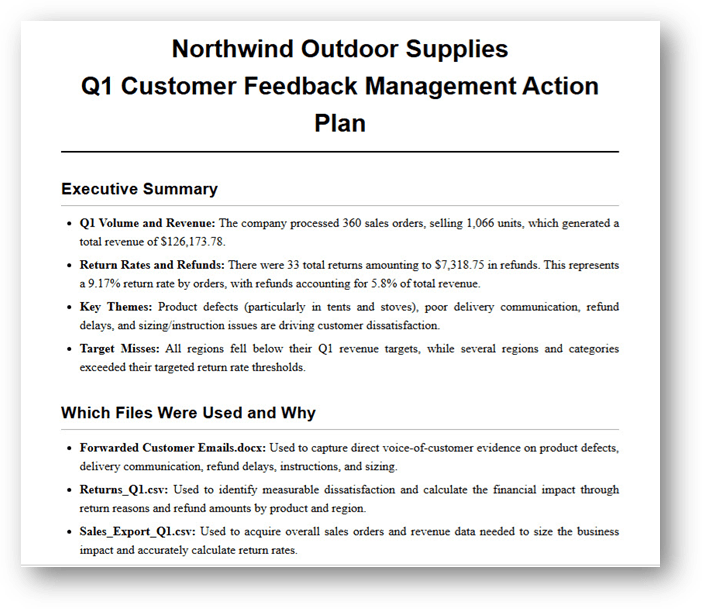
3. A written action plan
Genspark is sponsoring this post. If you would like to try it yourself, you can sign up using the link here and get free credits to get started. You can also download the example files and prompt I used below the video so you can test the same workflow yourself.
Table of Contents
- Watch Genspark in Action
- Get the Example Files and Prompt
- What is Genspark Super Agent?
- Why this type of AI workflow matters
- Genspark features used in this example
- Setting up the project in Genspark
- What Genspark created from one prompt
- Why checking AI output still matters
- A practical way to use AI agents in business analysis
- Other Genspark features
- Final thoughts
Watch Genspark in Action

Get the Example Files and Prompt
Enter your email address below to download the free file.

What is Genspark Super Agent?
Genspark Super Agent is designed to coordinate more complex AI workflows across files, tools, and outputs.
Instead of asking one narrow question at a time, you can give it a broader business task and let it plan the workflow, identify relevant files, choose the right tools, and produce multiple outputs.
In this example, I wanted to answer a practical business question:
What are customers unhappy about, what is the business impact, and what should the company do next?
That is the sort of task that usually requires reviewing several files, summarising the issues, checking the numbers, preparing a report, and turning the findings into something management can act on.
Why this type of AI workflow matters
Most of us have already seen AI tools that can write a summary, create a chart, or help with a formula.
The more interesting use case is when AI can help manage a whole workflow.
For example, in a real business scenario you may have:
- Customer complaint emails
- Sales transaction data
- Returns data
- Sales targets
- Regional performance reports
- Product category data
- Management questions that need a clear answer
The challenge is working out which files matter, how they connect, what the business impact is, and how to present the results clearly.
That is where an AI agent workflow becomes useful. It can give you a strong first draft so you are not starting from a blank page.
Genspark features used in this example
Genspark brings several AI capabilities together in one place.
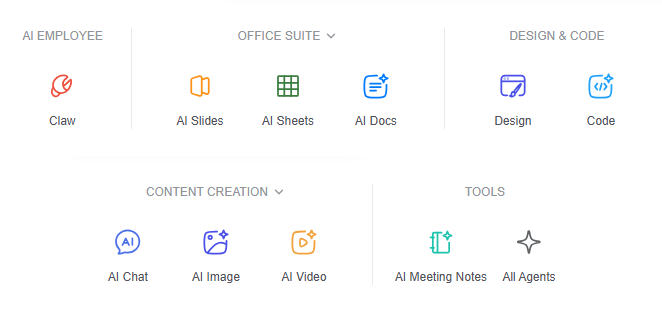
You can use it to create presentations, spreadsheets, documents, artwork, webpages, apps, AI chat responses, images, videos and more.
It also uses multiple leading AI models under the hood, including models from OpenAI, Anthropic, Google, xAI and others. This means you do not have to decide which model is best for every part of the job. Genspark can route the work to the model and tool it thinks is best suited to the task.
For this workflow, I used three main outputs:
1. AI Sheets for the analysis spreadsheet
2. AI Slides for the management presentation
3. AI Docs for the written action plan
Setting up the project in Genspark
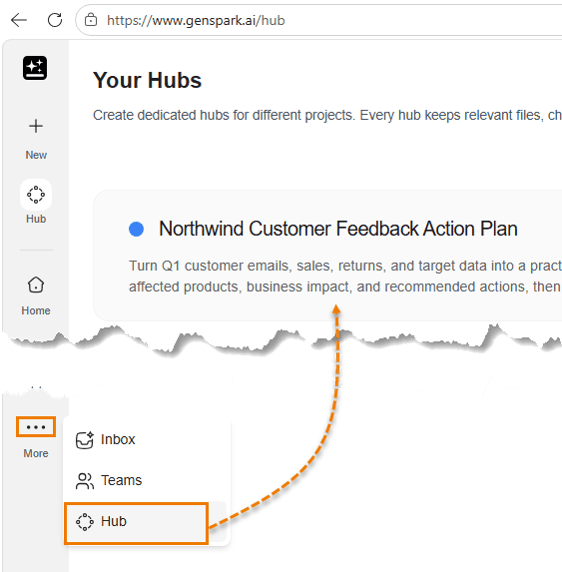
To start, I created a project hub called Northwind Customer Feedback Action Plan.
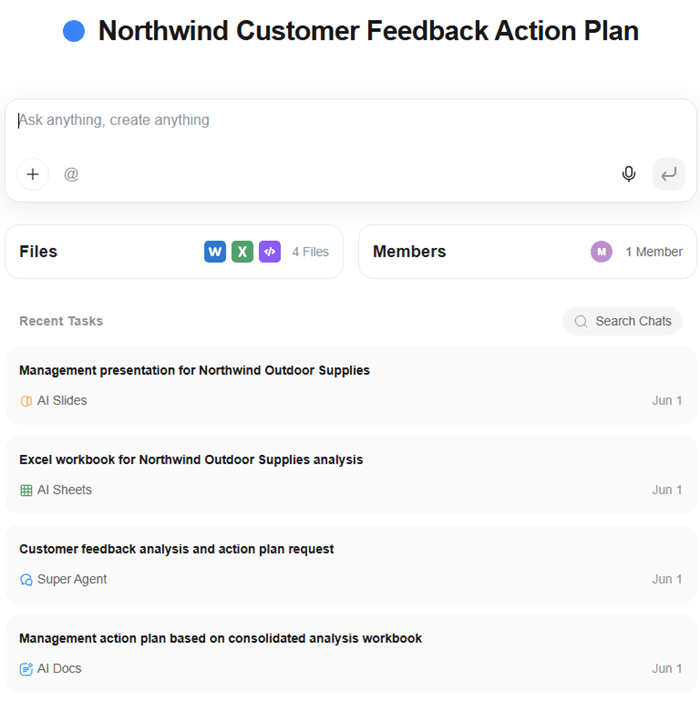
The hub keeps the project files, chats, recent tasks, and outputs together in one place. This is helpful because the task involves several files and multiple deliverables.
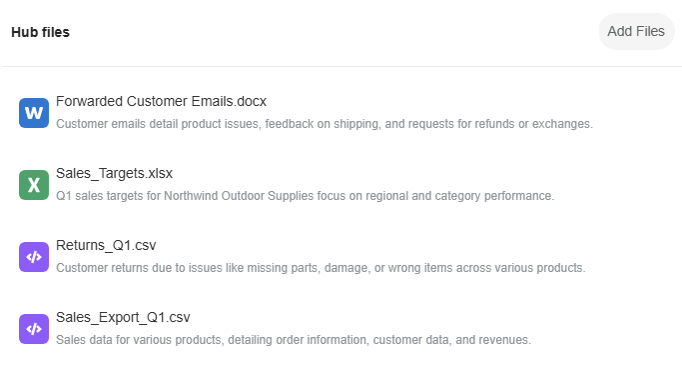
In my AI Drive, I uploaded a set of fictional Q1 files, including:
- Anonymised customer emails
- Sales targets
- Returns data
- Sales transactions
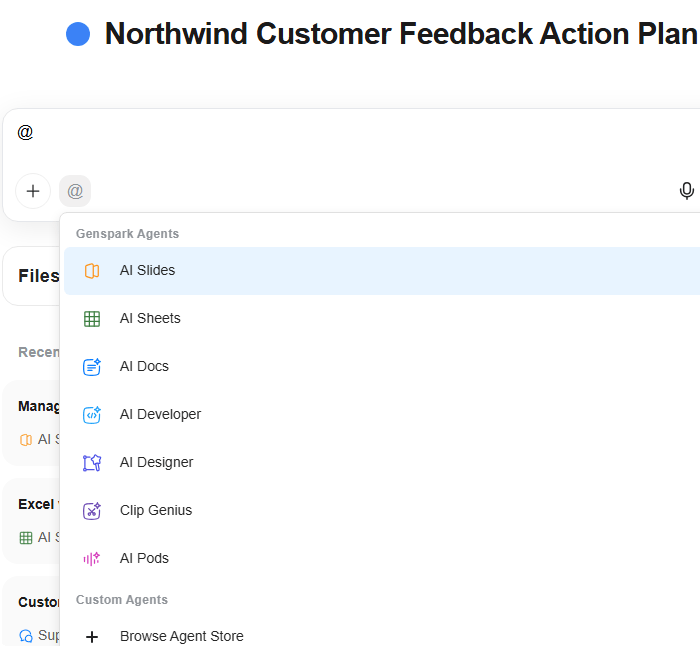
From inside the hub, you can type the @ prefix to instruct specific Genspark tools. Or, you can type a prompt directly to the Super Agent and have it coordinate a more complex workflow across the project files.
If you prefer speaking instead of typing, you can use the microphone and dictate your instructions using Speakly. For longer task briefs, this can be faster than typing everything manually.
The goal was to answer one business question:
What are customers unhappy about, what is the business impact, and what should the company do next?
Here is the prompt I used:
Analyse the files in this Hub.
Identify which files are relevant for determining what customers are unhappy about, the business impact, and what the company should do next.
Explain which files you used and why. Organise the findings into a spreadsheet, create a management presentation, and write an action plan.
Do not invent missing data.
The last instruction is important.
When working with AI and business data, you do not want the tool filling gaps with made-up assumptions. It is better for the AI to flag missing or unavailable data than invent numbers that look convincing but are not supported by the files.
What Genspark created from one prompt
After receiving the prompt, Genspark Super Agent coordinated the workflow by planning the task, selecting the files, choosing the relevant Genspark features, selecting a suitable model, and executing the work.
It produced three key outputs:
1. A spreadsheet analysis
2. A management presentation
3. A written action plan
Let’s look at each one.
Output 1: AI Sheets analysis workbook
The first major output was a spreadsheet created with the Spreadsheet agent.
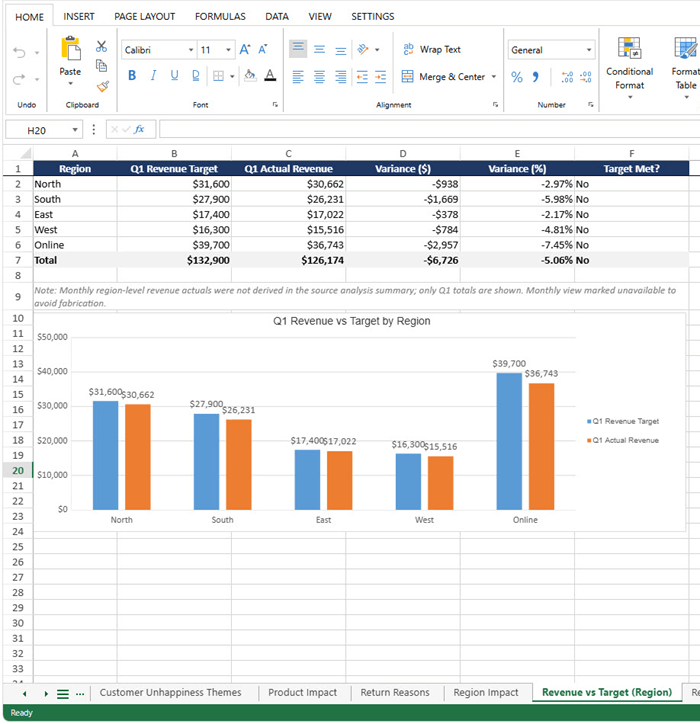
The workbook pulled together the source files and organised the analysis into a familiar spreadsheet-style interface.
The file contained multiple sheets, including the original data and analysis sheets.
This is useful because it gives you a spreadsheet-style output that can be reviewed, edited, and extended.
You can continue working directly in the file, or you can use the AI Sheets agent to perform additional analysis or fix issues.
This is a good example of how the workflow should be treated. AI can produce a strong starting point, but you still need to review the results, identify gaps, and ask follow-up questions.
Output 2: AI Slides management presentation
The next output was a management presentation created with AI Slides.
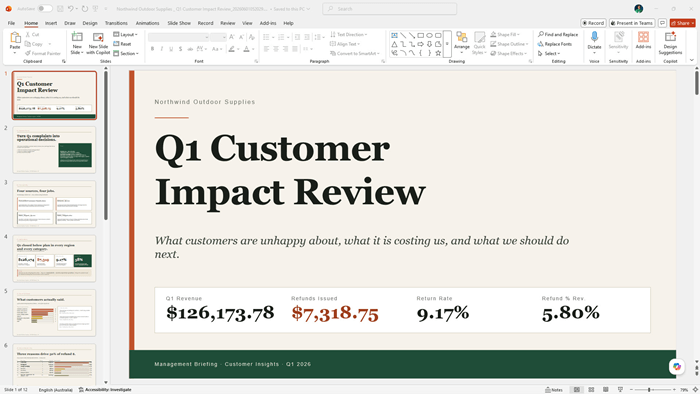
Genspark gathered the relevant data, used deep thinking to build the slide deck, and created a 12-slide presentation with a professional layout and formatting.
It then provided the presentation as a PowerPoint file ready to download.
This is especially useful for business reporting because analysis alone is often not enough. Management usually needs a clear briefing that explains the key findings, the business impact, and the recommended next steps.
You can also click Edit in AI Slides to continue refining the presentation with AI. Or, you can open the advanced editor and make changes directly in the AI editor.
I would still cross-check the numbers before using this in a real business report, but that is exactly why Excel and business analysis skills still matter.
AI can help create the first draft, but you still need to verify the calculations, test the assumptions, and make sure the story makes sense.
Output 3: AI Docs management action plan
The final output was a written management action plan.
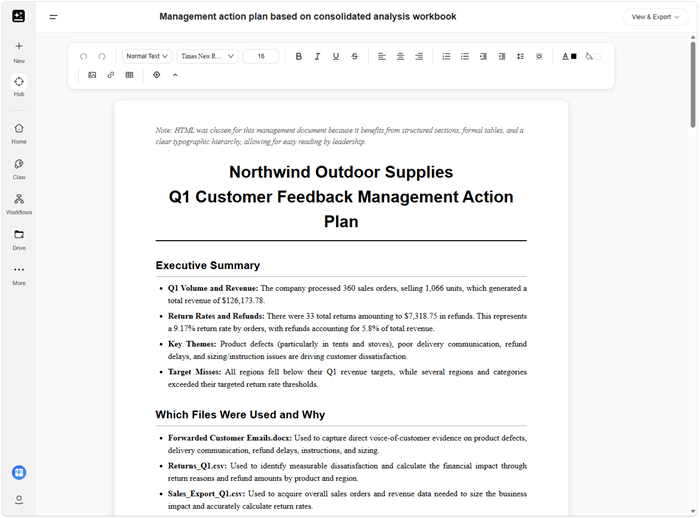
In this example, Genspark created the action plan in HTML format because it is useful for structured sections and tables. However, you do not need to know HTML to edit the result.
You can open it in AI Docs, review the document on the right, and use the AI chat pane to request changes.
You can also click directly into the document and edit the text yourself.
Although the action plan was created in HTML format, it could also be exported as a Word document or PDF.
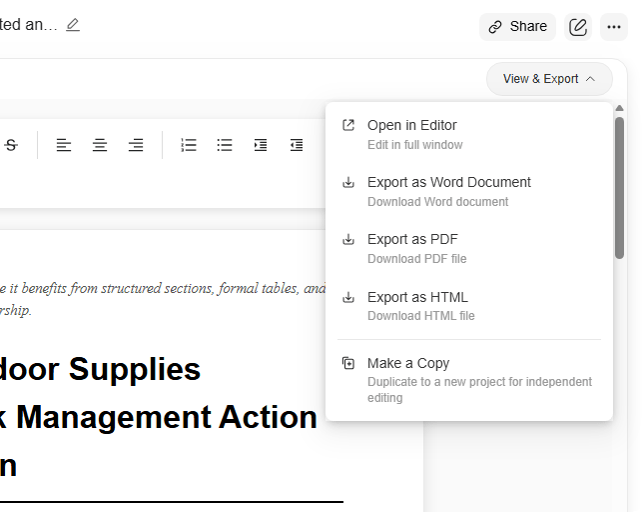
This makes the output practical because you can adapt it for different business uses, such as internal reporting, management briefings, or follow-up planning.
Why checking AI output still matters
It is important not to treat AI output as finished just because it looks polished.
In this example, Genspark created a strong first draft of the spreadsheet, presentation, and action plan. But I would still review the results carefully before relying on them.
You still need to use your domain knowledge and Excel skills to:
- Verify calculations
- Question assumptions
- Check source data
- Identify missing data
- Confirm charts are accurate
- Make sure recommendations are sensible
- Review whether the business story matches the evidence
This is why AI does not remove the need to understand spreadsheets, data, and business analysis.
In fact, the better you understand the underlying work, the better you will be at checking the output and knowing what to ask for next.
A practical way to use AI agents in business analysis
This example shows a practical AI workflow:
- Upload the relevant files
- Define the business question
- Ask the AI to identify which files matter
- Request a spreadsheet analysis
- Request a management presentation
- Request a written action plan
- Review and refine the outputs
That workflow is useful because it mirrors how business analysis is often done in the real world.
You rarely start with a neat, single data source. More often, you have a messy collection of files, notes, emails, exports, and reports. The hard part is connecting them into a clear answer.
Genspark Super Agent can help create that first version quickly, giving you something structured to review and improve.
Other Genspark features
In this demo, I uploaded the files manually.
However, if this were a recurring workflow, customer emails could be anonymised and forwarded to a Claw AI agent instead.
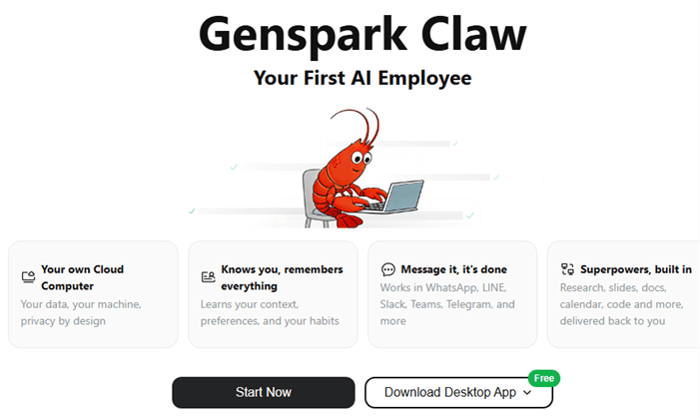
That means the process could potentially start from your inbox, with Claw collecting the feedback and triggering the next steps.
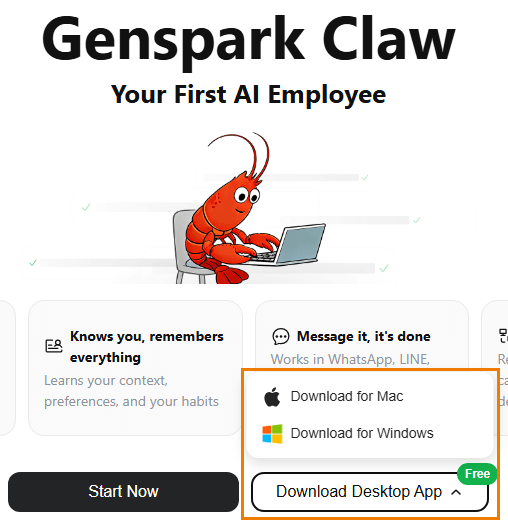
Genspark Claw is designed as a one-click install, and once installed, it can connect with various messaging apps so you can control Claw on the go.
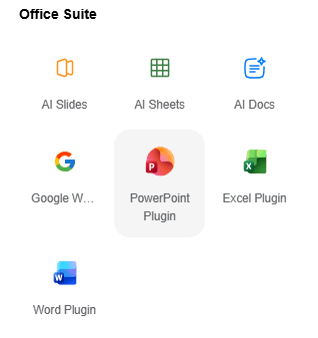
Genspark also offers plugins for PowerPoint, Excel and Word, which may be useful if you prefer working inside your desktop apps.
Final thoughts
For me, the interesting part is not simply that AI can write a summary or create a chart. We have seen that before.
The interesting part is that I could give Genspark a messy business problem, a collection of files, and a clear outcome, and it managed the process of analysing the data, coordinating the workflow, and producing multiple useful outputs.
From one prompt, Genspark created:
- An analysis spreadsheet with formulas and charts
- A management-ready PowerPoint presentation
- A written action plan explaining the issues, business impact, and recommended next steps
That does not mean the work is finished. AI output still needs to be checked.
But it does mean you can spend less time starting from scratch and more time reviewing, refining, and improving the result. Click here to try Genspark yourself.
You can also download the example files and prompt I used in this video so you can test the same workflow.
AI can help you move faster, but the better you understand spreadsheets, data, and business analysis, the better you will be at checking the results and knowing what to ask for next.



That example looks as a great time saver
It’s quite impressive, Ricardo. Have fun trying it out.