
Good day, i have an election pdf file with tally centre results, i tried to import in PQ for cleaning so as to analyse it, but the way it appears after loading gives me hard time to clean it well.

Cleaning can mean different ideas to different people. You have not provided a mocked up solution of your data. Perhaps only the first 8-10 records so we know what you are looking for in your cleanup.
Thanks @alan, I was puzzled whether to deal with tables or pages, how to seperate numbers & %ages in same row, filling down, deleting specific rows like parish, sub county totals, and automating these steps to other tables, however after more contemplation , attached is how far I have reached.
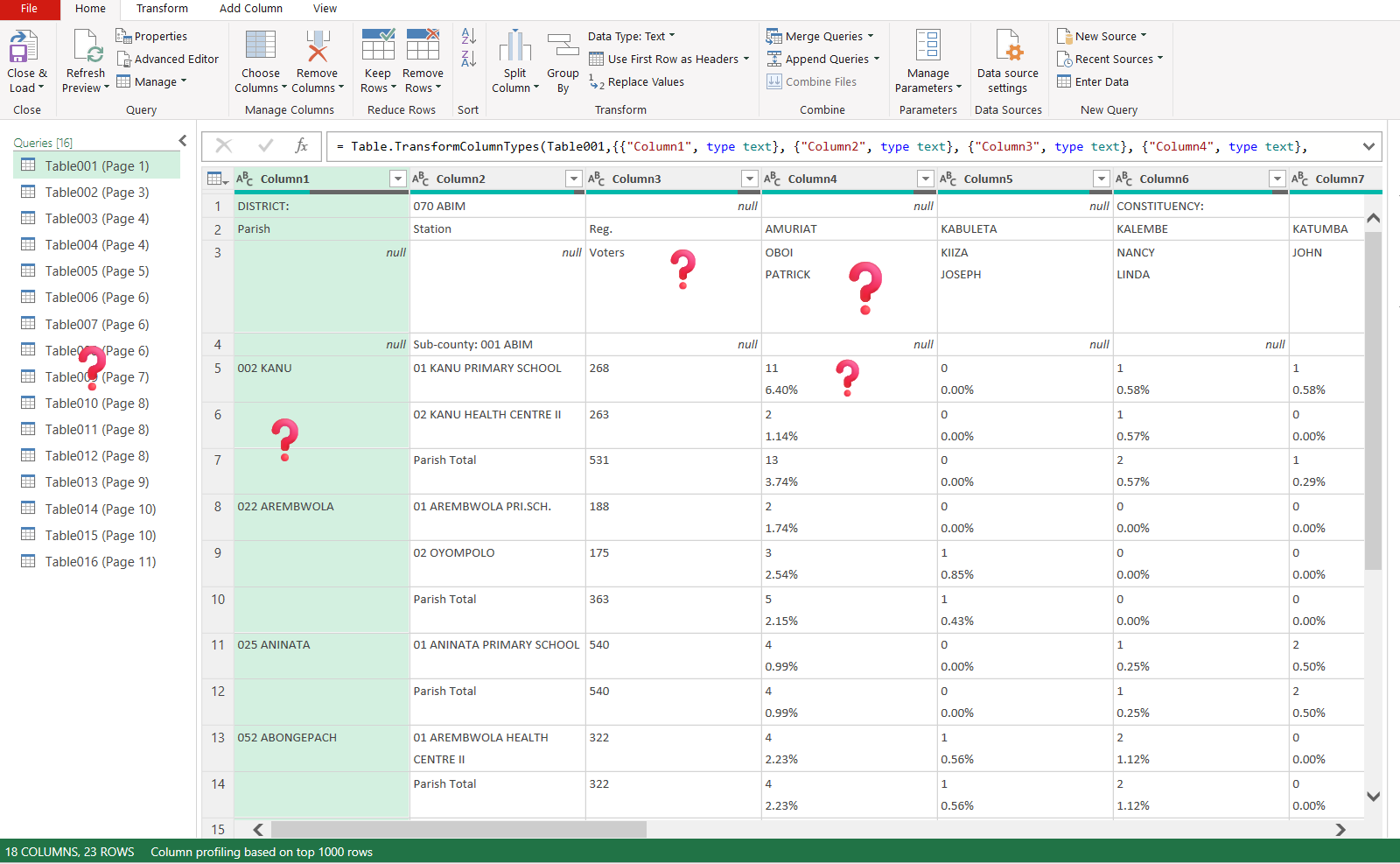
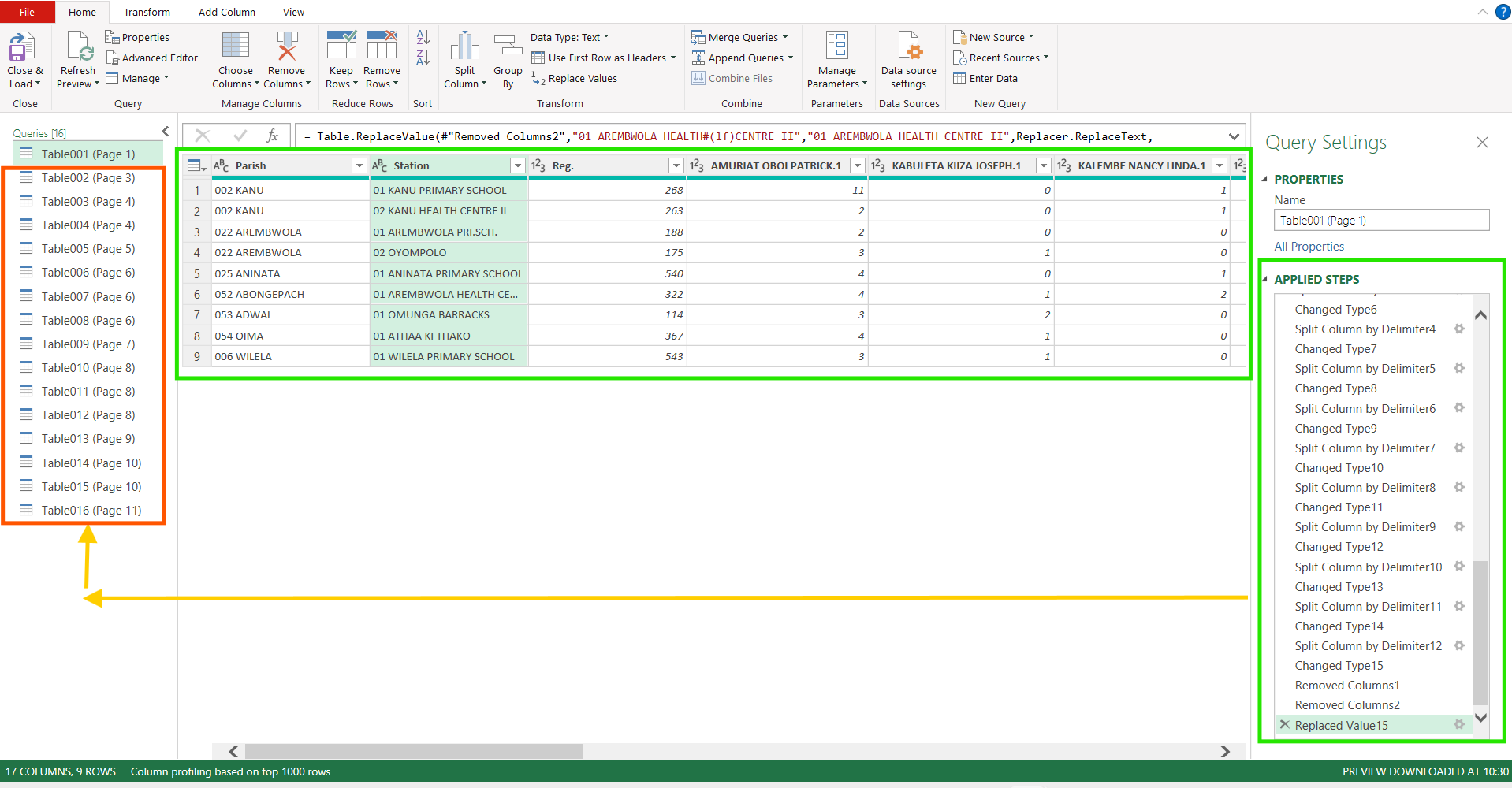
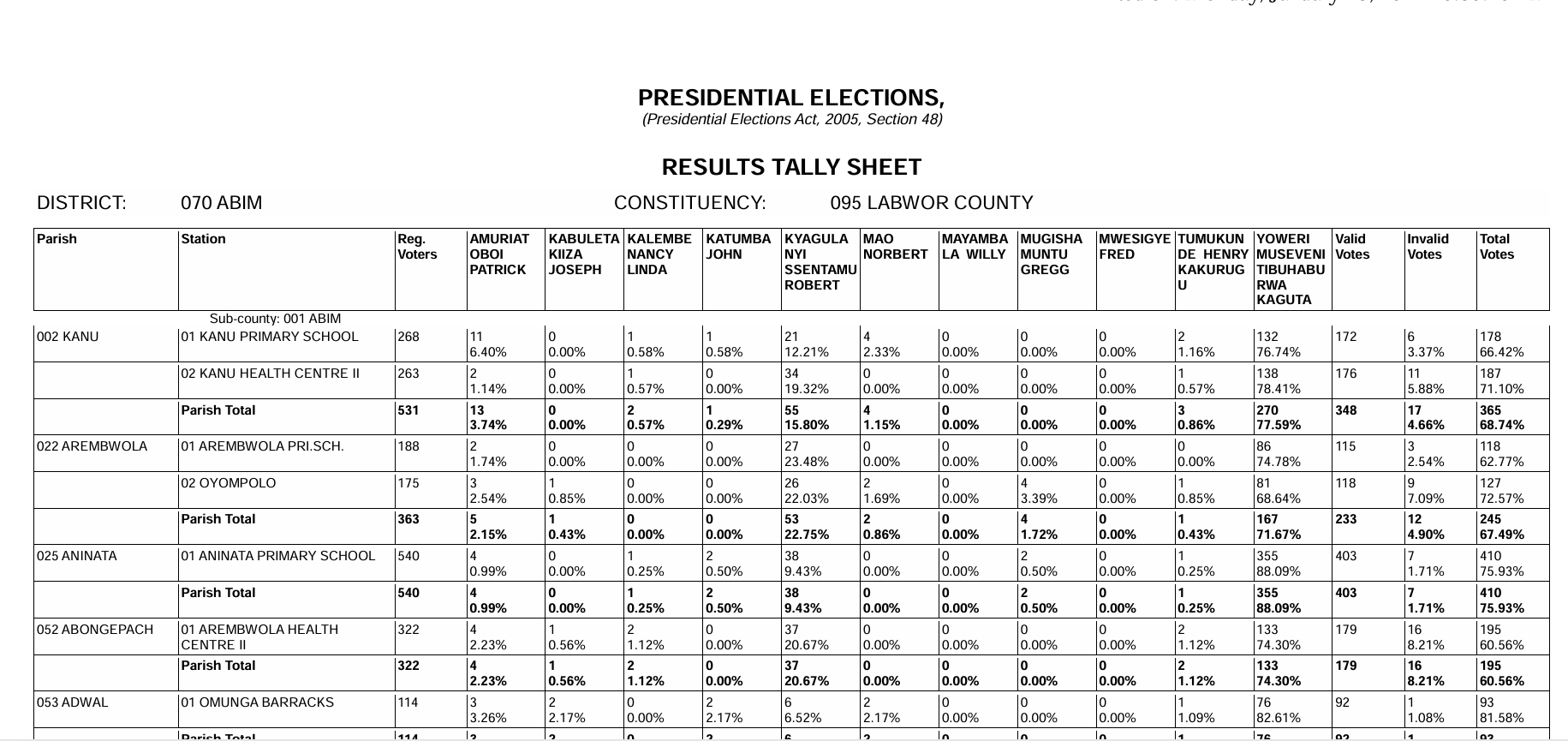
your attached file does not include the source file. Cannot follow what you have done. Please explain the two tables shown. More information is needed. My crystal ball is broken.
Source data reattached, the two tables were showing my progress sofa from when I loaded the messy pdf and the far had gone in cleaning. Am still puzzled now to neatly merge all those tables and also how to fit steps in one table to the others.

No need to connect and load all tables and then transform each one separately. I'd suggest you connect to all relevant tables and then select Table001 and choose Append/Append as new and in the next screen choose 'three or more tables'. Now select the other tables, on-by-one and add them to the right-hand side and OK.
Now you will have all tables combined into one larger.
And then you don't need to transform each column like you did. The following M-code will fix the fact that you have the candidate names in two rows (except for "WILLY" in Column 11, I believe") by transposing the table, merging the first two columns and then transposing it all back.
After promoting headers you select the first three columns and 'Unpivot other columns'. I'm confident that you can follow the steps in the code below, from there.
let
   Table.Combine({#"Table001 (Page 1)", #"Table002 (Page 3)", #"Table003 (Page 4)", #"Table004 (Page 4)", #"Table005 (Page 5)", #"Table006 (Page 6)", #"Table007 (Page 6)", #"Table008 (Page 6)", #"Table009 (Page 7)", #"Table010 (Page 8)", #"Table011 (Page 8)", #"Table012 (Page 8)", #"Table013 (Page 9)", #"Table014 (Page 10)", #"Table015 (Page 10)"})
    #"Removed Top Rows" = Table.Skip(Source,1),
    #"Transposed Table" = Table.Transpose(#"Removed Top Rows"),
    #"Merged Columns" = Table.CombineColumns(#"Transposed Table",{"Column1", "Column2"},Combiner.CombineTextByDelimiter(" ", QuoteStyle.None),"Merged"),
    #"Transposed Table1" = Table.Transpose(#"Merged Columns"),
    #"Promoted Headers" = Table.PromoteHeaders(#"Transposed Table1", [PromoteAllScalars=true]),
    #"Filtered Rows" = Table.SelectRows(#"Promoted Headers", each ([#"Parish "] <> null)),
    #"Replaced Value" = Table.ReplaceValue(#"Filtered Rows","",null,Replacer.ReplaceValue,{"Parish "}),
    #"Filled Down" = Table.FillDown(#"Replaced Value",{"Parish "}),
    #"Unpivoted Other Columns" = Table.UnpivotOtherColumns(#"Filled Down", {"Parish ", "Station ", "Reg. Voters"}, "Attribute", "Value"),
    #"Split Column by Delimiter" = Table.SplitColumn(#"Unpivoted Other Columns", "Value", Splitter.SplitTextByDelimiter("#(lf)", QuoteStyle.Csv), {"Votes", "Percent"}),
    #"Renamed Columns" = Table.RenameColumns(#"Split Column by Delimiter",{{"Attribute", "Candidate"}}),
    #"Changed Type" = Table.TransformColumnTypes(#"Renamed Columns",{{"Parish ", type text}, {"Station ", type text}, {"Reg. Voters", Int64.Type}, {"Candidate", type text}, {"Votes", Int64.Type}, {"Percent", Percentage.Type}}),
    #"Filtered Rows1" = Table.SelectRows(#"Changed Type", each ([Station] <> "Constituency Total" and [Station] <> "Parish Total" and [Station] <> "Sub-county Total"))
in
    #"Filtered Rows1"
Then load to a Pivot table report directly.
Give it a try and come back here if you run into trouble.
This was all good, only trouble was with column for mayambala & Willy , this was supposed to be one column as Mayambala Willy but it got separated & took up data that was supposed to be for proceeding columns. As attached, u may see that data for total votes column gets missing.
Then parishes were under subcounties hence needed their seperate column like those of parish,but am also failing on that
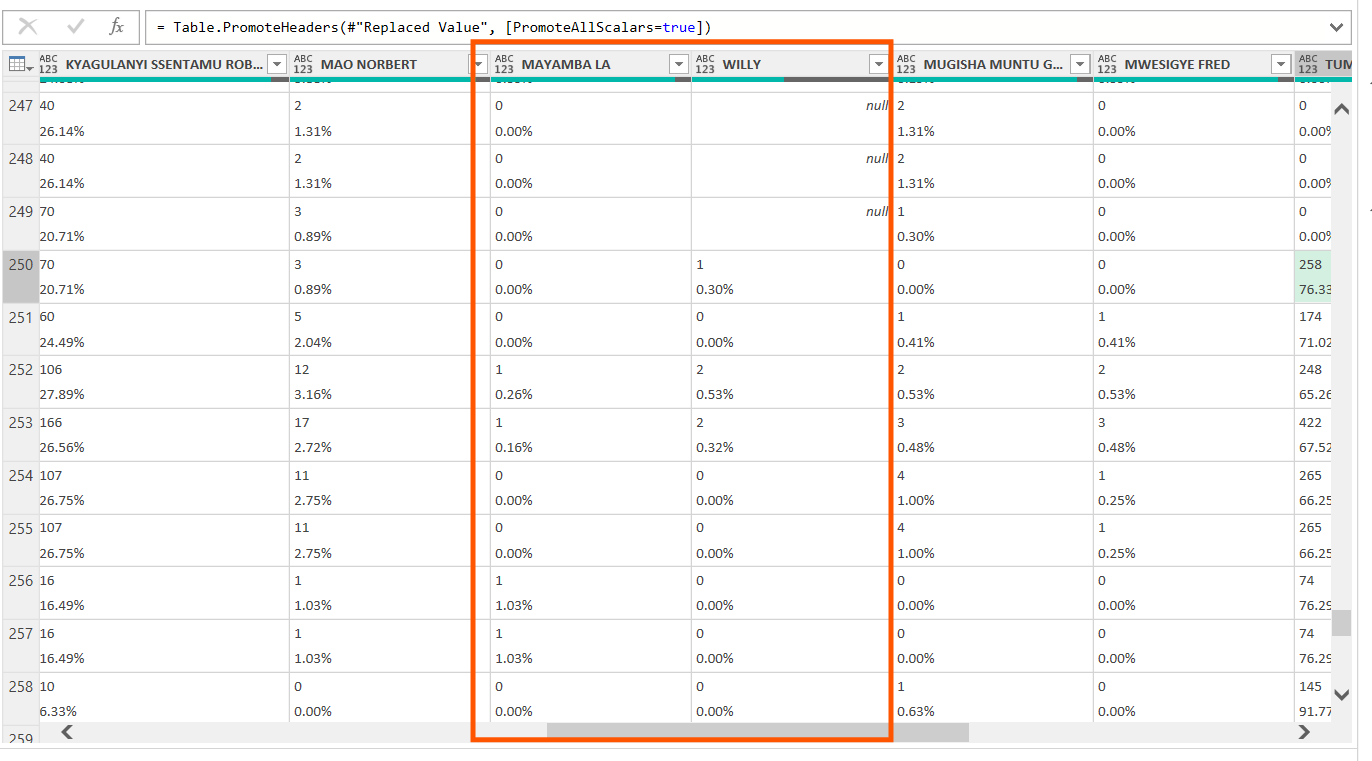
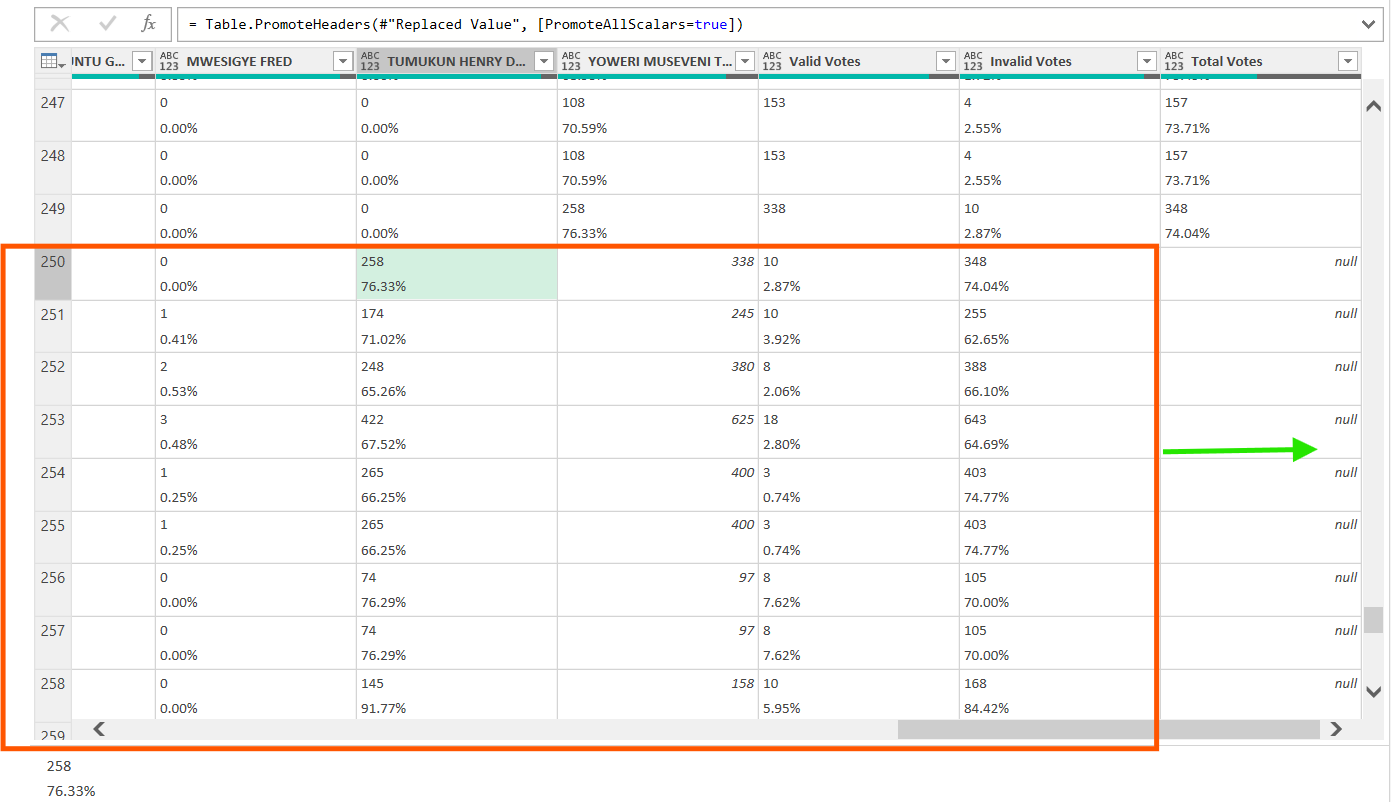
@solomon-mutibwa OK, I had a closer look at the PDF tables.
Tables 1,2,5,9,11,12 and 13 include an extra column (11) with only "WILLY" in the headers and all nulls.
The easiest would be to merge columns 10 and 11 in all above-mentioned tables and call that column "Column10". Then rename existing columns 12 to 18 to "Column11" to "Column17". Create these steps in Table1 and copy/paste the relevant code into the 'connection only' queries for the others.
Then you will end up with 15 consistent tables that can be appended and cleaned further. I trust you can achieve that yourself. I'm not able to spend a lot of time on it.
Unfortunately, this is a common problem when connecting to PDFs and there's not much you can do about it.
Thanks @riny, I actually realised that as well and am achieving it, am glad for your support and as well greatful on how this pdf extended on my thinking. Thanks alot