
Often data imported into Excel from another system isn’t quite in the format we want. Text can be split across columns, for example; the telephone area code below is in column A and the remainder of the number in column B.
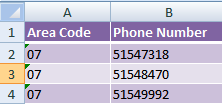
Here you can use the CONCATENATE function to merge cells together into one cell, or you can simply use the ampersand ‘&’ symbol to join your text.
Excel CONCATENATE Function
The syntax is:
=CONCATENATE(text1, [text2],….)
Using our example our formula will be:
=CONCATENATE(A2,B2)
And the result is:
0751547318
We can make it a bit more elegant with the addition of some symbols and spaces to separate the area code from the number like this:
=CONCATENATE("(",A2,") ",B2)
With this result:
(07) 51547318
Notice that the brackets are in quotes and I’ve added a space after the second bracket. This is because when adding characters, other text, or spaces you need to surround them in quotes.
How to Use the Ampersand to Join Text
A simpler approach to the Excel CONCATENATE function uses the ampersand, ‘&’, instead. Using the above example our formula will be:
=("("&A2&") "&B2)
This gives us the same result, but you’ll notice that the commas are replaced with the ampersand.
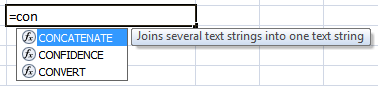
I like using the ampersand for joining just a few cells together, but if you’ve got lots of cells to join or you want to add lots of additional text, symbols or spaces then CONCATENATE is a bit quicker. Especially with Excel 2007 and its predictive formulas where you only have to type out ‘=CON’ and then tab to select the first formula in the list.
Insert Additional Text
You can also insert additional text like this:
="Phone "&A2&" "&B2
With this result:
Phone 07 51547318
You can join as many cells together as you like, with the limit of 255 characters in a single cell.
What if you want to format the phone number with a space like this:
(07) 5154 7318
You could join the text together using CONCATENATE or the ampersand, then paste the result as a value and apply a custom format, or you can use the LEFT and RIGHT formulas like this:
="("&A2&") "&LEFT(B2,4)&" "&RIGHT(B2,4)
With this result:
(07) 5154 7318
Enter your email address below to download the sample workbook.


The ampersand puts a space before joining. I have an excel sheet that is a directory. Each contact has an email address. I want to use the & to generate a mailing list to post into outlook. For Outlook, you need to separate each email with a semicolon. So the excel format looks something like this (Row 1 is header, Col. F is the column with email addresses, Col G is the running accumulation of email addresses).
G2=F2
G3=G2&”; “&F3
G4=G3&”; “&F4… and so forth
The text string that is generated is:
[email protected]
[email protected] ; [email protected]
[email protected] ; [email protected] ; [email protected]… and so forth
The question that I have is why is the & symbol generating the space prior to the semicolon? Is concatenate a better function that would cause this not to happen?
Hi,
Check the values from column F, make sure you don’t have trailing spaces. Check with LEN() function, it shoud return the same number of characters as a visual count.
& is the same to Concatenate function, there is no difference.
Catalin
I want to take the results from =CONCATENATE(text1, [text2],….)
and be able to upload them with out the formula to my website.
I am doing addresses that have street city state and zip in their own column. If I were to copy the results into another spreadsheet with out the original columns it would be blank.
Thanks
Hi,
I guess you just copy and paste, which is copying the formulas. Use Paste Special, not simply paste, and paste as values.
Catalin
Thank You, That worked. I was going crazy trying to figure that out.
Glad that worked for you Tony 🙂
I learn’t a lot of the joins but need to concatenate 2 columns, but where one of the columns only have one value, i need to remove the comma separator.
4,
Please advise
Great help, thanks
Hi hope,
You can try this formula and adapt it for your needs:
This will analyze the length of text in column B and put a comma and a space only if you have values in column B.
But if you have cases where you have values in column B and no values in column A, then the formula is:
Cheers, Catalin
hi mynda
what your create menu in the worksheet(go to sheet)? please type create menu easy for training
🙂 Thanks, Mano. Perhaps you’d like my Excel course. There’s one of those workbooks for every topic.
Your online training and tips are really excellent. It helps me a lot to understand the underlying ideas as your teaching method is easy understand.
Thanks a lot.
Thank you, Hemanta 🙂
Hi Mynda,
When you have a calculated number, it often has a high degree of decimal places. How do you use concatenate to get the required number of decimal places?
For info, I use the following formula, which is a little cumbersome, but works: int([cell]*precision+0.5)/precision where ‘precision’ is 10, 100, 1000 etc. as appropriate.
Hi Lepoista,
I would use one of the ROUND functions to get the required number of decimal places.
Kind regards,
Mynda.
I know there is a way to get rid of the columns after you have completed the concatenation exercise, but I can’t seem to remember what it is. Can you tell me what that is?
Hi Dana,
What do you mean by getting rid of the columns here?
Cheers,
CarloE
Hey, I’m having a huge problem keeping the 0 before the original number like you did in the area code.. How did you manage to keep the cell format after concatenating?
Hi Camilo,
I don’t seem to get the scenario here.Can you please explain it a different way, or send me your file with your example data via the help desk.
Anyway, If you are using a numeric format for your number(s) then you won’t really get the 0 ahead of every number.
I suggest you take care of the formatting or simply do this:
Numeric in A1: 9999
=CONCATENATE(“0”,A1)
result: 09999
Or if you are using area codes you can simply use the text format.
You can do this by putting apostrophe(‘) before typing any number or you can
right click a cell a format it to Text.
Sincerely,
CarloE
Si, probablemente lo sea