
If you just want a quick count of the number of items in a list or a range of cells you can simply select the range (with your mouse), and look at the Status Bar at the bottom right of your Excel window.

This will count all cells that are NOT blank in your selected range.
Or for something more permanent you could use the COUNT, COUNTA or COUNTBLANK function depending on your needs.
They’re all very straight forward so let’s take a quick look at each one and I’ll show you some examples at the end.
Excel COUNT Function
COUNT Function Syntax
=COUNT(value1, [value2], …)
Where ‘value’ can be a single cell (you wouldn’t do this though as I hope you can already count to 1, if not my 2 year old can teach you, or for advanced counting my 5 year old says he can count to infinity!) or, more likely you will enter a range of cells in place of each ‘value’.
For example; you can count one range of cells:
=COUNT(A1:A500)
Or multiple ranges of non contiguous cells:
=COUNT(A1:A500,C1:C500,E1:G500)
There can be up to 30 ‘values’.
COUNT Function Rules
- It only counts cells containing numbers
- It ignores blank cells
- It ignores cells containing anything but a number
Ok, that’s 3 ways to say the same thing but it leads me nicely onto the COUNTA function.
Excel COUNTA Function
Excel’s COUNTA function counts cells that are not empty.
That means it includes error values, like #VALUE!, numbers and blank spaces. I don’t mean blank cells, I mean cells with empty text like for example if you entered a space in a cell then COUNTA would count that cell.
COUNTA doesn’t count empty or blank cells. You need the COUNTBLANK function for that. More on COUNTBLANK below.
COUNTA Function Syntax
=COUNTA(value1, [value2], …)
Ditto COUNT function formula examples. That is; the 'value' in the COUNTA function syntax works the same as they do for the COUNT function.
Excel’s COUNTBLANK Function
COUNTBLANK Function Syntax
=COUNTBLANK(range)
You’ll notice that the syntax is ‘range’ and there’s only one of them. This is because unlike COUNT and COUNTA, the COUNTBLANK function cannot handle non-contiguous ranges.
The solution to this is to add COUNTBLANK functions together like this:
=COUNTBLANK(A4:B10)+COUNTBLANK(D4:D10)
COUNT, COUNTA and COUNTBLANK Examples
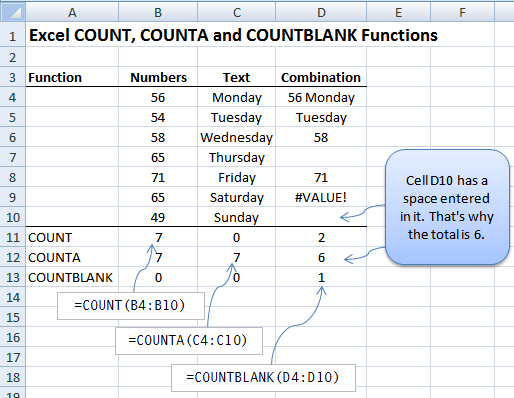
In rows 11-13 you can see the different results each formula returns depending on the Function used.
Enter your email address below to download the sample workbook.
Other ways to COUNT in Excel
- Use a Pivot Table
- Use an Excel Table and insert a COUNT total
- Use the SUBTOTAL Function
Or, if you want to count cells that match specific criteria then take a look at the COUNTIF and COUNTIFS functions.


HI, I’ve hit a brick wall. I’m using a filter to create a list of customers and then want to count them. Unfortunately, the CountA function returns 1 when the is empty, i.e. #CALC! error.
I tried using ISERROR to do a test but that returns whole list of numbers which in turn causes a SPILL error.
I’ve spent 2 days on this now and got nowhere.
Any help appreciated
Hi Steve, please post your question on our Excel forum where you can also upload a sample file and we can help you further.
Hi Steve,
The cell must really be empty to not be counted by COUNTA. If the cell contains, for example, an empty string “”, the cell isn’t really empty and COUNTA will count it.
Are you using a filter on a table or the FILTER function?
Hard to say anymore without seeing your file. Please start a topic on our forum and attach your file.
Regards
Phil
How would I add a text string behind a counta formula? The example below gives me an error. Thank you!
=counta((A3,a11) “: Total 2019 Submissions”)
Hi Sue,
Try:
=counta(A3,a11) & “: Total 2019 Submissions”
I am trying to put a count in to a 30 sheet workbook to track if a time is put in a cell, how would I go about writing the the formal for that ? I think it may be =COUNT(‘1:31’!I12) I12 being the cell that I need the count of how many time a time is put in there.
Hi Greg,
If you enter =COUNT( then click in the cell on the first sheet, hold down SHIFT and click on the cell in the last sheet, Excel will insert the cell reference for you.
Mynda
I want to count non-contiguous cells i.e. C4, F4, G4, I4 >=1
What I want to do is count non-contiguous cells whose value is greater or equal to one?
What function would be appropriate for this solution?
Count function requires a range i.e. =count(C4:I4)
I am not sure if countif would work?
Any help would be appreciated.
Hi Curt,
There is no built-in function to do this, you have to use:
Catalin
greate, e mbrekullueshme from albania
Thanks Viola
I have an excel that consists A1 cell text A2 & A3 blank , A4 text A5 blank , A6 A7 A8 text & A9 A10 A11 is blank in the same format i have arround 20000 cell text & non text file & en number of files with me . i need a answer or formula count in the B1 as 3 , B2 & B3 blank , B4 as 2 ,B5 Blank, B6 as 6 , B7 B8 B8 B9 B10 B11 Blank.
Hi Manjunath,
Please clarify this further via Help Desk.
Cheers,
CarloE
You haven’t mentioned whether cells with no data but with formulas or formatting or conditional formatting instructions are considered empty or not by these mechanisms.
Hi Martin,
Cells with formulas will be counted by COUNTA. COUNT will only count cells with formulas where the formula returns a number.
Formatting won’t be counted by any of these formulas, nor will conditional formatting.
I hope that helps.
Kind regards,
Mynda.
Hi. I want to know if it is possible to have a value in a cell and if you put another value in the same cell, it will add the two values.
Hi Jacques,
If you type another value in a cell already containing a value it will overwrite it. Unless you edit the cell and enter the additional value as a formula. e.g. if the cell contains 2, then you edit it (F2 to edit the cell) and modify it to =2+2 you will get 4, but that’s the only way (unless you use a more complex VBA solution).
Kind regards,
Mynda.