
Most Excel users know Find and Replace as the tool you use when you need to change one word, number, or label into something else.
But that is only the beginning.
Hidden behind the Options button in the Find and Replace dialog box are some incredibly useful features that can save hours of manual editing. You can use Find and Replace to change formatting without changing values, clean messy exported data, update formulas, replace values across an entire workbook, and even remove invisible line breaks from cells.
In this tutorial, you’ll learn five powerful Excel Find and Replace tricks that go well beyond basic text replacement.
Table of Contents
- Watch the Excel Find and Replace Tricks Video
- Get the Example Workbook
- How to Open Find and Replace in Excel
Watch the Excel Find and Replace Tricks Video

Get the Example Workbook
Enter your email address below to download the free file.

How to Open Find and Replace in Excel
The fastest way to open Find and Replace in Excel is with the keyboard shortcut:
Ctrl+H
This opens the Replace tab of the Find and Replace dialog box:
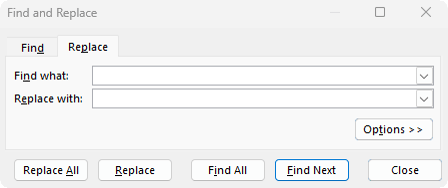
From there, click Options to reveal the advanced settings:
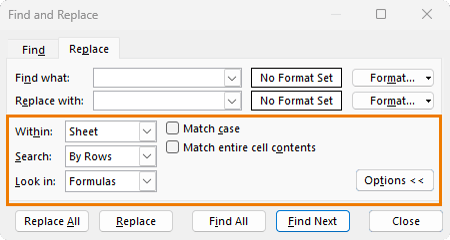
This is where you’ll find many of the features that most Excel users overlook, including:
- Searching within a sheet or workbook
- Looking in formulas, values, or comments
- Matching case
- Matching entire cell contents
- Finding or replacing formats
- Using wildcards
These options are what make Find and Replace far more powerful than most people realise.
1. Replace Cell Formatting Without Changing the Values
One of the most useful hidden features in Excel Find and Replace is the ability to find and replace formatting.
This is especially helpful when you need to update a report where certain cells are formatted in a specific way, but those cells are not all together in one range.
For example, imagine you have a report where large numbers are formatted in millions, like this:
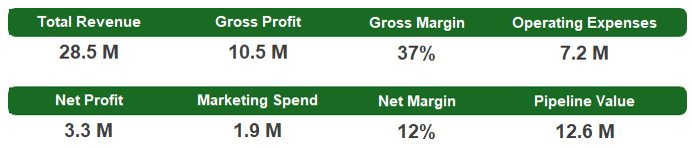
Then your boss changes their mind and wants the same figures shown in thousands instead.
You could manually select every section of the report and change the number format one area at a time, but that is slow and easy to get wrong, especially when the cells are scattered throughout the worksheet.
Instead, you can use Find and Replace to find cells with the current number format and replace that format with a new one.
How to Replace Number Formatting in Excel
1. Press Ctrl+H to open Find and Replace.
2. Click Options.
3. Next to Find what, click the Format dropdown:
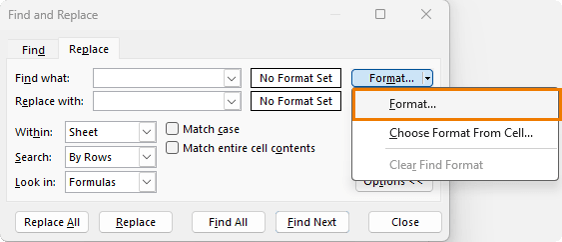
4. Choose the existing format you want Excel to find:
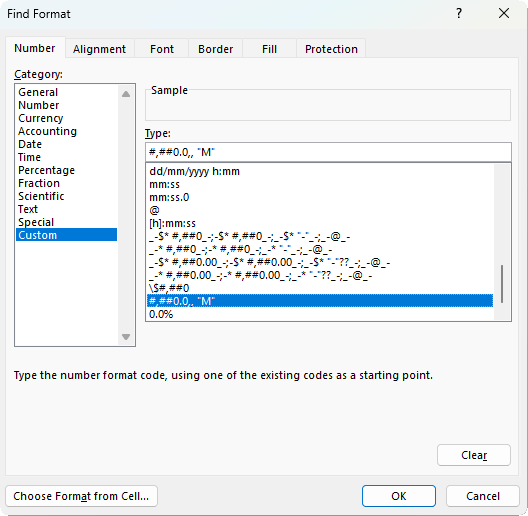
5. Next to Replace with, click Format:
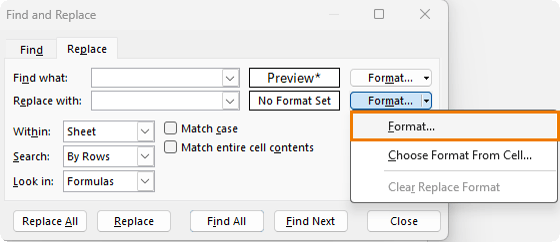
6. Choose the new number format.
7. Click Replace All.
For example, if the current format is:
#,##0.0,, "M"
You could replace it with:
#,##0, "K"
This changes the display from millions to thousands without changing the underlying numbers:
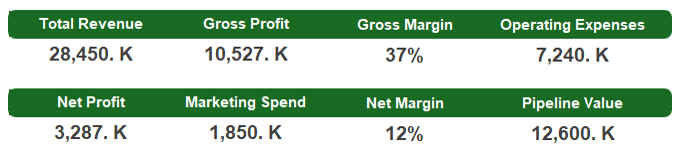
That distinction is important. The values in the cells remain untouched. Only the way those values are displayed changes.
Important Tip: Clear the Find Format Afterwards
Excel remembers the last format you searched for.
This can cause confusion the next time you use Find and Replace because Excel may still be looking for that previous format in the background.
After using Find and Replace with formatting:
1. Open Find and Replace again with Ctrl+H.
2. Click the dropdown arrow next to Format.
3. Choose Clear Find Format.
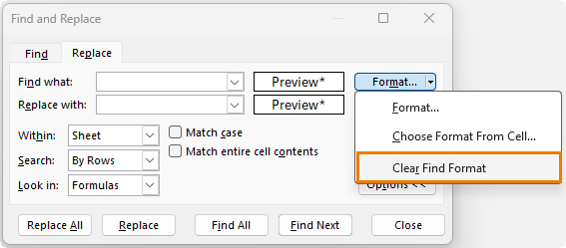
This resets the search criteria and helps avoid those frustrating moments where Find and Replace appears not to work.
2. Use Wildcards in Excel Find and Replace
Wildcards are not just for formulas. They also work inside Excel Find and Replace.
This is incredibly useful when cleaning messy data from bank exports, accounting systems, CRMs, ecommerce platforms, or other external sources.
For example, bank transaction descriptions often contain extra details such as:
- Trip numbers
- Marketplace codes
- Country codes
- Payment reference numbers
- Website addresses
- Random IDs
A transaction might look like this:
UBER TRIP 2849 HELP.UBER.COM
But for reporting, you may only want the clean vendor name:
Uber
This is where wildcards help.
What Does the Asterisk Wildcard Do in Excel Find and Replace?
The asterisk wildcard, *, means:
Match any number of characters.
So if you search for:
UBER*
Excel finds anything that starts with UBER, regardless of what comes after it.
You can then replace all those messy descriptions with:
Uber
Example: Clean Uber Transactions in the Vendor column:

1. Press Ctrl+H.
2. In Find what, enter: UBER*
3. In Replace with, enter: Uber
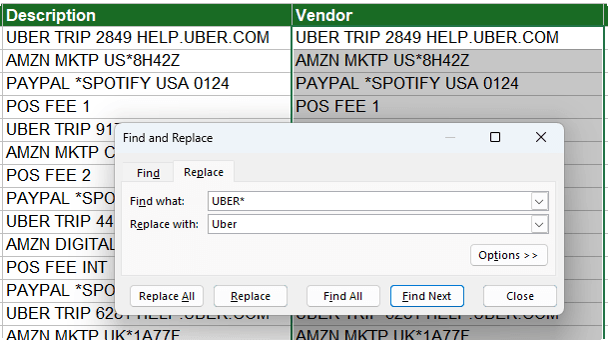
4. Click Replace All.
Excel replaces all descriptions that start with UBER with the clean vendor name.

Clean Amazon Transactions with Wildcards
You can use the same technique for Amazon transactions.
A bank export might contain descriptions like:
AMZN MKTP US*8H42Z
The marketplace code changes each time, but the transaction usually starts with AMZN.
Search for:
AMZN*
Replace with:
Amazon
This turns inconsistent Amazon transaction descriptions into one clean vendor name.
Find Text Anywhere in a Cell with Wildcards
Sometimes the text you want to find does not appear at the start of the cell.
For example, a Spotify payment might look like this:
PAYPAL *SPOTIFY USA 0124
In this case, Spotify appears somewhere in the middle of the text string.
To find anything containing Spotify, search for:
*SPOTIFY*
Replace with:
Spotify
This tells Excel to find any cell that contains Spotify anywhere in the text.
What Does the Question Mark Wildcard Do in Excel Find and Replace?
The question mark wildcard, ?, is more precise than the asterisk.
It means:
Match exactly one character.
This is useful when you want to replace values that follow a very specific pattern.
For example, you might have bank fees like:
POS FEE 1
POS FEE 2
POS FEE 3
POS FEE 4
But you may also have:
POS FEE INT

If you want to replace the single-digit fee codes without changing POS FEE INT, you can use the question mark wildcard.
Search for:
POS FEE ?
Replace with:
Local Bank Fee
The question mark matches one character only, so it can match POS FEE 1, POS FEE 2, and POS FEE 3.
However, there is one more setting to use here.
Use Match entire cell contents for safer replacements.
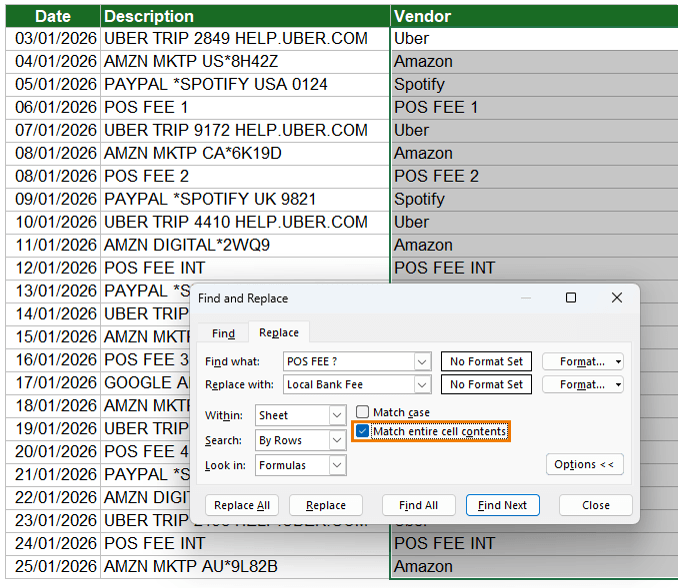
When using precise wildcard patterns, turn on Match entire cell contents.
This ensures Excel only replaces cells where the whole cell matches the pattern.
Without this option, Excel may find and replace part of a longer text string, which could lead to unwanted changes.
To use it:
1. Press Ctrl+H.
2. Click Options.
3. Enter your wildcard search.
4. Tick Match entire cell contents.
5. Click Replace All.
The key difference is:
The asterisk is broad. The question mark is specific.
Use the asterisk when the text length varies. Use the question mark when you need to match a fixed number of characters.
3. Replace Text Inside Formulas, Not Values
Find and Replace can search the values displayed in cells, but it can also search the formulas behind those cells.
This is one of the most useful settings when you need to fix formulas across a worksheet or workbook.
A common example is when you copy a worksheet from one workbook to another.
If the formulas in the copied sheet referenced other sheets in the original workbook, Excel may prefix those references with the original file name.
For example, a formula might contain a reference like:
[find_and_replace_video.xlsx]
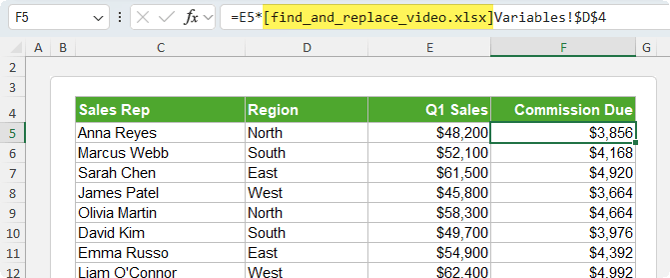
Usually, this is not what you want.
You might be able to fix one formula manually, but if there are formulas scattered throughout the worksheet, manually editing each one can be risky and time-consuming.
Find and Replace can fix them all at once.
How to Use Find and Replace in Excel Formulas
1. Click into a formula that contains the unwanted workbook reference.
2. Copy the file path or workbook reference you want to remove.
3. Press Ctrl+H.
4. Paste the unwanted reference into Find what.
5. Leave Replace with blank, or enter the replacement text if needed.
6. Click Options.
7. Set Look in to Formulas.
8. Click Replace All.
Excel updates the formulas themselves, not just the displayed values.
This is especially useful for:
- Removing old workbook references
- Updating sheet names inside formulas
- Renaming table references
- Changing named ranges
- Fixing hard-coded paths
- Updating formulas after copying sheets between files
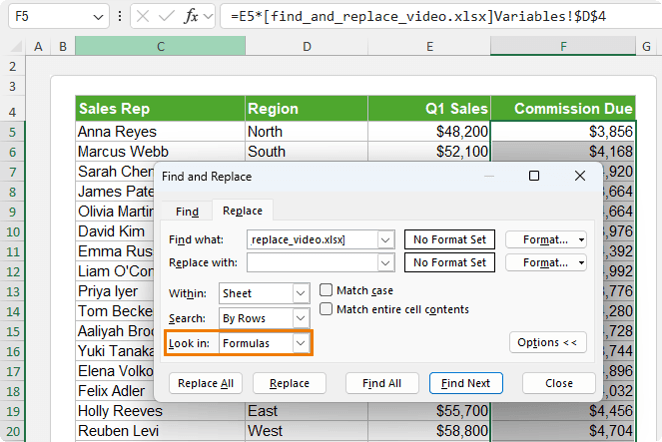
The important setting is Look in: Formulas.
If you leave this set to Values, Excel may not find what you need because it is only looking at the result displayed in the cell, not the formula behind it.
4. Replace Across an Entire Workbook
By default, Excel Find and Replace searches only the active sheet.
But you can change that.
Inside the advanced options, there is a Within dropdown. This lets you choose whether to search within the current sheet or the entire workbook.
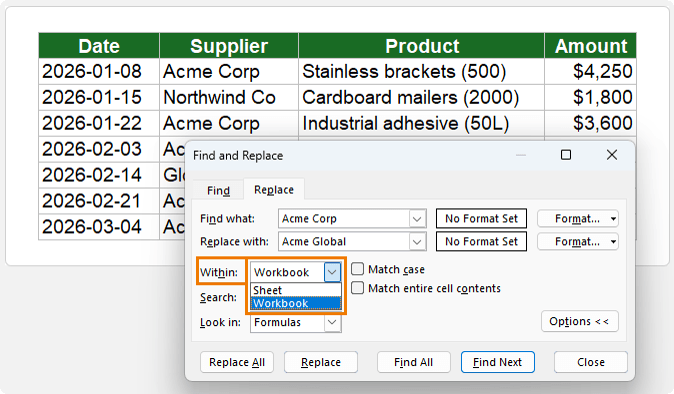
This is ideal when you need to update the same text across multiple worksheets.
For example, imagine you have three regional sales sheets:
- North
- South
- East
Each sheet contains a supplier name:
Acme Corp
The supplier has rebranded and now needs to be shown as:
Acme Global
Instead of updating each worksheet separately, you can replace the name across the whole workbook in one step.
How to Find and Replace Across a Workbook in Excel
1. Press Ctrl+H.
2. Click Options.
3. Change Within from Sheet to Workbook.
4. In Find what, enter: Acme Corp
5. In Replace with, enter: Acme Global
6. Click Find All first.
7. Review the results.
8. If everything looks correct, click Replace All.
Why You Should Use Find All Before Replace All
When replacing across an entire workbook, it is safer to click Find All before clicking Replace All.
Excel will show a list of every match it found, including the sheet name, cell address, and value:
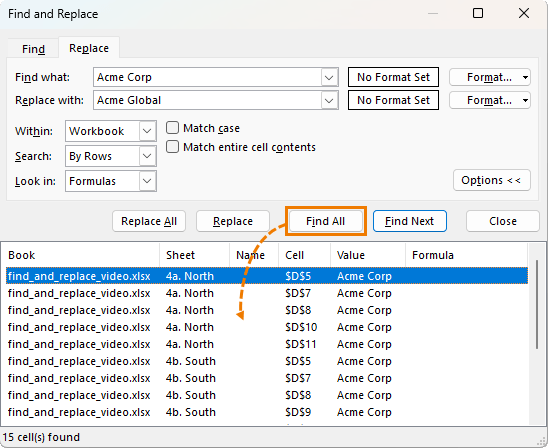
This gives you a chance to check the results before committing to the replacement.
If something does go wrong, you can usually press Ctrl+Z to undo the whole batch in one step. However, it is always better to check first, especially when working with large files or important reports.
5. Replace Line Breaks in Excel Cells
One of the least obvious Find and Replace tricks in Excel is replacing line breaks.
This is useful when data has been copied from an email, PDF, web page, or system export and each item appears on multiple lines inside the same cell.
For example, you may have addresses where the street, city, and postcode are separated by line breaks inside one cell:
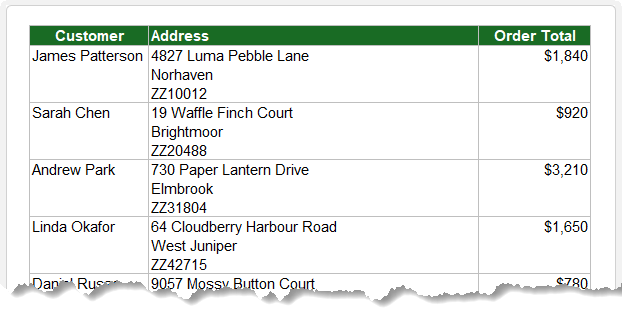
That might look fine visually, but it can cause problems when you want to:
- Sort
- Mail merge
- Export data
- Create labels
- Use the data in formulas or reports
To clean it up, you can replace the line breaks with a comma and space.
The Hidden Character Behind Excel Line Breaks
A line break inside a cell is created by a hidden character.
In formulas, you may know this as:
=CHAR(10)
However, you cannot type CHAR(10) into the Find and Replace dialog box as a formula.
Instead, you need to enter the line break character directly using a keyboard shortcut.
That shortcut is:
Ctrl+J
How to Replace Line Breaks in Excel
1. Select the cells containing line breaks.
2. Press Ctrl+H.
3. Click inside the Find what box.
4. Press Ctrl+J.
The Find box will look empty. That is normal. The line break character is invisible.
5. In Replace with, type a comma and a space: ', '
NOTE: The single quotes are just to show the space after the comma
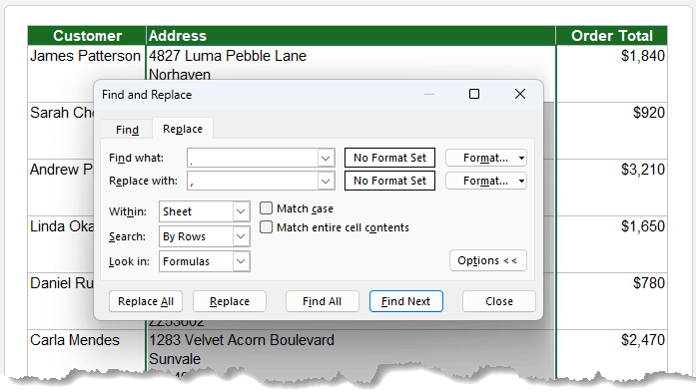
6. Click Replace All.
Excel removes the line breaks and replaces them with commas, putting the text onto one line:
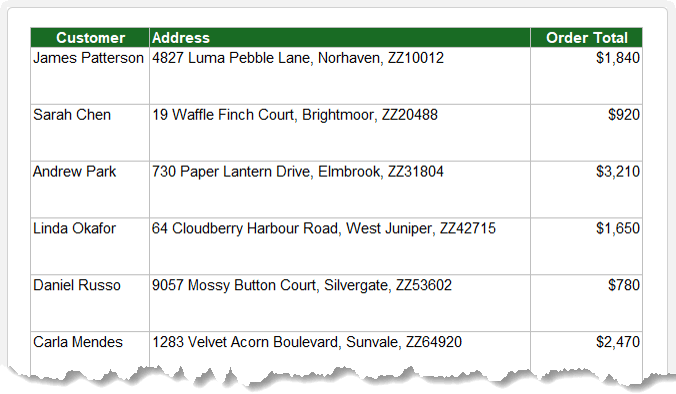
Now, an address stored over three lines inside one cell is a single clean address separated by commas.
Important Tip: Clear Ctrl+J After Replacing Line Breaks
Excel can remember the invisible Ctrl+J character the next time you use Find and Replace.
This can make your next search behave strangely because the Find box may look empty even though it still contains the hidden line break character.
To clear it:
- Open Find and Replace.
- Click inside the Find what box.
- Press Backspace.
This removes the invisible character so you can start a normal Find and Replace again.
Final Thoughts
Find and Replace is one of those Excel tools most people think they already know.
But once you open the advanced options, you’ll find features that can save huge amounts of time, especially when cleaning data, updating reports, fixing formulas, or making changes across a workbook.
The next time you reach for Find and Replace, don’t just type the text and click Replace All. Open Options first.
That is where Excel hides the features that make this tool genuinely powerful.
Summary of Advanced Excel Find and Replace Tricks
Excel Find and Replace can do much more than replace text.
Best Practices for Using Find and Replace in Excel
Find and Replace is powerful, but that also means it can make widespread changes very quickly.
Before using Replace All, especially across a workbook, keep these best practices in mind.
- Use Find All First
When making large changes, use Find All before Replace All.
This lets you review exactly what Excel is going to change.
- Check Whether You Are Searching Formulas or Values
If you are trying to change formulas, make sure Look in is set to Formulas.
If you are trying to change the displayed results, use Values.
- Be Careful with Wildcards
Wildcards are powerful, but broad searches can catch more than you expect.
Use Match entire cell contents when you need a more controlled replacement.
- Clear Previous Format Searches
After using Find and Replace with formatting, clear the Find Format setting.
Otherwise, Excel may continue searching for that old format.
- Clear Invisible Line Break Searches
After using Ctrl+J to find line breaks, clear the Find box before your next search.
The box may look empty even when the invisible character is still there.
- Save or Duplicate the File First
Before making workbook-wide changes, save a copy of your file or make sure you can undo the changes.
This is particularly important when working with financial models, dashboards, reports, or shared workbooks.
Frequently Asked Questions About Excel Find and Replace
Can Find and Replace change formatting in Excel?
Yes. Excel Find and Replace can find cells with specific formatting and replace that formatting with something else. This includes number formats, fonts, borders, fills, alignment, and other format settings.
Can I use wildcards in Excel Find and Replace?
Yes. Excel Find and Replace supports wildcards. The asterisk * matches any number of characters, while the question mark ? matches exactly one character.
How do I replace text across multiple sheets in Excel?
Open Find and Replace with Ctrl+H, click Options, then change Within from Sheet to Workbook. This allows Excel to search and replace across the entire workbook.
How do I replace text inside formulas in Excel?
Open Find and Replace, click Options, and set Look in to Formulas. Excel will then search the formulas behind the cells instead of only the displayed values.
How do I remove line breaks from Excel cells?
Open Find and Replace with Ctrl+H. In the Find what box, press Ctrl+J to enter the hidden line break character. In Replace with, enter a comma and space, or another separator, then click Replace All.
Why does my Find and Replace not work in Excel?
Find and Replace may not work as expected if Excel is still using a previous format search, an invisible line break character, or settings like Match case, Match entire cell contents, or Look in: Formulas. Open Options and check the settings before searching again.

