
Most to-do lists fail for one simple reason: they rely on manual effort to stay accurate.
In this tutorial, you’ll build a smart Excel checklist that:
- Automatically prioritises tasks based on due dates
- Visually separates urgent, upcoming, and completed tasks
- Tracks overall progress with a dynamic progress bar
- Updates instantly as you tick items off
- Requires no VBA or macros
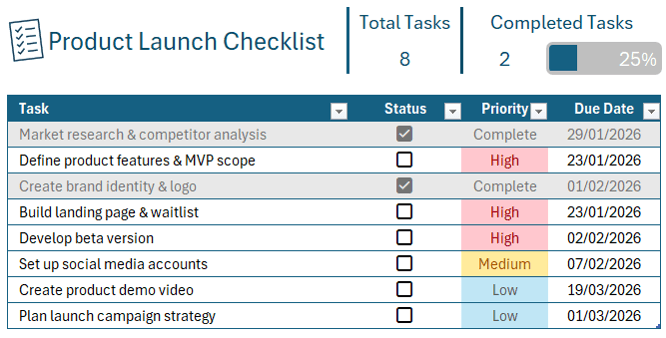
You can use this system for product launches, content calendars, event planning, personal goals, or team projects, anything with tasks and deadlines.
Table of Contents
- Watch the Excel Checklist Video
- Download Excel Checklist Template
- Step 1: Create the Checklist Table
- 1. Set up the headers
- 2. Enter tasks and due dates
- 3. Convert the range into an Excel Table
- 4. Add checkboxes to the Status column
- Step 2: Auto-Assign Priority Based on Due Date
- Step 3: Add Visual Completion and Priority Effects
- Step 4: Track Progress Automatically
- Step 5: Final Polish
Watch the Step-by-step Video

Download the Practice File
Enter your email address below to download the free file.

Step 1: Create the Checklist Table
1. Set up the headers
Enter the following headers:
- Task
- Status
- Priority
- Due Date
This structure works for any type of checklist, including:
- Content calendars
- Event planning
- Wedding tasks
- Personal goals
- Team projects
Feel free to rename or add columns if needed.
2. Enter tasks and due dates
Add a list of tasks in the Task column, such as:
- Market research and competitor analysis
- Define product features and MVP scope
- Create brand identity and logo
- Build landing page and waitlist
- Develop beta version
- Set up social media accounts
- Create product demo video
- Plan launch campaign strategy
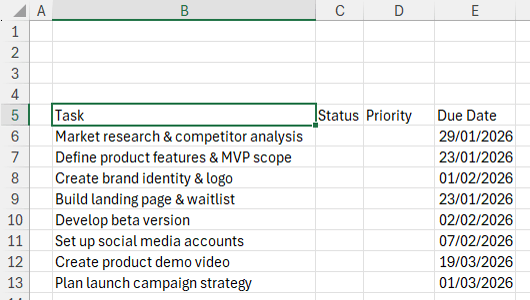
Then enter corresponding Due Dates for each task. Your table should look like this so far:
3. Convert the range into an Excel Table
Excel Tables make this entire system work smoothly.
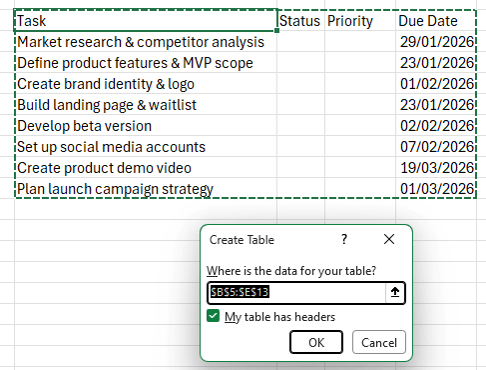
- Click any cell in your data range
- Press Ctrl + T
- Confirm My table has headers, then click OK
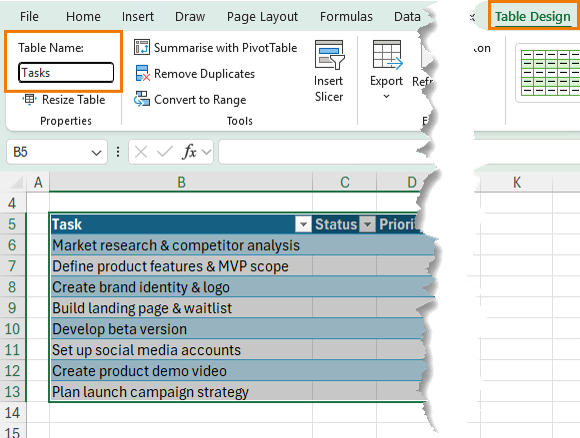
Next, rename the table:
- Go to the Table Design tab
- Change the table name to Tasks
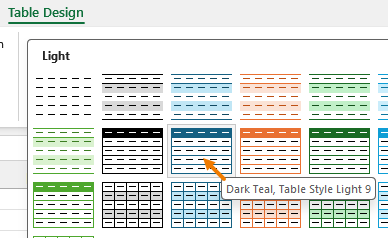
From the Table Style gallery apply any table style you like. A darker style works well because it improves contrast for conditional formatting later.
4. Add checkboxes to the Status column
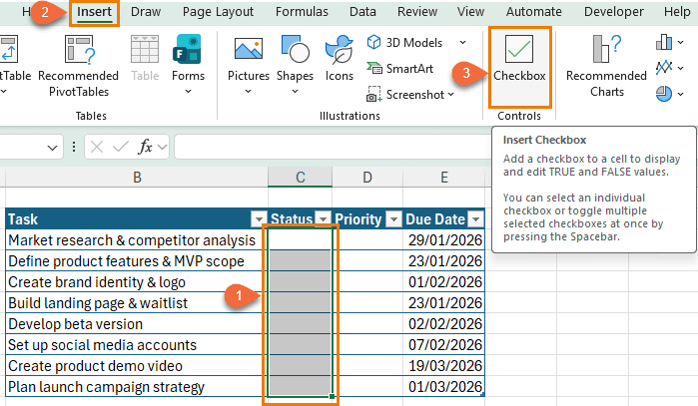
- Select the Status column
- Go to the Insert tab
- Choose Checkboxes
Each checkbox stores an underlying value:
- Checked = TRUE
- Unchecked = FALSE
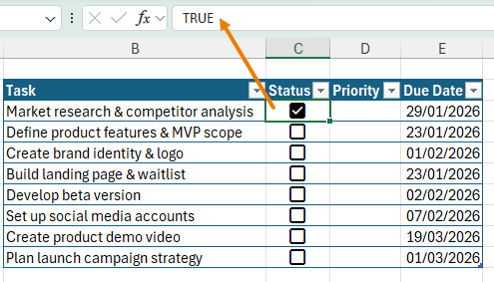
These values will drive your formulas and progress tracking.
Step 2: Auto-Assign Priority Based on Due Date
Instead of manually tagging tasks as high or low priority, you’ll let Excel decide based on deadlines.
Priority logic
Use the following rules:
- Completed if the task is checked off
- High if due in 7 days or less
- Medium if due in 14 days or less
- Low if due later than 14 days
Enter the priority formula
In the Priority column, enter this formula:
=IFS(
    [@Status],"Complete",
    [@[Due Date]]-TODAY()<=7,"High",
    [@[Due Date]]-TODAY()<=14,"Medium",
    TRUE,"Low"
    )
What this does:
- Checks the Status column first
- Uses today’s date to calculate urgency
- Returns priority labels automatically
- Copies down instantly because it’s inside a Table
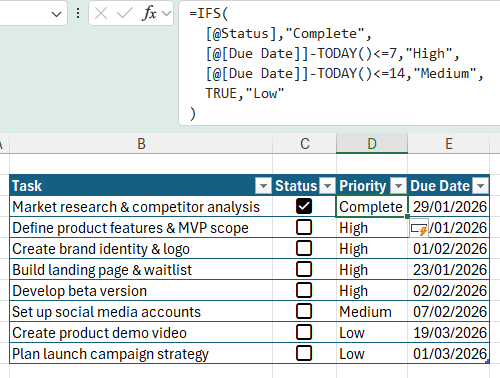
The table’s structured references used in the formula e.g. [@Status] make the formula easier to read and maintain.
Step 3: Add Visual Completion and Priority Effects
Now you’ll use Conditional Formatting to make the checklist visually intuitive.
Highlight priority levels
- Select the Priority column
- Go to Home > Conditional Formatting > Highlight Cells Rules > Text that Contains
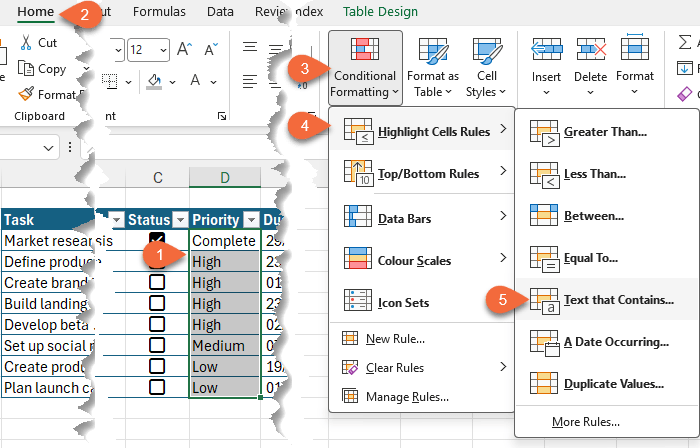
Apply these formats:
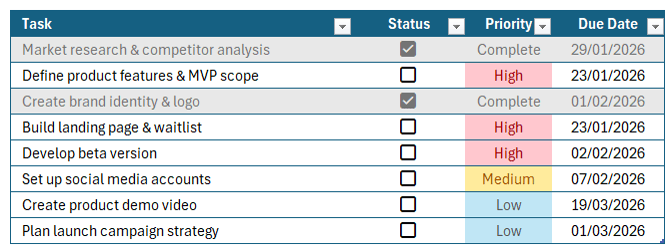
- High
- Light red fill with dark red text
- Medium
- Yellow fill with dark yellow text
- Low
- Custom format with blue font and light blue fill
Fade completed tasks
To de-emphasise completed work:
- Select the entire table excluding the headers
- Go to Home > Conditional Formatting > New Rule
- Choose Use a formula to determine which cells to format
- Enter this formula (adjust the column if needed):
=$C6
This checks whether the checkbox is TRUE.
Apply formatting:
- Grey fill
- Grey font
Completed tasks now fade into the background while active tasks stand out.
Step 4: Track Progress Automatically
At this point, the checklist already:
- Updates priorities automatically
- Highlights urgent work
- Fades completed tasks
Now let’s add a progress tracker.
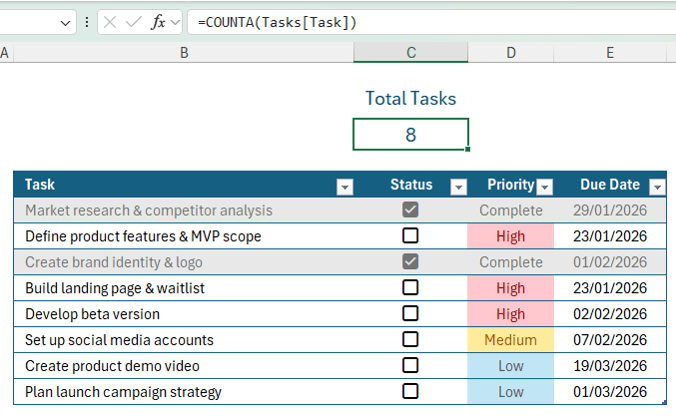
Count total tasks
- In Cell C2, enter: Total Tasks
- In Cell C3, enter:
=COUNTA(Tasks[Task])
This counts all tasks and automatically updates if new ones are added:
Count completed tasks
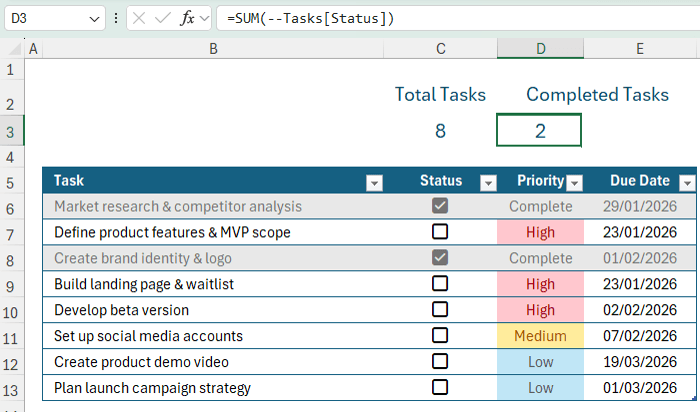
- In Cell D2, enter: Completed Tasks
- In Cell D3, enter:
=SUM(--Tasks[Status])
Why this works:
- TRUE equals 1, FALSE equals 0
- The double unary (--) converts TRUE/FALSE into numbers
- SUM adds up completed tasks instantly
Calculate percentage complete
In Cell E3, enter:
=D3/C3
Format the cell as a percentage.
Add a progress bar
- Select Cell E3
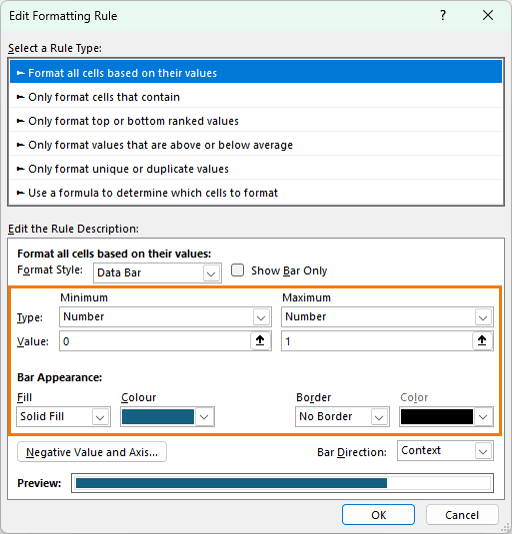
- Go to Conditional Formatting > Data Bars
- Open Manage Rules and edit the rule
Set:
- Minimum = 0
- Maximum = 1
- Bar colour to match your theme
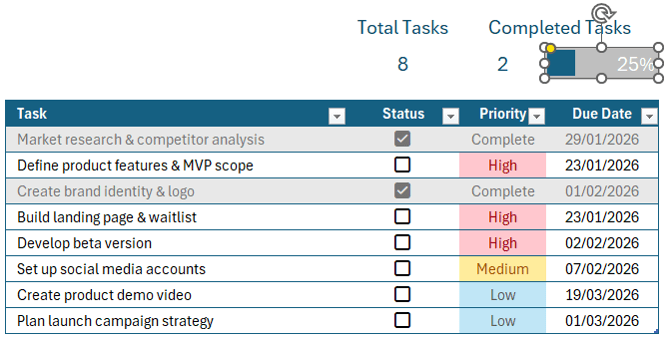
Optional finishing touches:
- Grey cell fill
- White font
- Add a rounded rectangle shape over the bar (hold Alt to snap to grid)
Step 5: Final Polish
- Add a title such as Product Launch Checklist
- Insert a checklist icon and match its colour to your theme
- Add borders around the summary metrics
- Align and space elements for clarity
Test the System
Try the following:
- Tick off a few tasks
- Change a due date to an earlier date
- Add a brand-new task
You’ll see:
- Priorities update automatically
- Completed tasks fade
- The progress bar adjusts instantly
This approach is more reliable than manual tagging because:
- Dates don’t lie
- Urgency updates automatically
- Your checklist stays accurate with zero extra effort
Want to Go Further?
What you just built uses Excel Tables, formulas, and conditional formatting; some of Excel’s most powerful features.
If you want to master these skills properly, check out the Excel Expert course, where you’ll learn:
- Advanced formulas and functions
- Conditional formatting mastery
- Excel Tables
- PivotTables
- And much more
All taught with real-world examples, not theory.


I can’t get the tasks to fade when completed using the =$C6 formula
I suspect it’s in the wrong order in the conditional formatting rules manager list, or you haven’t selected the ‘applies to’ range correctly. If you’re still stuck, please post your question on our Excel forum where you can also upload a sample file and we can help you further.
Hyperlinks to the project worksheet, workbook, or word document detailing the requirements, progress, etc.
And maybe in the word document :
in a table at the start,
column 1 a link to a document workbook, etc.
A set of links to each source document, release etc.
column 2 a description of that document etc.
column 3 date, version etc.
column 4 Status indication, released superceded, target, correct, …
So you have a word document that points to all the relevant documents etc. for a project, and presents a summary of happenings
But, a warning – open an entry using a link, use the App to do a SaveAs with a different name, and the actual (hidden) link still points to the original (Thanks MS)
Maybe a separate table for superseded items.
and, below that:
Descriptions of past/current actions that may be detailed in later pages –
Bookmarks are handy – document titles etc.
Notes etc can be invaluable when returning to a project after a holiday – or other priority task.
Love these ideas, Jamies! Thanks for sharing. I covered the links to related documents in another tutorial a while ago. I’m not sure people use this enough, so great to call it out again here.