
If you import data from another program it often comes in with additional spaces either at the beginning, end or sometimes between words.
Thankfully the Excel TRIM function will remove the excess spaces from text, except for single spaces between words.
How to use the Excel TRIM function
It’s a simple function
=TRIM(text)
Where ‘text’ is the cell containing the text you want the additional spaces removed.
Examples of using the TRIM function
The image below shows three different scenarios in column B and the result of using the TRIM function in column C.
Note: in cell B5 I have highlighted the additional spaces at the end.
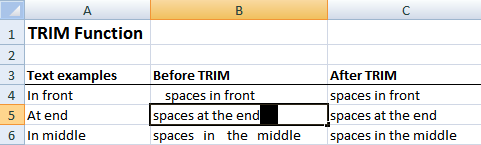
The formula in cell C4 is simply =TRIM(B4) and so on for rows 5 and 6.
Excel TRIM Function Limitations
The TRIM function will not remove non-breaking space characters commonly used in HTML web pages.
If you know HTML then you will recognise the non-breaking space as but when you copy it into Excel it simply appears as a space between your text.
Remove this type of character or other non-printing characters with a combination of the CHAR function and the SUBSTITUTE function as follows:
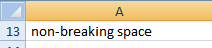
Let’s say in cell A13 we have the following text with a non-breaking space at the beginning:
First some background as to how Excel interprets the non-breaking space.
Every character in Excel is given an ASCII value. The ASCII value for a non-breaking space is 160. But since the TRIM function cannot remove a non-breaking space we need to first convert it to a regular space that the TRIM function can deal with.
The ASCII code for a regular space is 32. So, that said our formula will be:
=TRIM(SUBSTITUTE(A13,CHAR(160),CHAR(32)))
The formula reads:
SUBSTITUTE the non-breaking space character, (CHAR(160)), with the regular space character (CHAR(32)), then TRIM the space from cell A13.
Got a Text problem in Excel? Post your question in the comments below.
Related Tutorials
SUBSTITUTE Function - replaces text with another.


You saved me a lot. No where found the below info.
=TRIM(SUBSTITUTE(A13,CHAR(160),CHAR(32)))
So pleased it was helpful 🙂
Thanks a lot dear.
your below provided formula help me out.
=TRIM(SUBSTITUTE(A13,CHAR(160),CHAR(32)))
Glad we could help, Adnan 🙂
This was extremely helpful…Thanks so much saved me a great deal of time.
You’re welcome, Fay 🙂
It’s great !
Thanks
You’re welcome, Rajesh 🙂
I need to remove spaces from only the end of the content in the cell. There used to be a formula RTRIM – I think it was an Excel formula, but I go between several programs and sometimes the formulas run together on me. the spaces at the left and the spaces between words/before the last letter of the last word, need to stay as is.
Any advice?
Thanks
Hi Tom,
TRIM will remove spaces in front and at the end, but I’m not sure what you can do to keep the spaces at the front other than adding them back in again with CONCATENATE after using TRIM.
CONCATENATE will work if you need the same number of spaces at the front of every cell.
I hope that helps.
Kind regards,
Mynda.
I have a data base which is very big. One column of text entries is aligned to the left. One third of these entries have a space at the start. I want to remove this space so the data will filter properly. I have tried all your methods above without success.
Hi Kevin,
The TRIM function should fix this. If it isn’t then I suspect there is some other problem with your data. I’d be happy to take a look if you want to send me the file.
Kind regards,
Mynda.
From past two days i was trying to resolve the issue of Character 160 and today your online training helped me to resolve it. I just appreciate your efforts. You are just wonderful.
Thank you so so much
Cheers, Prana 🙂 Glad to have helped.
Thanks and same to you. Have a great day.
Please help me to extract all characters (alpha and numeric) up to the colon but without the “:” sign in the following. I have more than 13,000 rows to extract.
00276A: Maintain on-going professional and personal development
0044X: Imported unit 1 – lifestyle & leisure
AURV281208A: Carry out brazing procedures
Thank you.
Hi Alwi,
I’d use the Text to Columns tool. Use Delimited and colon as your delimiter. It’s much easier to use than trying to create a formula.
HTH.
Mynda.
please help,
i want to separate or delete the character enclose in the ()
Fundamentals of Accounting (ACCTG 1)
Partnership and Corporation (ACCTG 2)
Financial Accounting Problems 1 (ACCTG 21)
Financial Accounting Problems 2 (ACCTG 22)
Accounting (ACCTG(ECON) 1)
Basic Mechanical Engineering (ACE 01)
thank you very much
Hi Richard,
There’s a few ways to do this but one of the simplest ways to get rid of the () is to use ‘Find and Replace’. To open the Find and Replace dialog box press CTRL+H.
You might come unstuck on Accounting as it has two sets of ().
Alternatively you could use Text to Columns to separate the text or the SUBSTITUTE Function.
Hopefully one of those options is helpful to you.
Kind regards,
Mynda.
Here’s a challenge for you, Mynda. I wonder if even a genius like you can answer it?
On my free ebook website, eBookTrove.com (absolutely free, in the spirit of the web) I need to remove the spaces from the links to the ebooks, but the space in ‘a href=’ of course, has to stay there. And then I’d like to arrange them in alphabetical order. That’s for the titles straight after ‘” rel=”nofollow”>’.
This is typical of the links –
Well, is it possible?
All the best
paul
P S The space between a href in the link has to stay, of course.
Hi Paul,
Thanks for your question. I use Excel all the time to update and edit HTML so I may be able to help you 🙂
1. The first thing I would do is use Text to Columns to extract the book names into a separate column using the greater than sign as the delimiter.
So you will end up with two columns:
Column A contains:
<a href="AgathaChristie/14 – Miss Marple's Final Cases.pdf" rel="nofollow"
<a href="AgathaChristie/11 – Three Act Tragedy.pdf" rel="nofollow"
Column B contains:
Miss Marple's Final Cases.pdf</a
Three Act Tragedy.pdf
CTRL+H to open Find & Replace dialog box > in the Find cell type a space > leave the Replace cell empty. Click ‘Replace All’.
I know this gets rid of all the spaces, even the ones you want to keep, but all you have to do then is put the spaces back in that you want. e.g. to fix a href, do a Find on ‘ahref’ and replace with ‘a href’, likewise for ‘.pdf”rel=nofollow”‘, replace with ‘.pdf” rel=nofollow”>’.
Don’t forget to do Column B to put the greater than sign back in for the the </a
So now column A & B are fixed.
3. Sort column A and B choosing 'Sort by' Column B.
Now your data is sorted by the book name.
4. In column C join the two columns back together using the ampersand. =A1&B1
5. Copy and paste column C as values.
Job done.
Let me know how you get on. If you get stuck send me your file.
Cheers,
Mynda.