
If you work in Excel with data imported from other databases you’ll often find it doesn’t import it in the format you want.
For example, I imported some Google Analytics data about our website traffic and the dates are formatted like this:
Tuesday, February 1, 2011
While this looks like a date format, in my worksheet it is actually text, and if I try to apply a different date format using the Format Cells > Number > Date options, Excel does nothing.
And because Excel only sees these dates as text it means I can’t use them in formulas, PivotTables, Charts or any other tool in Excel that recognises dates.
To re-jig the dates we need to do a few steps. We’ll separate the data in column A (where our dates are) into 3 columns; month, day and year. And we'll get rid of the day name.
We’ll then join these values back together again using a formula to create one date that is recognised by Excel.
How to Fix Dates Formatted as Text
1. Select the dates you want to fix.
2. On the Data tab click Text to Columns. This opens the Convert Text to Columns Wizard.
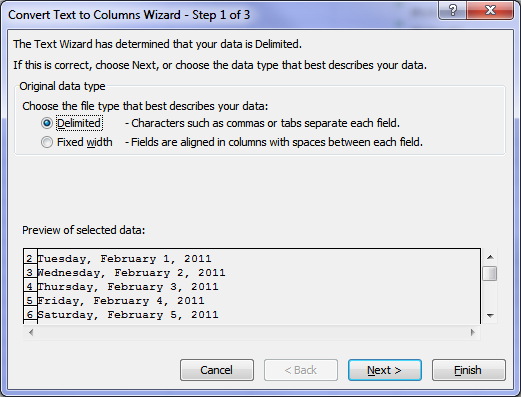 |
3. Select Delimited and click Next
4. Select the Comma Delimiter and Space Delimiter. We’re selecting both because our data is separated by commas and spaces. You’ll also notice the ‘Treat consecutive delimiters as one’ box is checked. This just ignores additional spaces in your data so you don’t end up with extra columns.
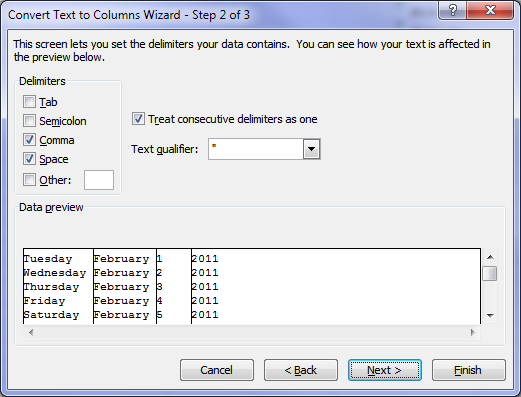 |
You can see in the preview window that Excel has removed the commas and inserted columns.
5. In step 3 of the Convert Text to Columns Wizard (image below) you can click on each column in the Data Preview and then select the format from the ‘Column data format’ options.
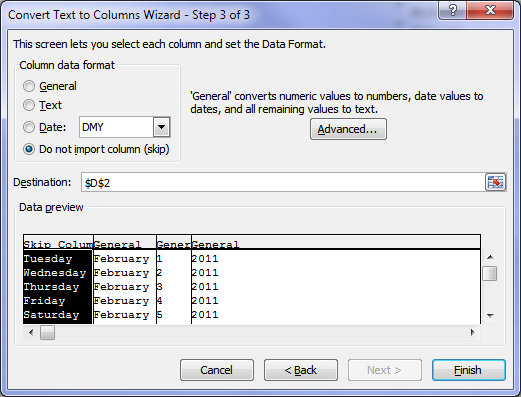 |
We’re selecting to skip the first column, and we’ll leave the other 3 columns as a general format and we’re going to insert the data beginning in cell D2.
Click Finish
Note: Although there is an option to tell Excel that these columns are date formats it isn’t any use to us because each column only has one component of the date, and so Excel doesn’t have enough information to insert the date correctly.
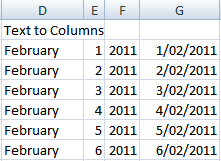
Now our data looks like this, with the original data in column A and the split data in columns D, E and F.
Troubleshooting: If you find your text has come across in a date format it's because the destination cells were already formatted as a date. You need to format them as 'General' before doing Text to Columns.
 |
6. The last step is to insert a DATE formula that joins our data back together in a date format.
The syntax for the DATE function is:
=DATE(year, month, day)
And our formula is:
=DATE(F2,MONTH(1&D2),E2)
The DATE function tells Excel that the value is a date.
You’ll notice that we’ve had to do a bit of jiggery pokery with the month because it’s text. i.e. the word 'February', but Excel needs February represented as the number 2 for the DATE formula to work.
We use the MONTH function to convert the name of the month to a number. The syntax for the MONTH function is:
=MONTH(serial_number)
Our formula is:
=MONTH(1&D2)
Where D2 contains the text ‘February’.
This formula works by telling Excel that there is a date ‘1 February’, which it then converts to the month number ‘2’.
And voila, now we have our date correctly formatted in column G.
 |
Note: before we can go and delete columns D, E and F we need to copy and paste our dates in column G as values. Then we can delete any of the columns we don’t need.
Now, this may seem like a convoluted method, and to a degree it is. But once you get to grips with it you should be able to change a whole column of dates to the correct format in under 1 minute.












 Excel Group and Outline Data

ali baker
Thank you so much! This has been a pain & I finally set out to find an answer!
Mynda Treacy
Glad it was helpful, Ali!
Ian Blake
Thanks, I needed to convert a date with text in it e.g. 2018 Sep 20 03:42:45. The MONTH (1&a1) trick was just what I needed to convert the text month!
Mynda Treacy
Great to know it was helpful, Ian!
Rupesh
I have dates stored in two different formats.
1/31/2020 4:01:34 PM & 02-05-20 in order m/d/y
I want to show – 01 or 1 as Jan, 02 or 2 as Feb as so on.
When trying to use Text function =TEXT(X3,”mmm”)
1/31/2020 4:01:34 PM shows as it is
02-05-20 shows at May instead of Feb
How can I write down formula to return Jan, Feb,…. from 1st or 1st two characters
Philip Treacy
Hi Rupesh,
Assuming that your data is stored as date/time rather than text, you can just use custom number formatting
So using mmm will give you the month Jan, Feb etc.
If you are getting May for 02-05-20 then your dates are in the dd-mm-yy (e.g. UK/Australia) format not mm-dd-yy (USA). This is a setting on your PC. Check the date/time format in your computer settings.
Phil
Rupesh
Thank you Phil for your response.
I changed the short date format on system to mm/dd/yy
From the data received there are 2 columns of date
1st column has date as 2/19/2020 3:00:03 AM. On applying Text function =TEXT(U2,”mmm”), result is Feb
But when ( Text function =TEXT(X2,”mmm”)) it is applied on other column having dates
(a) 06/02/2020 6:26:33 AM, result is Jun
(b) 01/29/2020 7:48:01 AM, result is Jan
(b) 1/29/2020 7:48:01 AM, result is Jan
So changing the format also doesn’t resolve fully. How can the date format be uniformly set and correct result be obtained.
Thank you.
Catalin Bombea
Can you show us which should be the correct result?
There is no difference between your Feb example and the other 3, the results are correct, based on the month of your examples, in mm/dd/yyyy format: “2/…” =Feb, “06/…” = Jun, “01/…” = Jan, “1/…” = Jan.
Craig Cannon
Good Day.
How can I convert an Excel file with a date like 11/22/1962 to November, twenty seconded, one thousand nine hundred and sixty-two?
I have to convert for printing certificates at my university.
In advance, I appreciate any and all of the help that you can provide.
Thank you and regards.
Craig
Catalin Bombea
Hi Craig,
Using the file provided here, use this formula:
=TEXT(MONTH(A1),”mmmm”)&” “&GetTens(DAY(A1))&”, “&GetDigit(LEFT(YEAR(A1),1))&”Thousand “&GetHundreds(YEAR(A1))
Michelle
Thank you SO much!
If I read one more article simply suggesting that I change the format of the column, I think I was going to have a nervous breakdown, I was certainly developing a twitch.
Your instructions are easy to follow, the logic behind the process is explained in full, and, most importantly, it worked.
Thank you.
Mynda Treacy
🙂 so glad I could help, Michelle.
Benedict
Hi Mynda,
You have been a great teacher.
I was wondering, how do you ensure that the date changes for every update?
Since that there will be new data coming in.
Ben
Mynda Treacy
Hi Benedict,
Text to Columns is a one off fix. If you are constantly adding new data that needs fixing then you’d be best to use Power Query to automate this.
You can follow the steps described here to load the data into Power Query. Then right-click the Date column > Change Type > Using Locale… then choose Data Type: Date and the Locale is the source data locale. Then go to the Home tab of the Power Query window and click ‘Close & Load’ to load it to a new table in the Excel workbook.
Then when you add new data to the first Excel Table you simply go to the second Excel table, the one that is the output from Power Query, and right-click > Refresh.
If you get stuck please post your question and sample file in our Excel forum where we can provide you with an example file.
Mynda
divya
I need to convert mm/dd/yyyy date(12/31/2015) format to dd/mm/yyyy(31/12/2015) format using “Text to Column” Menu. could you please assist on this?
Mynda Treacy
Hi Divya,
I’m assuming these dates are text and it’s not as simple as changing the cell format to dd/mm/yyyy.
1. Select the column containing your dates > Data tab > Text to Columns > choose Delimiter in step 1 of the wizard.
2. In step 2 of the wizard click Next
3. In step 3 of the wizard choose Date and select DMY from the drop down list > click Finish
Kind regards,
Mynda
zeba
May Cell B2
June Cell C2
How we can change the Month in Numbers:
As 05,06
Mynda Treacy
Hi Zeba,
If the values in cells B2 and C2 are text, i.e. if you look at the values in the formula bar and they still say ‘May’ and ‘June’ then you’re best to enter them as a real date i.e. 1/5/2014 and 1/6/2014 (note my dates are dd/mm/yyyy), then you can format the cell with a custom number format:
mm
And it will display the dates at 05 and 06 respecitively.
Kind regards,
Mynda.
Frank Franco
Hi
I did went over the text to column but at the end under Column G’s read as follow: 2/1/2011
2/2/2011
2/3/2011
2/4/2011
2/5/2011
2/6/2011
I did used your formula of date(F2,month(1&D2),E2)
but it should convert to 1/02/2011
2/02/2011
and it did not.
Mynda Treacy
Hi Frank,
I suspect the order of the formula is wrong.
The syntax for the DATE function is:
=DATE(year, month, day)
So, if your months and days are back to front then I’d expect that your formula should be more like:
=DATE(F2,month(1&E2),D2)
If that doesn’t fix it please email me your workbook via the help desk.
Kind regards,
Mynda.
Wanda Ponto
Can you explain what the 1 represents in your formula:
=MONTH(1&D2)Where D2 contains the text ‘February’
Thanks
Wanda
Mynda Treacy
Hi Wanda,
This formula works by telling Excel that there is a date ‘1 February’, which it then converts to the month number ‘2’. D2 contains the text ‘February’. When you join a 1 to it like this, 1&D2 it becomes 1st February, which the MONTH function then returns 2 because February is the second month.
Mynda.
Wanda Ponto
So if I understand correctly, the 1 represents the 1st day of the month?
Mynda Treacy
Yes. You got it. We need the 1 to convert the text to an actual date before we can detect what month it is.
Janie Maglione
I want to use a date formula to have my date come out as yyyymmdd. Example 01/02/2013 to 20130102. I used the text to columns, but what syntax do I use?
Thank you
Janie
Carlo Estopia
Hi Janie,
I was a bit confused about this one because you
already know the answer:
Cheers,
CarloE
Neelam
Hi Mynda,
I have a long piece of text in excel that i converted in to columns. But now i want to convert the same into text.
pls help.
Mynda Treacy
Hi Neelam,
Do you mean that you separated it into columns but the format isn’t text? If so you can either:
1. go back and convert them again and this time in step 3 make sure you set each columns format as ‘Text’ in the Text to Columns wizard.
2. use the Text to Columns wizard on each column and at step 3 choose the format as ‘Text’.
3. use the TEXT function to convert each column into the specific text format you want.
Kind regards,
Mynda.
Santhoh
Thank you so much for this wonderful tip. Worked perfect, and saved my day.
Mynda Treacy
🙂 You’re welcome, Santhoh.
biosong
Hi Mynda –
i’m stuck at converting date and time. you see my goal is to get the difference of two date and time values, but extract from database is just so crazy mixing date and month in both ways on every cell. hope you can help me sort this out. let me know where to send you a sample file for your visual, thanks.
Mynda Treacy
Hi Biosong,
You can email me a file by logging a ticket on the help desk.
Kind regards,
Mynda.
biosong
already did… how would i know that someone has helped me? thanks
Mynda Treacy
Hi Biosong,
You will get an email reply. You can also track the progress of your ticket in the help desk.
Kind regards,
Mynda.
Hozy
hi Mynda!!
hw r u?
i have a date in a cell A1 = 15/09/2012. I need the month i.e. sep in B1.
i m using the formula B1=month(A1) but the result that i get is 9-Jan-00
And when i format cell & select “mmm” it gives the result Jan which isnt correct.
Pls help me solve this mystery.
Thanks in advance 🙂
Mynda Treacy
Hi Hozy,
If you just want to display the month why don’t you format cell A1 to mmm, or if you want it in B1 then enter =A1 in cell B1 and format mmm.
When you use the MONTH function it extracts the number of the month, which is 9. When you format it as a date it thinks the date is Jan 9 1900.
Kind regards,
Mynda.
Mohini
Hey Mynda,
Hope you doing good. I am stucked at one step, I think you will able to help me. In my sheet, there is a column Phone where I need to apply the formatting based on the cell value.
1) if length of data=10 format should be (###) ###-####
1234567890 =>(123)123-1234
2) if data is of format (###-###-####) then should remove hypens and should appy above style
123-123-2345 =>(123)123-2345
3) if length of data=12 format should be ## (###) ###-####
341234567890 =>34 (123)123-1234
Do you think we can do this for the entire column. We can do color fotmatting using the conditional formatting. But I not able to achive the aboe. Please help!
Thanks!
Mohini
Mynda Treacy
Hi Mohini,
You can apply the custom number format to numbers, but if your data is in a text format, as you have in example 2, then it can’t.
You first need to remove the hyphens from the second data type and convert it to a number. Then you can apply your conditional formatting number formats.
You can use this formula to remove the hyphens and convert the text to a number:
=VALUE(SUBSTITUTE(A2,”-“,””))
Where A2 contains: 123-123-2345
Alternatively you can split the 3 different data types into 3 separate columns and tidy up each column, then merge them back together.
Kind regards,
Mynda.
Diane
I am trying to convert 11/24/1998 to mm yyyy – can’t seem to figure it out with text to columns?
Thanks,
Diane
Mynda Treacy
Hi Diane,
Why don’t you just format the number as a custom date format mm yyyy.
Click here for more on how to set up custom number formats.
Alternatively you could use this formula:
Where your date is in cell A1. Note: using this formula converts your date to text which means you can’t easily do any calculations with it, whereas the first option maintains the underlying date which can be used in calculations.
Kind regards,
Mynda.
Gagan
Hi there…
I have a date column in an excel sheet
In every cell I have date in different formats like
14.03.2012
03.15.2010
14.05.12
05.14.12
but i want the date only in one format dd/mm/yyyyy
or how can I find the month in the above mentioned cells like we use month function.
Please help???
Thanx in advance…
Mynda Treacy
Hi Gagan,
One way is to use Text to Columns to separate the 3 date fields into 3 separate columns using the full stop as your delimiter.
You can then join them back together again using the DATE Function. The syntax for the DATE function is:
=DATE(year, month, day)
Kind regards,
Mynda.
Gagan
Hi Mynda
This tip is not working coz i have date in two formats
14.05.2012 (dd.mm.yyyy)
02.29.2012 (mm.dd.yyyy)
plz explain with an example
Mynda Treacy
Hi Gagan,
Excel requires logic to sort out data. If your column has more than one logic i.e. some dates are dd/mm and others mm/dd then you will have to sort the dates into groups and fix the different groups separately.
There’s no formula that I can give you that can tell which dates are dd/mm and which are mm/dd.
Kind regards,
Mynda.
Mikhail Samsonov
The construction “=MONTH(1&D2)” does not work at my machine.
It shows #VALUE! as the result.
Can you advise a sulution?
Supposedly I have encountered such a task. As I remember I had to handle it throughout a list of
February 2
March 3
…
that should be VLOOKUPed for the number.
Mynda Treacy
Hi Mikhail,
You are getting a #VALUE error because you have entered a number&cell reference in the formula. Excel doesn’t understand what you want to do. I have to say, I also don’t understand what you’re trying to do 🙁
Perhaps you can send me an example file and I’ll take another look.
Kind regards,
Mynda.
Pavel
Hello Mynda!
You replied to Mikhail: “You are getting a #VALUE error because you have entered a number&cell reference in the formula. Excel doesn’t understand what you want to do.”
But isn’t it just what you tell us to do: “And our formula is:
=DATE(F2,MONTH(1&D2),E2)” ? We have a number “1” and cell “D2”.
I have the same issue as Mikhail does. And my excel doesn’t seem to understand (1&D2). Will send you my file
Thanx in advance for your help 🙂
Mynda Treacy
Hi Pavel,
In Mikhail’s example; =MONTH(1&D2) the ampersand is joining a 1 to the contents of cell D2. This returns a text string. The MONTH function requires a number, not text.
You probably want to add a 1 or maybe you’re converting a month-year string and adding a day? I don’t know without seeing the contents of the cells.
Mynda
Elaine
Thanks