
The Excel CHOOSE function is not much use on its own, but when you nest it with other functions it can make quite a difference to their capabilities.
First let’s look at the basics of the CHOOSE function.
Excel CHOOSE Function syntax:
=CHOOSE(index_num, value1, value2, value3…..up to 254 values)
With an example:
=CHOOSE(3,"Blue","Green","Orange")
Translated the formula reads:
=CHOOSE(value number 3 where, value 1 = Blue, value 2 = Green, value 3 = Orange)
The result is Orange
CHOOSE Function Examples:
1. The index number can be a number or a reference to a cell that contains a number up to 254. E.g.
=CHOOSE(A1,"Blue","Green","Orange") where A1 contains the number 2 will return ‘Green’.
2. If the index number is less than 1 you will get a #VALUE! error. E.g.
=CHOOSE(0.5,"Blue","Green","Orange") you will get a #VALUE! error.
3. If the index number is more than the number of values you have you will get a #VALUE! error. E.g.
=CHOOSE(4,"Blue","Green","Orange") you will get #VALUE!
4. If the index number is not an integer or whole number it will round the number down to the nearest whole number. E.g. 2.95 will be translated to 2. E.g.
=CHOOSE(1.5,"Blue","Green","Orange") you will get ‘Blue’.
5. The values can also be cell references e.g.

=CHOOSE(3, A3,A4,A5) you will get ‘Orange’.
Advanced uses for the CHOOSE function
1. Use it with SUM. In row 13 below you can see the formula that is used in row 12.
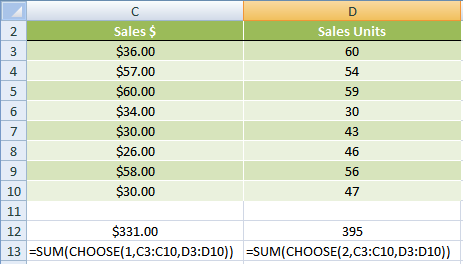 |
Effectively these formulas are performing a simple SUM of each column, and in reality you wouldn’t use CHOOSE for this type of calculation. But use your imagination and you’ll soon see the power of the CHOOSE function.
2. Use CHOOSE instead of an IF or VLOOKUP
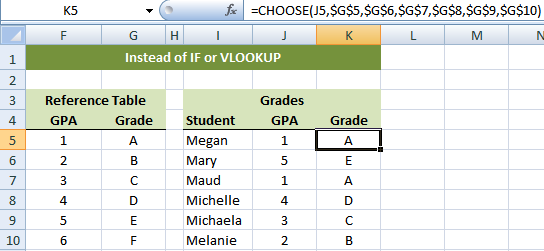 |
Using the table above our CHOOSE formula in cell K5 is:
=CHOOSE(J5,G5,G6,G7,G8,G9,G10)
Or, if you’d used a VLOOKUP your formula would have been:
=VLOOKUP(J5, F$5$:G$10$,2)
Or, if you’d used a nested IF statement your formula would have been:
=IF(J5=1,"A",IF(J5=2,"B",IF(J5=3,"C",IF(J5=4,"D",IF(J5=5,"E","")))))
3. For a cool trick take a look at my VLOOKUP to the left with CHOOSE example. All of a sudden you can make your VLOOKUP formulas look to the left!
Want more Excel Tips? Sign up for our newsletter below and receive weekly tips & tricks to your inbox, plus you'll get our 100 Excel Tips & Tricks e-book.
















 Excel MIN MAX SMALL and LARGE Functions
Rajesh Sinha
☺☺nice exercise,,.
M. Irshad Iqbal
Great……….
Charity
I was wondering if there is a way to use match with choose? I want someone to be able to choose the metric in which they are looking for, is there away to set that up?
Catalin Bombea
Hi Charity,
There is a way to set that up, upload a sample workbook with your data and the desired outcome, and i will show you the way. Use our Help Desk to upload the file.
Catalin
L. Galtier
I love excel. Teach me more.
Mynda Treacy
We’ll try our best, L. Galtier 🙂
Rick
How would you use this when referring to another worksheet within your workbook? I’m trying to lookup values from another sheet and usually you just put if as vlookup($A$2,SHEET!(etc…) to refer to the other sheet. But when you add in this CHOOSE function, it doesn’t work, and I don’t know how to format the formula properly to make it work. Could you help? Is it even possible?
Mynda Treacy
Hi Rick,
Using the example on my VLOOKUP with CHOOSE formula here, let’s say your lookup data is on Sheet2, your formula would look like this:
=VLOOKUP(DATE(2011,1,29),CHOOSE({1,2},'Sheet2'!$K$2:$K$207,'Sheet2'!$E$2:$E$207),2,0)I hope that helps.
Kind regards,
Mynda.
Ajay Jangral
Hi Minda.
Choose function is working fine with numeric values as index, and it returns the value as per the index value irrespective of the value taken after the index, I have tried the example given on the excel workbook provided.
eg::: Choose( numeric value(index), n number of items), It returns the value as per the index).
But I want to take text value in place of numeric value/index to get the corresponding value of a product or item which is in left hand side in another table B, which is also in text format. I am getting value error. Do let me know which function I can use.
Thanks & Regards
Ajay
Mynda Treacy
Hi Ajay,
Have you tried INDEX and MATCH?
You can use MATCH to find the text value and locate it in the INDEX range.
Let me know if you get stuck.
Kind regards,
Mynda.
Ajay Jangral
Hi Mynda.
I have go through the match & Index function, It solved my problem. Moreover, I am interested to learn more on offset function apart from the contents that you have provided. please provide some link or other source if u have.
Thanks & Regards.
Ajay
Mynda Treacy
Hi Ajay,
Thanks for your kind words. Glad I could help.
Here is an OFFSET tutorial that is very popular as I step through how it works in a visual way.
I hope that helps.
Kind regards,
Mynda.
3B
Very useful to me
Mynda Treacy
Glad to help, 3B 🙂
Tony
Your CHOOSE formula should use absolute refereces for the grade column so you can copy it down.
Mynda Treacy
Hi Tony,
Yes, it should. It is in the image I just didn’t type it in that way in the post. Good point.
Cheers,
Mynda.
Jason
Awesome site. Great, simple explanations.
Mynda Treacy
Cheers, Jason 🙂
KM007
Thank you very much for you kind explanation.
Mynda Treacy
You’re welcome KM007 🙂
Excel
Great Mynda! This was a clear explanation on the CHOOSE function! Thx.
Mynda Treacy
Thanks 🙂
sven
great
Nat
nice
Mynda Treacy
Thanks Nat 🙂