
So, you’ve analysed your data and plotted your chart but the axis labels are all skewey (technical term).
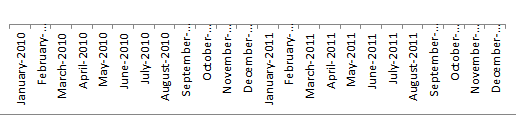
Let’s look at our options to make this better:
Chart Axis Alignment
We could use the alignment tools. Right-click axis > Format Axis > Alignment.
But before you waste time doing this there is a better way. Actually there are a few options.
First, you don’t want your audience having to turn their head to the side to read labels. If you’re plotting dates then you can:
Chart Axis Labels Option 1 - Abbreviate

This is fine if you’re only plotting one year, but if you want to plot more than that then you start to get the skewey effect again.
Chart Axis Labels Option 2 - Nested Axis Labels

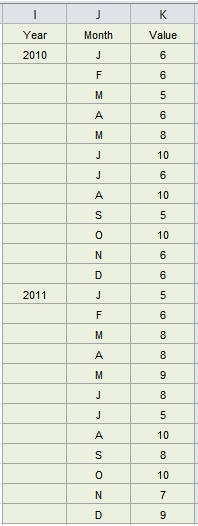
Now, doesn’t that look better? To create this effect you simply need to house your year labels in a separate column to your month labels, like this:
Excel is clever enough to know that the year and month columns are your axis labels and it automatically nests them for you.
Now, while this is fine for year and month labels that are easily interpreted in an abbreviated form, what if you’ve got labels like products or regions that need the full label displayed? Read on for the solution.
Chart Axis Labels Option 3 - Bar Charts
The best solution is to use a bar chart which plots the columns horizontally like this:
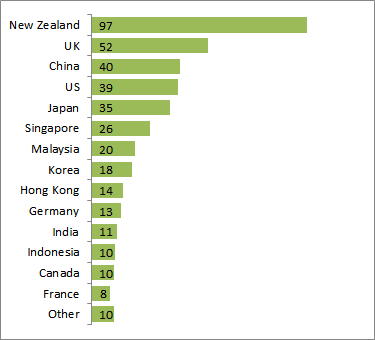
Note: The Bar Chart is only available in Excel 2007 and Excel 2010.
‘But I’ve got Excel 2003’ you say!
If you’re unfortunate enough to still have Excel 2003 then you can insert a column chart and use Excel’s Camera tool to take an image of your chart, and then use the handles to turn it on its side.
There are limitations to the Camera Tool though. You can read more about it in my Excel Camera Tool Tutorial.
Another alternative is In-cell charts, but that’s a lesson for another day.
Enter your email address below to download the sample workbook.
If you’d like to learn more cool chart tricks keep an eye out for my upcoming Dashboard Training Course.
If you liked this be sure to click the Facebook button below, or Tweet it to share the knowledge.



 Excel Chart Secondary Axis
Sean
Hi Mynda
I tried the above using Excel 2010 and for some reason my horizontal axis labels only bring back the month and not the year. My data source is looking at both month and year. Can you please help?
Thanks
Sean
Mynda Treacy
Hi Sean,
First check you have acutally referenced both the month and year columns in your axis source, then check the chart area is big enough to display the whole axis. Sometimes it’s just a case of making the chart bigger. If either of those options doesn’t solve it then please send the file to me via the Help Desk.
Kind regards,
Mynda
Tammy Beedie
It would not allow me to download the workbook. Could you tell me why?
Mynda Treacy
Hi Tammy,
Please right-click > Save Link As (or equivalent for your browser) > make sure the file extension is .xlsx
Once downloaded navigate to the folder you saved the file in and open it like any other Excel file.
I hope that helps but please let us know if you’re still having problems.
Mynda
Kazoo Kate
I HAD Excel 2003, where I successfully had THREE levels of nested x-axis labels for a column chart. Now, in Excel 2010, only the first level shows!! I cannot find any solution on the web. Do you have one??
Mynda Treacy
Hi Kazoo,
The process is the same as the 2 level axis above (see Option 2), except you add a third column to your axis label data.
I hope that helps.
Kind regards,
Mynda.
Doug
The “Download the workbook and copy these tricks” link downloads a .zip file with bunch of XML files andno instructions on how to use them to get the sample workbook.
Mynda Treacy
Hi Doug,
The workbook is not zipped. It’s a .xlsx file. If you hover your mouse over the link you can see the file name ends in a .xlsx extension (usually in the bottom right or left of your browser window).
Some browsers assume files are zipped and change the file extension when you try to download them. Just make sure the file extension is a .xlsx file when you download it. You can simply type over the .zip extension with .xlsx to fix the problem while in the ‘file save as’ or similar dialog box.
I hope that makes sense. Let me know if not.
Kind regards,
Mynda.