
Let’s say that a baby learning to crawl is an analogy for learning the AVERAGE function in Excel.
Then learning the AVERAGEIF function is like learning to walk, and learning the AVERAGEIFS function is like learning to run.
So, lace up your shoes and get ready to run 🙂
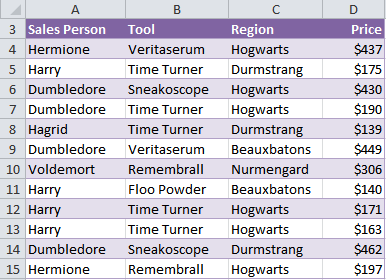
We’ll be using the table below in this tutorial. Inspired by my 5 year olds current obsession with the first Harry Potter movie.
Baby steps first:
Excel AVERAGE Function
=AVERAGE(your_data_range)
=AVERAGE(D4:D15)
=$271.58
As you can see, the Average function is fairly straight forward in that it simply averages a range of cells.
But there are some things you should know about how it works:
If one of the cells is blank it doesn’t include it in the number to average.
For example, there are 12 cells in our range D4:D15. So the AVERAGE function is actually summing the range of cells ($3,259), and then dividing them by 12 to get an average of $271.58.
But if cell D5 was blank it would sum the range of cells (and get $3,084) and divide them by 11 to get $280.36.
On the other hand, if cell D5 contained a zero it would still divide the sum by 12.
Excel AVERAGEIF Function
What if we wanted to get the average sales if the salesperson was Hermione?
That’s where the AVERAGEIF function comes into play. It allows you to average data in one range of cells where the data in another range matches a certain criteria.
The AVERAGEIF syntax is a bit different:
=AVERAGEIF(range, criteria, [average_range])
Where 'range' is the range containing your criteria, and [average_range] is the range of cells containing the values you want to average.
Let’s use the data below to find the average sales for Hermione.
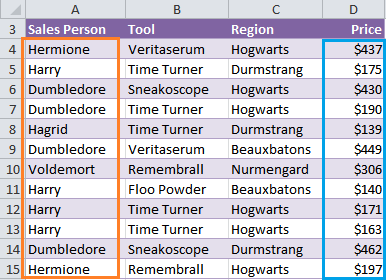
Our formula would be:
=AVERAGEIF(A4:A15,”Hermione”,D4:D15)
=$317
In English;
=AVERAGE(referring to the range A4:A15, find Hermione, and average the values in the range D4:D15)
Note: the ranges of data must be the same size. In this example both refer to rows 4 to 15.
However, it wouldn’t work if one referred to rows 4 to 10 and the other referred to rows 4 to 15.
The limitation of the AVERAGEIF function is that you can only use one criterion.
AVERAGEIFS Function Syntax
Whereas if you wanted to find the AVERAGE sales by 'Harry' of the product 'Time Turner' in the 'Hogwarts' region you’d need to use the AVERAGEIFS function.
=AVERAGEIFS(average_range, criteria_range1, criteria1, criteria_range2, criteria2,…)
Using our example data again our AVERAGEIFS function would be:
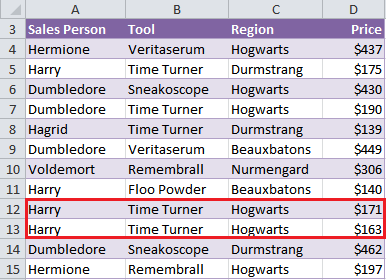
=AVERAGEIFS(D4:D15,A4:A15,"Harry",B4:B15, "Time Turner",C4:C15,"Hogwarts")
=$167
Two rows match our criteria:
Download the Workbook
Enter your email address below to download the sample workbook.
Enhancement 1: Named Ranges
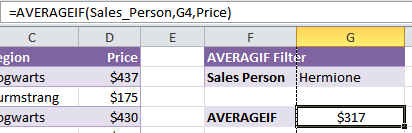
Notice in the formula bar how the first and last arguments of the syntax is ‘Sales_Person’ and ‘Price’ rather than a the cell ranges A4:A15 for Sales_Person and D4:D15 for Price?
This is called a named range and they make building your formulas quick and also easy to interpret later on.
Enhancement 2: Data Validation
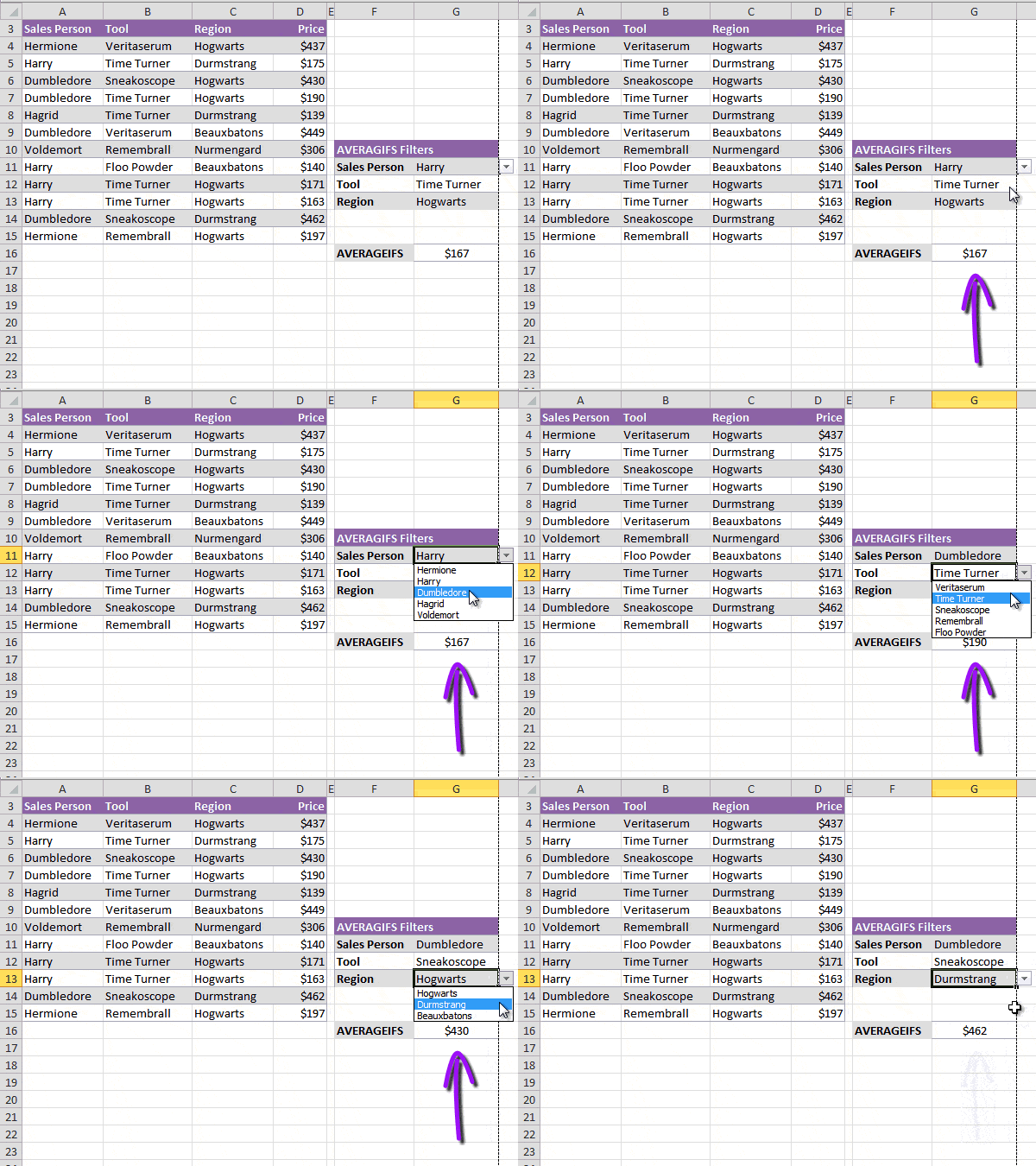
In the AVERAGEIFS function I’ve also used named ranges. Plus I’ve used a data validation list or drop down list as they're sometimes known as seen in action in the animation above.
The formula in cell G16 is:
=AVERAGEIFS(Price,Sales_Person,G11,Tool,G12,Region,G13)
This allows me to choose the criteria from the data validation lists in cells G11, G12 and G13 and the AVERAGEIFS formula will dynamically update to show the results for the new criteria.
Want to learn more tricks like this?
It’s techniques like this that I teach in my dashboard course to create reports that are interactive for the report recipient.
These features make your colleagues love you, because when you give them reports like this they are in control of getting the information they need quickly and easily.
And they save you time because you don’t have to create myriad of reports to cover every scenario.
It’s a win, win.
Click here to learn more about Excel Dashboard reports and how you can build interactive features into them.












 ROUNDUP and ROUNDDOWN with a Twist

Roy
I don’t understand why the Averageifs function wont recognise locked cell references ($).
It always ignores the $ command and adjusts the cell references if a row is inserted.
Any suggestions?
Mynda Treacy
Hi Roy, this is normal behaviour for all functions except the INDIRECT function. Mynda
AA Munsur
Average salary for 40% employee receiving the highest salary. Please ONLY includes employees with full attendance. Total Working Day is 26.
Present Day Gross Salary
25 7,862
26 7,855
22 7,838
26 7,838
26 7,799
26 7,652
26 7,531
19 7,838
26 7,236
26 7,210
26 6,966
25 7,799
22 6,747
26 6,554
26 6,507
22 6,500
26 6,230
26 6,800
26 5,510
24 5,731
Philip Treacy
Hi,
I’m not clear about what you are asking.
What does ‘Average salary for 40% employee receiving the highest salary’ mean?
You only want to include salaries where the value of Present Day is 26?
Regards
Phil
Gigin Babu
Hi,
Please find the data range
Type Need to Average
1221a1e 582
1221a1e 582
1221a1e 582
1221a1e 582
1221a1e 582
1221a1e 582
1221a1e 582
1221a1le 667
1221a1le 667
1221a1le 667
1221a1le 667
1221a1le 667
1221a1le 667
1221a1le 667
1221a1lw 667
1221a1w 582
1221a2e 750
1221a2e 750
1221a2e 750
1221a2e 750
1221a2e 750
1221a2e 750
1221a2e 750
I would like to average the type with a criteria matching 1221a1, regardless of whether it ends with ‘e’ or ‘le’ or ‘w’
Is it possible to do that with AverageIFs
Thank you
Mynda Treacy
Hi Gingin,
I recommend you split the ‘e’, ‘le’ etc. from the type so you can average them as you wish. I would then use a PivotTable to do the average.
Mynda
ryan
Hi, so i have a similar sheet i use to find tha average sale price for homes in my city, I use averageif to determine the average selling price for certain homes depending if they meet certain criteria. It works fine for me except for if I want to leave a criteria like “Community” blank. How do I change it so that I can leave a field blank?
Catalin Bombea
Hi Ryan,
You can set a blank criteria using a check with IF function, to see if the criteria is blank. When the criteria is not blank, use the criteria cell, otherwise use a criteria that will allow any value, it will not filter the range:
IF(LEN(H14)>0,H14,"<>""")You can try this:
=AVERAGEIFS(Price,Sales_Person,H11,Tool,H12, Region,H13,Community,IF(LEN(H14)>0,H14,"<>"""))Cheers,
Catalin
Renee Arnold
Hi Catalin,
I have somewhat of a similar dilemma to Ryan, except that if a cell is blank, I need to average the numbers above it with a number on another sheet. This is for 12 values at 7am, 12 values at 8am, etc. Seems like it would require multiple IF statements? Thanks, Renee
Catalin Bombea
Hi Renee,
Hard to imagine your data structure to provide a functional formula. You have to use our forum to upload a sample file with your data structure, and some examples of the expected results. (create a new topic after sign-in)
Debbie
Hi Mynda, I can’t get the AVERAGEIF function to work right for me. I’ve been practicing and it’s the exact some table as yours above, but it keeps giving me (#div or #ref). What I’m I doing wrong?
Catalin Bombea
Hi Debbie,
You have to show us a file with your results and formulas, there is no way we can guess what you have there. You can open a new ticket on our Help Desk to upload a file.
Thanks for understanding,
Catalin
Subramanian
Can AVERAGEIF() FUNCTION WORK ACROSS SHEETS IN A WORKBOOK.
For Example
I want to find average of cell B2 across Sheet1 to Sheet5 whenever cell A1 across Sheet1 to Sheet5 > 0.
=AVERAGEIF(‘Sheet2:Sheet5′!A1,”>0″,’Sheet2:Sheet5’!B1)
When I try this results in “#VALUE!”. Please Help.
Mynda Treacy
Hi Subramanian,
AVERAGEIF doesn’t work on 3D ranges. You need to do something like this:
List your worksheets names in cells D1:D1.
=AVERAGE(IF(N(INDIRECT("'"&D1:D5&"'!B2"))<>0,N(INDIRECT("'"&D1:D5&"'!B2"))))This is an array formula so you need to enter it with CTRL+SHIFT+ENTER.
Kind regards,
Mynda.
Vicky Singh
Hi,
Could you please explain how to calculate the conditional average with data validation drop down at Sheet 6 and data is spreading into 5 multiple sheets on fixed range in all sheets.
Regards,
Vicky
Carlo Estopia
Hi Vicky,
THE FORMULA:
=AVERAGEIFS(INDIRECT("'"&SheetNames&"'!D4:D15"),INDIRECT("'"&SheetNames&"'!A4:A15"),G11,INDIRECT("'"&SheetNames&"'!B4:B15"),G12,INDIRECT("'"&SheetNames&"'!C4:C15"),G13)I have improvised the Average_IFS sheet in the downloadable workbook in this post.
Please follow carefully this structure. I have only used three sheets to simplify it.
Open a new Workbook and copy&paste the table of this post’s downloaded workbook in range A3:D15 as is
Sheet No. 1: “Vicky”
Copy also the criteria at F10:G15, as is.
This time just disregard the range names used in the workbooK:Sales_Person, Price,
Tool and Region. If you’re prompted by a pop up question just click Yes to everything.
We will now use INDIRECT FUNCTION for our Dynamic Sheets.
Add a Named Range: SheetNames.
In my case, I just listed it at L1:L3. You may expand it to 5 or even more if you like.
This will produce the dynamic sheet references.
SheetOne and SheetTwo still contains the same table in the same ranges.
Again, You may expand this example to as many sheets as you like; provided,
you must place the table in the same range A3:D15 for each sheet.
Don’t copy the criteria/filters anymore.
Read More: Named Range, INDIRECT Function
Cheers.
Carlo Estopia
Ashish Doshi
Hi,
Excellent example with data validation in enhancement 2, quick question, what happens if you want to leave tool dropdown blank and calculate average for sales person with region only? How would blank criteria will be treated? Thanks.
AD
Mynda Treacy
Hi Ashish,
The criteria in an AVERAGEIFS function is consider AND, therefore if any of the criteria in the data validation were blank the formula would return a #DIV! error, since there are no blanks in the data.
You would have to remove the ‘tool’ criteria from the formula to fix it.
Kind regards,
Mynda.
Ashish Doshi
Thank you, that helps.