
Before the introduction of the IFERROR function in Excel 2007, if you wanted to hide errors displayed by some formulas you had to employ a combination of IF and the ISNA functions, which resulted in Excel having to do the calculation twice. Once to establish whether the result was an error, and again if the result wasn't an error.
In big spreadsheets this meant significant perfomance issues. Thankfully Excel 2007 introduced the IFERROR formula which puts an end to these messy workarounds.
It can be used as a ‘wrapper’ to hide many different errors; #DIV/0!, #NAME?, #NULL!, #NUM!, #REF!, #VALUE!, and one of the most common being VLOOKUP’s #N/A error.
In this tutorial we’re going to look at using it to solve VLOOKUP's #N/A error.
We’ll cover why we might want Excel to hide this error, and how we can tell Excel to display something more elegant in its place.
Let’s recap VLOOKUP formulas:
Exact Match VLOOKUP:
VLOOKUP(find this value, in that table, return the value in column x of the table, but only return a result if you can match the value exactly)
Sorted List VLOOKUP:
VLOOKUP(find this value, in that table, return the value in column x of the table)
Excel will return a #N/A error if it can’t find the value it’s looking for in the table.
Problems with #N/A
1) In some situations you are anticipating errors that you don’t need to correct. However, a spreadsheet littered with #N/A’s can be unsightly when you’re presenting the data in a report format.
2) #N/A’s present in any cell of a row or column will prevent you adding it up. The result of a SUM on a row or column with #N/A’s will be #N/A. That’s a show stopper right there.
3) #N/A’s are not very informative. Something like ‘Not Found’ or ‘Missing’, or ‘0’ would be more helpful.
4) Just like you can’t add up a column containing cells with #N/A’s, you can’t apply any other formulas to them either. It would be more helpful for Excel to enter a 0 (zero) which won’t break any dependant formulas (well, unless of course you’re dividing by 0).
IFERROR Gets Rid of #N/A
By wrapping your VLOOKUP in an IFERROR function you can tell Excel to hide the error, or put something else (text, a number, or nothing) in its place.
Taking our VLOOKUP example above, and wrapping it in IFERROR, in English our new formula would read:
=IFERROR(VLOOKUP(find this value, in that table, return the value in column x of the table, but only return a result if you can match the value exactly), if you can’t find it put the word 'Missing' in the cell)
When we enter our formula in Excel, and apply it to the example we used for our VLOOKUP Exact Match example it would look like this:
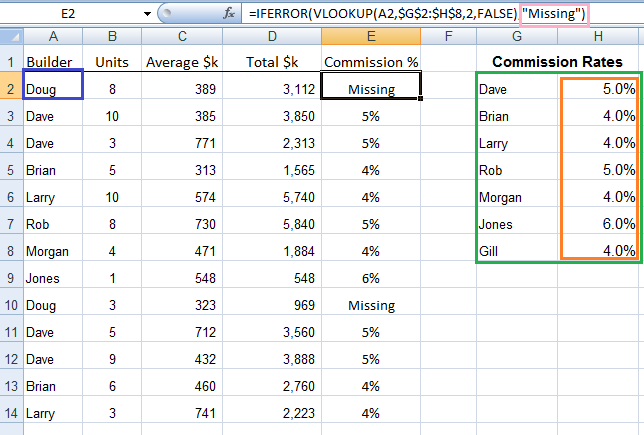
=IFERROR(VLOOKUP(A2,$G$2:$H$8,2,FALSE),"Missing")
You can see in the spreadsheet below that ‘Doug’ is no longer in our Commission Rates table and the IFERROR formula is telling Excel to put the word ‘Missing’ in the cell.
 |
If we wanted Excel to put a number, say 0 in the cell instead of a word our formula would look like this.
=IFERROR(VLOOKUP(A2,$G$2:$H$8,2,FALSE),0)
You’ll notice the 0 doesn’t have double quotes " " surrounding it like the text 'Missing' did. The rule is if you want Excel to enter text you need to surround it in double quotes, but for numbers you just enter them without the double quotes.
To enter nothing, it would read:
=IFERROR(VLOOKUP(A2,$G$2:$H$8,2,FALSE),"")
To enter a dash – it would read:
=IFERROR(VLOOKUP(A2,$G$2:$H$8,2,FALSE),"-")
Other Uses
As I mentioned above, it can also hide #DIV/0!, #NAME?, #NULL!, #NUM!, #REF!, and #VALUE!
The other most common error is #DIV/0!
Say we had a calculation that was =10/0 the result would be #DIV/0!. To hide this we can wrap our formula in the IFERROR like this:
=IFERROR(10/0,"Error")
and instead of Excel displaying #DIV/0! it would display ‘Error’
Or if we wanted it to display 0 we’d enter it like this:
=IFERROR(10/0,0)
One last thing - Cell Error Print Options
What if you want to keep the errors in the spreadsheet and only hide them when printing? Sometimes it's useful to know where the errors are so you can correct any that are not expected, but if you regularly print reports you probably don't want the errors displayed.
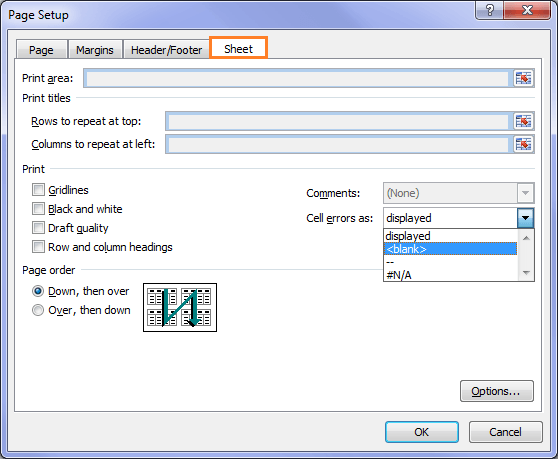
There's a simple print setting that will allow you to define how errors are displayed when printing. You can choose to either enter a -- in the place of any errors, or leave the cell blank.
In the Page Setup on the Sheet tab choose how you want cell errors displayed from the drop down list.
 |
Enter your email address below to download the sample workbook.
Check out our other Excel Formula tutorials here, or for our Free Microsoft Office Online Training video tutorials click here to get over 10 hours of Excel, Word and Outlook training.
















 Excel Absolute References $ – The Missing Link

RAMEZ ATTAR
Thats really helpful Thanks Mynda,
Mynda Treacy
Glad I could help!
G.Rajagopalan
Dear mam
Where I could find, how to use superscript, subscript, degree sign etc. If it is in in few lines you can mention in replying my email ID.
Thanks & regards
Rajagopalan
Catalin Bombea
Hi,
Right click the cell>Format Cells. Superscript and subscript are in the Font tab.
Degree sign and other symbols are in excel ribbon>Insert>Symbol.
Cheers,
Catalin
Kate Lock
Hi – I have created my summary table which is linked to many pivot tables already using many formulas however I did not add the IFERROR formula as I went and now I want to apply it to every active formula in the workbook. Is there anyway I can do this is bulk ? I have started doing it manually but it is taking forever.
Thanks Kate
Mynda Treacy
Hi Kate,
If you have formulas that are consistent then you could try using Find & Replace to replace all like formulas in one go. Otherwise I don’t have any ideas, sorry.
Mynda
terry redmond
Hi
the down file doesn’t work it seems to be corrupted. are you able to resend please
terry
Mynda Treacy
Hi Terry,
You need to right-click the download link and then choose ‘save as’ (or equivalent for your browser). Let me know if you still have problems.
Kind regards,
Mynda
Govind
Hi Mynda,
I am following your sight for quite long time. It is the most useful.
Thanks
Govind
Mynda Treacy
Thanks, Govind 🙂 I’m glad you’re enjoying it.
Raj
Hi Mynda,
“Download the Excel workbook used in this example” link does not work, please repair.
Raj
Philip Treacy
Hi Raj,
I suspect that your browser isn’t downloading it correctly as the file is ok.
Please right-click the link and save the file to your hard drive. Make sure the file extension is .xlsx or the file will not open.
Regards
Phil
Michael Stone
You’re Amazing! Thanks!
Mynda Treacy
🙂 Thanks, Michael!
rupesh patil
IFERROR take only one argument, how could you pass two argument to this function.
Mynda Treacy
Hi Rupesh,
You can’t pass two arguments to IFERROR. Perhaps instead what you need is an IF(ISERROR(your formula),your alternate result,your formula)
If you get stuck let me know.
Kind regards,
Mynda.
Ajay Jangral
hi Minda.
Nicely explained, easy to understand. Looking forward to learn the detail list of error as mentioned.. #DIV/0!, #NAME?, #NULL!, #NUM!, #REF!, #VALUE!, along with example. Kindly provide the link.
Thanks & Regards.
Ajay
Mynda Treacy
Thanks, Ajay.
Here is a list of cell errors and the reasons for them.
I hope that helps.
Kind regards,
Mynda.
Ajay Jangral
Thanks a lot. Really helpful..
Thanks & Regards.
Ajay
Philip Treacy
You’re welcome
Martin
Thank you so much for your easy to follow explanation, my spread sheets can now be read.
Mynda Treacy
You’re welcome, Martin 🙂
Mark K
C1 =IFERROR(VLOOKUP(P617,AZ1:BE20000,5,FALSE),”-“)
E1 =IF(C1=D1,”$”,”xxx”)
I did get the “#N/A” replaced with “-” and it looks a lot better on a cluttered spreadsheet, but E1 =IF(C1=D1,”$”,”xxx”) shows “##” if there is no information found in C1, now shows $ , I also would like to replace the ## with a dash, can you help?
Mark
Mynda Treacy
Hi Mark,
If it shows ## it’s telling you the column is too narrow to display the contents of the cell.
To return a – (dash) instead of ## change the formula to this:
You probably won’t need to widen the column since if it displays the $ sign it’s likely to display the -. But if you are still getting ## then you’ll need to make the column wider.
I hope that helps. If you’re still stuck please send me the Excel file so I can see what you’re working with.
Kind regards,
Mynda.
I hope that helps.
Daniel
I put in the following and it still comes back with 0. I am trying to get it to return nothing.
=IFERROR(VLOOKUP(C13,Sheet1!A2:P375,9,FALSE),””)
Mynda Treacy
Hi Daniel,
If it returned 0 then it must have found a match to C13 and in column 9 of your range Sheet2!A2:P375 there is blank or zero.
Kind regards,
Mynda.
Melanie B
I am having a similar issue. The cells I’m pointing to have formulas in them, but for now they have a blank display, and I need them to show as blank until the formula calculates a result. VLOOKUP gives me either 1/0/1900 for a date format, or 0 for text format since the cells are not empty, but don’t have a value displayed. How can I show them as blank?
Thanks,
Melanie
Melanie B
Let me clarify that using IFERROR with VLOOKUP gives me either 1/0/1900 for a date format, or 0 for text format
Thanks,
Melanie
Mynda Treacy
Hi Melanie,
Are you able to send me your file via the help desk? I can’t replicate the issue you’re having.
Kind regards,
Mynda.
Mynda Treacy
Hi Melaine,
As I suspected, your VLOOKUP formula isn’t erroring. It’s finding the lookup value (e.g. 13-005) and returning the result in column 15, which is empty.
Empty to Excel is 0. Zero formatted as a date is 0/1/1900 or in the US 1/0/1900.
If you want to hide the zeros from displaying you can use a custom number format:
d/mm/yyyy;;””
Or if you’re in the US:
mm/d/yyyy;;””
This will prevent zero dates from showing up but won’t break any other formulas that are dependant on that cell.
Kind regards,
Mynda.
Lonnie Coleman
I was running into a small problem when I was doing calculations at work. The problem was that if the AVERAGEIFS formula that I was using didn’t have any number to average I would get a #DIV/0! error. This was very annoying when I tried to copy and paste the tables into other documents. So I decided to dig around here to figure out what I can do to get rid of the error. I found this explanation of IFERROR and that was all she wrote. My amended formula is (Note: I use named ranges a lot):
=IFERROR(AVERAGEIFS(LightLevel,AreaBldgNum,$B2,ExistingFixtPreCode,$D2,LampCountWattage,$E2,Sub_AreaRoomName,$C2,ExistingControls,$L2),””)
One of my workbooks wanted to be difficult so I had to amend the above formula to:
=IF(AVERAGEIFS(LightLevel,AreaBldgNum,$B2,ExistingFixtPreCode,$D2,LampCountWattage,$E2,Sub_AreaRoomName,$C2,ExistingControls,$L2)=0,””,IFERROR(AVERAGEIFS(LightLevel,AreaBldgNum,$B2,ExistingFixtPreCode,$D2,LampCountWattage,$E2,Sub_AreaRoomName,$C2,ExistingControls,$L2),””))
I do want to say that I love this website. Thank you for the easy to understand explanations!
Mynda Treacy
Hi Lonnie,
Thanks for taking the time to leave a comment and share your experience.
Kind regards,
Mynda.
Waqar Ahmed Shaikh
Kudos for your blog.. 🙂
I figure out a problem through this post. Thanks alot for the great tips and tricks. Great Blog I must say.
Good for me I found your blog, Will be looking for help from now and on… Thanks 🙂
Carlo Estopia
Hi Waqar,
On behalf of Mynda our great mentor,
I say you’re very much welcome!
Cheers.
CarloE
Kelly
I had been trying to get something like this to work over the last day using many different functions and methods. Your function and explanation is what finally got me to what I needed. Wonderful function and great explanation. I love when people can clearly explain the “why” something works. You are an excellent teacher.
Thank you!
Carlo Estopia
Hi Kelly,
On behalf of Mynda and Philip, I say you’re welcome.
Cheers.
CarloE
Tom D
Thanks for this informative tip in your email today! I replaced several IF(ISERROR) functions with IFERROR since we are all on Excel 2010. IFERROR is much more straightforward to use!
Mynda Treacy
That it is, Tom. And quicker too since Excel isn’t crunching the numbers twice as it does with IF(ISERROR or IF(ISNA
Kind regards,
Mynda.
Intern
Thank you! Your site has helped explain Microsoft Excel formulas in a way that are easy to understand and implement. Great site!
Mynda Treacy
🙂 Thanks.
Dave Teske
When I went to download the worksheet from the ‘IFERROR’ tutorial, I ended up with a zipped file, which had a lot of things in it, but no spreadsheets, that I could make out..
Mynda Treacy
Hi Dave,
The file isn’t a .zip. Your browser is changing the file extension upon saving. If you hover your mouse over the link you can see the file path and extension in the bottom right or left of your browser window. It is a .xlsx file.
Please download it again and at the ‘file save as’ screen (or equivalent for your browser) type over .zip with .xlsx before saving.
You can then open in Excel as you normally would.
Kind regards,
Mynda.
John Johnson
Hi Mynda:
Like all the other informative emails in the course, this one is fantastic.
It explains the iferror in a lot more detail than anywhere else.
Keep up the good work!!!!
John J
Mynda Treacy
Thanks John, I appreciate your feedback 🙂
John
Hi Myndi,
Just happen to open your mail. The file does not download in Excel format. Some gibberish figures appear upon pressing the download hyperlink. Surprise to note that other readers have not noted this. Please check the file and advise.
Mynda Treacy
Hi John,
The file is a .xlsx file. I suspect your browser has changed the file extension to a .zip file (Internet Explorer does this).
You need to download the file again and make sure the file extension is .xlsx at the ‘save as’ window, or equivalent window depending on your browser.
You can then open it as an Excel file as normal.
Kind regards,
Mynda.
vignesh Garde
Hi..
Actually I expect a lot from tis site. But somewhat more or less fine,this(free training) is good n easy for who r all known person of excel, but in case of fresh candidate means tough bcos most of major portion r covered under premium plan.People ‘ll suffer who r unable to pay. I’m not asking full course fr free. Atleast 40% of course in all chapters from basic.
sorry don’t think i’m critising.This is from another side of people who r like me.
thanks & Regards
Viki
Mynda Treacy
Hi Viki,
Thanks for your feedback. You will find a load of free written tutorials on Excel on the blog and an index here.
I hope that helps you out.
Kind regards,
Mynda.
Raghu
Hi Mynda, No doubt this function is the most used one by me. Thanks to Mynda, you only had helped me out to upgrade to this, a few months back. I use this function almost every day.
Further on the “Iferror” function – It returns the value if there is a exact match, otherwise, we can get – 0 ,Blank, “Missing” , or “Error”
But, on exact match,what , if we do not want the same value, but some thing else like – “match”, “OK”.
Earlier, when i used If(iserror((Vlookup………, i could get it.
Please advise if it is still possible with “iferror” function also
Thanks & regards
Raghu
Mynda Treacy
Hi Raghu,
You wouldn’t use the IFERROR you’d just use IF. For example:
=IF(VLOOKUP(A1,$D$1:$D$14,1,FALSE)=A1,”Match”,”No Match”)
Kind regards,
Mynda.
Raghu
is it as simple as that!!! i couldn’t think of this logic. thanks once again
Todon Du
Want to better use Excel
New York 华人
“Thank you for the wise critique. Me & my neighbour were preparing to do some research about that. We got a great book on that matter from our local library and most books where not as influensive as your data. I am extremely glad to see such facts which I was searching for a long time.This created really glad! Anyway, in my language, you will find not much excellent supply like this.”
Miato
Todo dinбmica y muy positiva! 🙂
Miato
Bronwyn
yes the introduction of this function has been very useful. part of using Excel is increasingly like being a programmer where this kind of function is common place