
Excel Database functions have been around for donkey's years so it's surprising that not many people know about them. They work great with tabular data and Excel Tables. And they're easier to use and more powerful than the newer, more popular equivalent functions like SUMIFS, COUNTIFS etc.
Watch the Video

Download the Workbook
Enter your email address below to download the sample workbook.
Excel Database Functions
There is a database function for nearly every aggregation type, from average through to variance, as listed below. They're an alternative to SUMIFS, AVERAGEIFS, MINIFS etc. except more powerful.
| Function | Description |
| DAVERAGE function | Returns the average of selected database entries |
| DCOUNT function | Counts the cells that contain numbers in a database |
| DCOUNTA function | Counts nonblank cells in a database |
| DGET function | Extracts from a database a single record that matches the specified criteria |
| DMAX function | Returns the maximum value from selected database entries |
| DMIN function | Returns the minimum value from selected database entries |
| DPRODUCT function | Multiplies the values in a particular field of records that match the criteria in a database |
| DSTDEV function | Estimates the standard deviation based on a sample of selected database entries |
| DSTDEVP function | Calculates the standard deviation based on the entire population of selected database entries |
| DSUM function | Adds the numbers in the field column of records in the database that match the criteria |
| DVAR function | Estimates variance based on a sample from selected database entries |
| DVARP function | Calculates variance based on the entire population of selected database entries |
Database Function Example 1 - Multiple AND Criteria
Taking the data table below, let’s say I wanted to SUM all Level 1 invoices for the period January – March 2021.
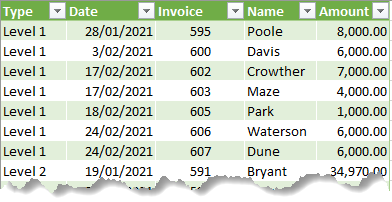
The first thing I need to do is set up a table that will hold my criteria (this can go on any worksheet in your workbook), like this:
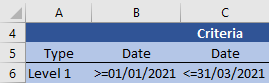
Note: my dates are dd/mm/yyyy. Please change the dates in the criteria table to suit your Excel region settings.
Then in another cell I type my database function for SUM, which is DSUM:
=DSUM(DataTable[#All],"Amount",$A$5:$C$6)
Result = $38,000 which represents the sum of the amount column in my table for Level 1 for the period January to March 2021.
How DSUM Works
DSUM syntax
=DSUM(database, field, criteria)
My DSUM formula:
=DSUM(DataTable[#All],"Amount",$A$5:$C$6)
database
= DataTable[#All]. This is a Table Structured Reference for my tabular data set including the column labels, hence [#ALL] in the reference. Alternatively I could type in the cell range A9:E75 (including column labels).field
= "Amount". This is the name of the column I want to sum. This could also be the column number of the data table, in this example, 5.criteria
= $A$5:$C$6. This is the range of my criteria table
- The column labels (used in the 'field') in my criteria are the same as the column labels in my tabular data set. You must do this for the Database functions to work.
- I’ve got two columns for the Date so that I can specify a range. If you wanted to only SUM one day then you would need only one column in your criteria table.
- I've not included criteria for the Name and Amount as I don’t want to filter on these columns. However, if you wanted to filter for a particular Name you would just type the name in cell D5 and DSUM would dynamically update.
Database Function Example 2 - Multiple AND OR Criteria
Ok, what if I wanted to SUM both Level 1 AND for dates between January AND March, OR for Level 2 for dates between January AND March?
Easy, add another line to your criteria table like this:
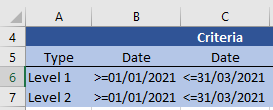
Remember to also update your DSUM formula to include the new row of criteria:
=DSUM(data_table,"Amount",$A$5:$C$7)
Result = $229,151 which is summing Level 1 and Level 2 amounts that are in the date range January – March 2021.
But wait, there’s more. Database functions aren’t limited to SUM. You can AVERAGE, COUNT, COUNTA, MAX, MIN and more.
They all use the same syntax, and they can all use the same criteria table.
=DCOUNT(data_table,"Amount",$A$5:$C$7)
– result 15
=DAVERAGE(data_table,"Amount",$A$5:$C$7)
– result $15,277
=DMAX(data_table,"Amount",$A$5:$C$7)
– result $34,970
=DMIN(data_table,"Amount",$A$5:$C$7)
– result $1000
You don’t even need to remember complicated acronyms for these functions. Just add a ‘D’ to the front of the function you want.
Database Function Example 3 - Multiple OR criteria, same field
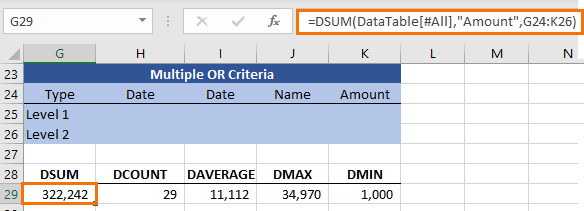
Database Function Example 4 - Multiple OR criteria, different field
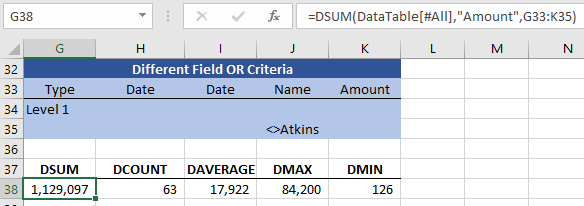
This criteria will aggregate all data which is level 1, including level 1 for Atkins (because the name field is blank on the first criteria row), plus all other levels except those that are for Atkins (because the Type field is blank on the second criteria row). Caution: it will double count Level 1 <> Atkins and this is probably not what you want.
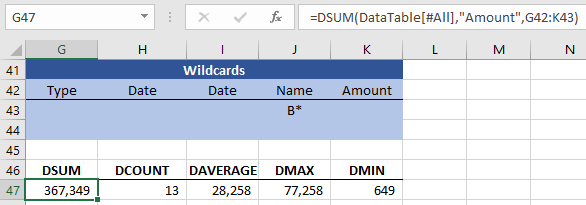
Database Function Example 5 - Wildcards
DGET Function #NUM! error
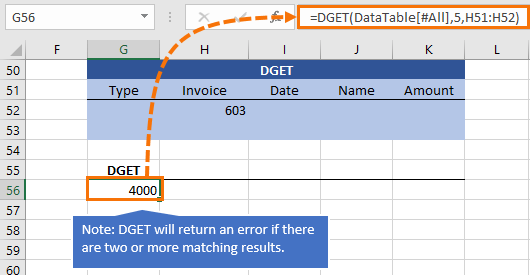
Unlike the other database functions which aggregate data, the DGET function only returns a single value. If your result returns more than one matching record you'll get the #NUM! error.
Excel Database Function Rules
- Your criteria table only needs columns for the data you want to filter on. So, if your tabular data set has hundreds of columns, don’t panic. You don’t need every column replicated again in your criteria table.
- You can add multiple criteria by adding them to a new row in your criteria table. Be careful to update your Database formula to incorporate new criteria and also be careful when you delete whole criteria rows. If your Database formula includes criteria rows that are blank then it will sum/average/count etc. the whole table. Essentially ignoring your criteria altogether.
- The criteria table can house formulas e.g. links to other cells, drop down lists and the like, so get creative with how you use them to incorporate interactivity into your reports.
- The Criteria table is not case sensitive, not for the column labels or the criteria itself.
- The ‘Field’ part of the formula can be the column name or the column number.
The Downside of Excel Database Functions
The obvious downside is that the Database Functions require a bit more worksheet real estate to house the criteria as opposed to an array formula and the like, but with over 1 million rows I think we can afford it.
I think the upsides, like the fact that you can see exactly what the criteria is in plain English and how easy they are to use far outweighs the downside.












 Excel Wildcards in your SUMIF, COUNTIF and VLOOKUP
Matt
This is really neat.
Is there a way to nest with sumproduct? It would be great if i could do it for all my expense categories on a P&L.
Thanks!
Matt
Mynda Treacy
Not sure why you’d need to nest it with SUMPRODUCT. Please post your question on our Excel forum where you can also upload a sample file and we can help you further.
imran
nice thanks’
Mynda Treacy
Glad you liked it, Imran!
irfan
Very nice
Mynda Treacy
Thanks, Irfan!
Javed
Good
Kamala
Hi,
Its really a useful tips. Just want to know if I want to multy two coloumns then what needs to be done
Thanks
Carlo Estopia
Hi Kamala,
I don’t think database functions are appropriate of multiplying two columns simply because DPRODUCT cannot accept two fields or more as arguments.
You can use 2 DGET FUNCTIONS though just to work it around but then if you have plenty of record that meets the criteria then you’ll also get
an error.
Please send your further clarifications via HelpDesk because I see that Database Functions is not what you really wanted here.
Sincerely,
CarloE
Bob
Hi Mynda,
Using the above table, how would I go about listing the entire table greater than 1000?
This way level 7 would not be included and the list would look something like
Level 1 $38,000
Level 2 $26,154
Level 3 $……..
Level 4 $……..
Level 5 $……..
Level 6 $…….
Level 8 $……..
Then to add some spice, if we had the same table on multiple sheets and wanted the list to SUM all the tables as above into the one list? Meaning the one list contained the results of the SUM of the different tables on multiple sheets.
Carlo Estopia
Hi Bob,
I would greatly appreciate if you would send a file through Help Desk containing all the data and a short explanation of your desired results.
I could think of using a Pivot Table right now but I need your file.
Sincerely,
CarloE
Jamil
Dear Mynda,
thanks for this. very useful. but the workbook you uploaded once i click on the sheet Database Functions G5 and press enter then the amount that was previously shown as result of DSUM formula disappears.
would appreciate your feedback on this issue.
thanks.
Jamil
Mynda Treacy
Hi Jamil,
I’m not sure why this would be happening. The only thing I can think of is that you haven’t clicked on the ‘enable workbook’ button above the formula bar when you first open the workbook.
Kind regards,
Mynda.
Mohamed Bakr
Hi Jamil,
I believe it’s been a while and you might have found your find your answer already. I’m just putting this here for anyone else trying to find the answer to the same question.
If your system or Excel dates are formatted as “mm/dd/yyyy” you need to change the date criteria in the cells I7, I16, and I17 to <=03/31/2021 instead of <=31/03/2021 to match your date formating.
This should take care of the problem.
Regards,
M.Bakr